Healthcare data is among the most sensitive data there is. Sending it to a cloud AI service is often not an option because of privacy requirements, regulatory compliance, or both.
In this tutorial, you’ll build a healthcare AI assistant that runs entirely on your own machine using three open-source tools:
MedGemma, Google’s open medical AI model for understanding medical text and images
Ollama, the easiest way to download and run AI models locally
Open WebUI, a ChatGPT-style web interface for interacting with local models
By the end, you’ll be able to chat with a medically tuned AI model, upload medical images such as chest X-rays for analysis, and do it all locally, without sending your data to the cloud.
Important disclaimer before we start: MedGemma is a developer model, not a medical device. Its outputs are not intended to directly inform clinical diagnosis, patient management, or treatment decisions.
Everything you build in this tutorial is for learning, prototyping, and research. Always consult qualified healthcare professionals for real medical questions.
This tutorial is ideal if you’re:
learning healthcare AI
building medical RAG systems
experimenting with radiology assistants
developing medical education tools
researching multimodal models
MedGemma is a collection of open models from Google, built on the Gemma 3 architecture and specifically trained for medical text and image comprehension. Think of it as Gemma after four years of medical school and a radiology residency.
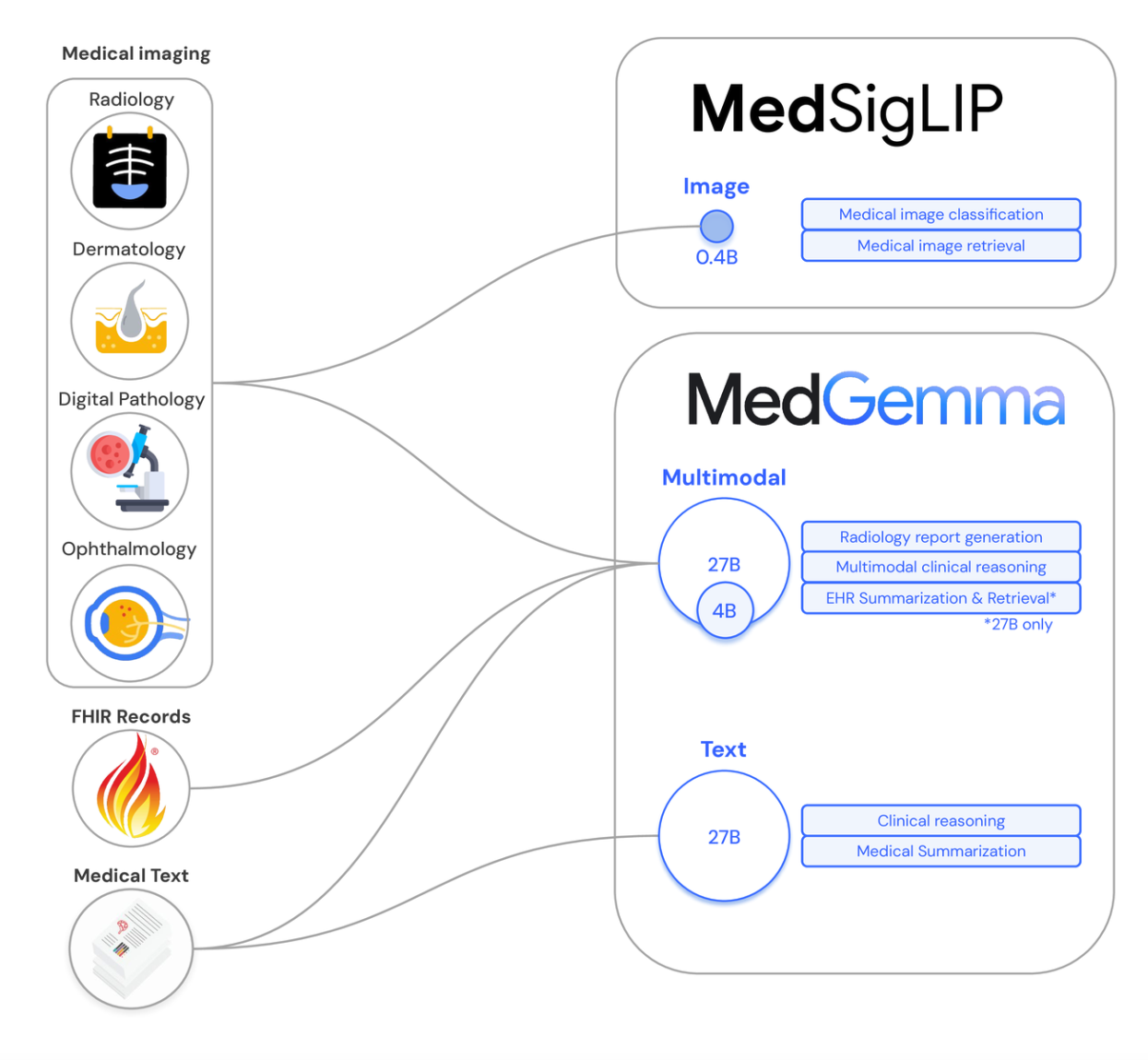
Unlike general-purpose models such as Llama or Mistral, MedGemma is designed specifically for healthcare applications.
Medical image understanding: Its multimodal models are trained on de-identified medical images, including chest X-rays, dermatology, ophthalmology, and pathology images.
Medical language expertise: It has been trained on medical literature and clinical question-answer datasets, enabling it to better understand medical terminology and radiology reports.
Multiple model sizes: MedGemma is available in 4B and 27B variants, both supporting text and image inputs with a 128K context window.
Open weights: You can download, run, fine-tune, and build applications with the model locally under the Health AI Developer Foundation's terms of use.
MedGemma is intended as a foundation model for developers building healthcare applications, medical education tools, research assistants, report summarizers, and other AI-powered medical workflows.
You could call a hosted medical model through an API. So why go local? In healthcare, the case is stronger than almost anywhere else.
First, there's the principle of privacy by architecture. When the model runs on your machine, medical text and images never leave your device. There's no API log, no third-party data processor, no data processing agreement to negotiate.
For anyone working near PHI (Protected Health Information), "the data never left the laptop" is the simplest compliance story that exists.
Next, you have zero per-token cost. Experimentation is free once the model is downloaded. You can iterate on prompts hundreds of times without watching a billing dashboard.
You also get offline access. Hospitals, labs, and field clinics often have restricted or air-gapped networks. A local model works without internet after the initial download.
And you have full control over the setup: you choose the model version, you pin it, and it never changes underneath you. No deprecation notices, no silent behavior changes.
Finally, it's a great way to learn. Running models locally demystifies them. You'll develop intuition for context windows, quantization, and memory constraints that you simply don't get from calling an API.
Here's what you need before starting:
Hardware:
8 GB RAM minimum (16 GB recommended) for the MedGemma 4B model. The download is about 3.3 GB.
32 GB RAM or a 24 GB+ GPU if you want to run the 27B model (a roughly 17 GB download).
Around 15 GB of free disk space to be comfortable (model + Docker images + working room).
Apple Silicon Macs (M1 through M4) are excellent for this. Ollama uses Metal acceleration automatically. On Windows and Linux, an NVIDIA GPU helps a lot but isn't required. A CPU-only inference works, just slower.
Software:
macOS, Linux, or Windows 10/11
Docker Desktop (for the recommended Open WebUI installation), or Python 3.11 if you prefer installing Open WebUI with pip
Basic comfort with the terminal
That's it. No API keys, no accounts, and no GPU cloud credits.
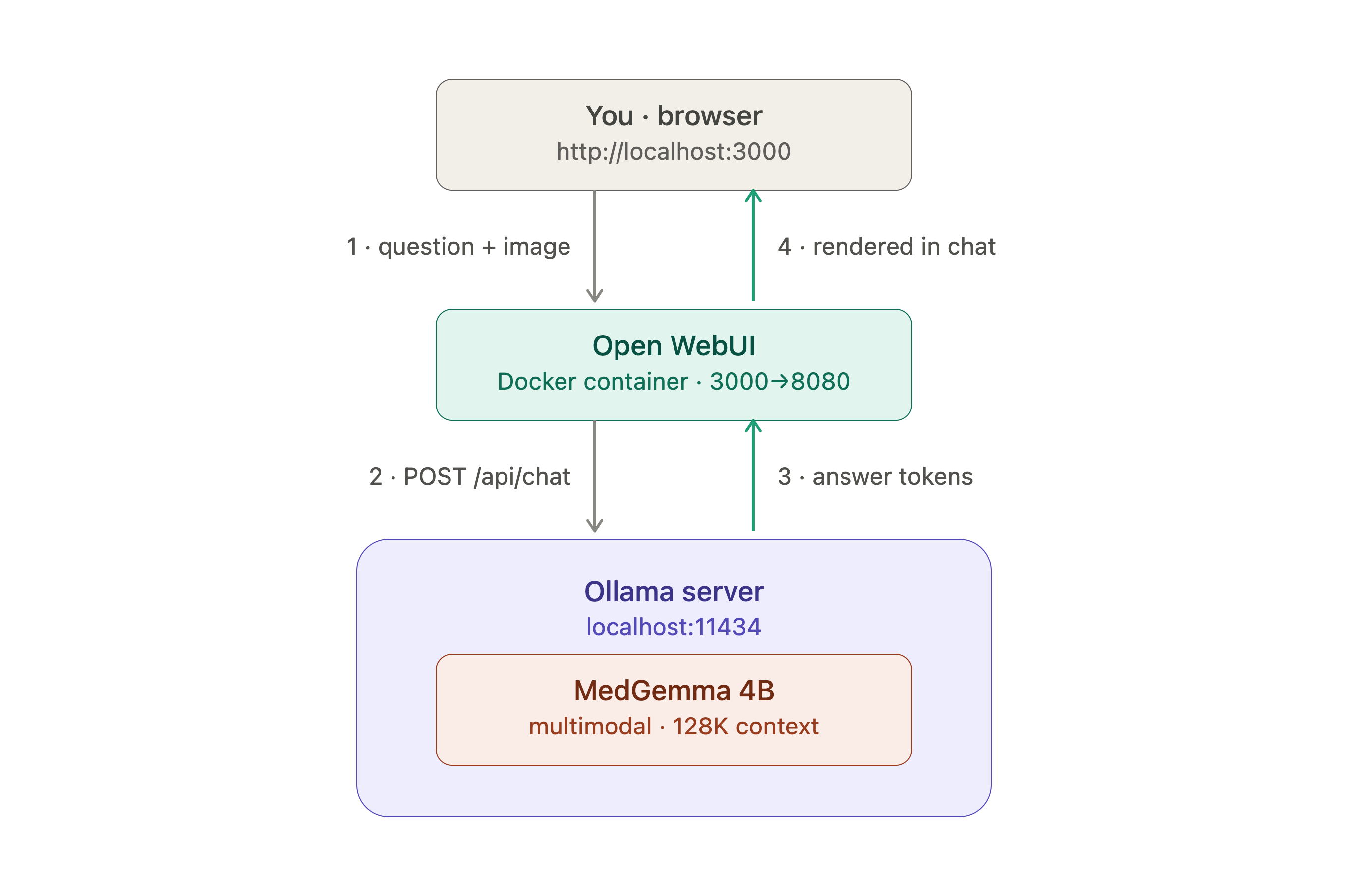
Ollama is a lightweight runtime that handles downloading, quantizing, and serving open models through a simple CLI and a local REST API.
On macOS:
Download the app from ollama.com/download and drag it to Applications, or install via Homebrew:
brew install ollama
On Linux:
curl -fsSL https://ollama.com/install.sh | sh
On Windows:
Download the native Windows installer from ollama.com/download and run it. (Ollama now supports Windows natively, no WSL required.)
Once installed, verify it works:
ollama --version
You should see a version number printed. Ollama also starts a background service that listens on http://localhost:11434. This is the API that Open WebUI will talk to later. You can confirm the server is up with:
curl http://localhost:11434
which should return Ollama is running.
MedGemma is available directly in the official Ollama model library, so downloading it is one command:
ollama pull medgemma
This pulls the default 4B multimodal variant, about a 3.3 GB download.
If you want to be explicit about the size (useful when you later experiment with the 27B model):
ollama pull medgemma:4b     # 3.3 GB — multimodal, runs on most laptops
ollama pull medgemma:27b    # 17 GB — multimodal, needs serious hardware
When the download finishes, confirm the model is installed:
ollama list
You should see medgemma in the output along with its size.
Before adding a UI, let's make sure the model actually works. Start an interactive session:
ollama run medgemma
You'll get a >>> prompt. Try a medical question:
>>> What are the classic radiographic signs of pneumonia on a chest X-ray?
MedGemma should respond with a structured answer covering findings like consolidation, air bronchograms, and silhouette signs — the kind of answer that shows its radiology training.
Try one more to see the clinical reasoning:
>>> Explain the difference between Type 1 and Type 2 diabetes to a first-year medical student.
A few useful commands inside the session:
/bye — exit the session
/clear — clear the conversation context
/show info — display model details (parameters, quantization, context length)
You can also test image input directly from the terminal by passing a file path directly in the prompt:
>>> Describe the key findings in this image. ./chest_xray_sample.png
While this works, uploading images through Open WebUI is much more convenient.
Open WebUI gives you a clean, ChatGPT-style interface on top of Ollama: conversation history, model switching, image uploads, and multi-user support, all self-hosted.
Start by installing Docker.
Make sure Docker Desktop is running, then launch Open WebUI with:
docker run -d -p 3000:8080 \
  --add-host=host.docker.internal:host-gateway \
  -v open-webui:/app/backend/data \
  --name open-webui \
  --restart always \
  ghcr.io/open-webui/open-webui:main
Let's break down what this command does:
-d runs the container in the background
-p 3000:8080 maps port 3000 on your machine to the WebUI's internal port 8080
--add-host=host.docker.internal:host-gateway lets the container reach the Ollama server running on your host machine
-v open-webui:/app/backend/data creates a Docker volume so your chats and settings survive container restarts
--restart always brings the UI back up automatically after reboots
If you'd rather skip Docker, you can instead install Open WebUI as a Python package (Python 3.11 is the supported version):
pip install open-webui
open-webui serve
This starts the interface at http://localhost:8080 instead of port 3000.
Open your browser and go to http://localhost:3000 (or :8080 if you used pip).
On first launch, you'll be asked to create an admin account. This account is stored locally on your machine (it's not a cloud signup).
In most setups, Open WebUI auto-detects Ollama at http://localhost:11434 and you're done.
If your models don't appear, wire up the connection manually:
Click your profile icon and go to Admin Panel then Settings then Connections.
Under Ollama API, set the URL:
Docker install: http://host.docker.internal:11434
pip install: http://localhost:11434
Click the refresh icon to verify the connection, then save.
Head back to the main chat screen, and medgemma should now appear in the model dropdown at the top.
You can check the troubleshooting section below if you face any errors.
Select medgemma from the model selector and start a conversation. A good first test might look like this:
Summarize this radiology report in plain language a patient could understand:

"Impression: Mild cardiomegaly. Small right pleural effusion.
No focal consolidation. Degenerative changes of the thoracic spine."
You should get a clear, patient-friendly explanation of each finding. This "clinical language to plain language" translation is one of MedGemma's genuine strengths.
There are a few Open WebUI features worth knowing about:
System prompts: Click the model name and set a system prompt like "You are a medical education assistant. Always explain your reasoning and cite the relevant physiology." This shapes every response in the conversation.
Conversation history: Every chat is saved locally and searchable from the sidebar.
Multiple models: You can add llama3.2, gemma3, or any other Ollama model and compare their answers to the same medical question side by side. This is a great way to see the difference domain training makes.
This is where MedGemma really separates itself from general-purpose models. Because its vision encoder was pre-trained on medical imaging, it can meaningfully describe radiographs, skin lesions, fundus photos, and histopathology patches.
To try it:
Start a new chat with medgemma selected.
Click the + (or image) icon in the message box, or simply drag and drop an image file.
Add a prompt alongside the image and hit send.
For sample images you can test with (without touching any real patient data), try public teaching datasets like the NIH ChestX-ray14 dataset, MedPix, or Radiopaedia's teaching cases.
Example workflow with a chest X-ray:
[Upload: chest_xray.png]

You are an expert radiology assistant. Describe this chest X-ray
systematically: technical quality, lungs, heart, mediastinum, bones,
and soft tissues. Then summarize the key findings.
MedGemma will typically walk through the image in the systematic order you asked for, which mirrors how radiologists are trained to read films.
Two important caveats:
Ollama and Open WebUI work with standard image formats (PNG, JPEG). Clinical DICOM files need to be converted to PNG/JPEG first — a one-liner with Python libraries like pydicom + Pillow.
Never upload images containing patient-identifying information (names, MRNs, dates burned into the image) unless the data has been properly de-identified. Even on a local machine, good data hygiene is a habit worth building.
Here are prompts that showcase different capabilities. Use them as starting points:
Medical education:
Create a comparison table of ACE inhibitors vs ARBs: mechanism, common examples, key side effects, and contraindications.
Clinical documentation:
Convert these shorthand clinic notes into a structured SOAP note:"45F, 3d cough + fever 101F, no SOB, lungs clear, likely viral URI, supportive care, return if worse"
Report translation for patients:
Explain this MRI impression to a worried patient in a reassuring but honest tone: "Small disc protrusion at L4-L5 without significant canal stenosis or nerve root compression."
Image analysis (with an uploaded dermatology photo):
Describe this skin lesion using the ABCDE criteria
(Asymmetry, Border, Color, Diameter, Evolution cannot be assessed from a single image — note that explicitly).
Differential reasoning:
A 60-year-old presents with sudden painless vision loss in one eye. List the top 5 differential diagnoses and the key distinguishing feature of each.
Notice a pattern: the best results come from prompts that give MedGemma a role, a structure to follow, and explicit constraints. That's true of all LLMs, but it matters even more in a domain where precision counts.
The 4B model is impressive for its size, but the 27B variant is noticeably stronger at complex clinical reasoning, longer differential diagnoses, and nuanced report interpretation.
The trade-off is hardware:
| Model | Download | Realistic RAM/VRAM needed | Best for |
|---|---|---|---|
medgemma:4b |
3.3 GB | 8 GB+ RAM | Laptops, quick iteration, image Q&A |
medgemma:27b |
17 GB | 32 GB RAM or 24 GB VRAM | Deep reasoning, complex cases |
To try the 27B model:
ollama pull medgemma:27b
ollama run medgemma:27b
Practical tips for larger models:
Watch your memory: Run ollama ps to see how much RAM/VRAM a loaded model is using and whether it's running on GPU, CPU, or split across both. A model that spills from GPU to CPU gets dramatically slower.
On Apple Silicon, a 32 GB M-series Mac runs the 27B model comfortably.
Free memory between models: Ollama keeps models loaded for a few minutes after use. Unload immediately with ollama stop medgemma:27b if you need the RAM back.
Sanity-check the speed trade-off: If the 27B model generates at 2–3 tokens per second on your machine, the 4B model at 30+ tokens/second may be the better.
You can keep both installed and switch between them in the Open WebUI dropdown — 4B for fast iteration, 27B when you need the deeper reasoning.
registry.ollama.ai/library/medgemma:latest does not support toolsThis is the most common MedGemma-specific error, and it means Open WebUI is sending native tool/function definitions with your request. MedGemma (like base Gemma 3) doesn't support Ollama's tools API, so the request is rejected before the model even sees your message.
Hunt down whatever is attaching tools, in this order:
Model capabilities (most likely culprit): Go to the Admin Panel, then Settings, then Models, then medgemma, then uncheck Builtin Tools, Web Search, Code Interpreter, and Terminal under Capabilities, and make sure every item in the Builtin Tools checklist is unticked. Keep Vision, File Upload, and File Context checked. Newer Open WebUI versions enable builtin tools by default, so a fresh install will hit this immediately.
Task model: Go to Admin Panel, then Settings, then Interface, and make sure neither the local nor external Task Model is set to medgemma. Background jobs like title and follow-up generation use tool calls — route them to llama3.2 or similar.
Function Calling mode: Set to Default (not Native) in the model's Advanced Params and in your user Settings, General, Advanced Parameters.
Global functions/filters: Go to Admin Panel, then Functions, and disable the Global toggle on any active function, since global functions attach to every model.
Per-chat toggles: In the message box, make sure web search and code interpreter toggles are off, and no Tools are attached via the + menu.
Then start a new chat (old chats can carry stale settings) and test. To confirm the model itself is fine, run ollama run medgemma "hello" in your terminal. If that works, the issue is purely Open WebUI configuration.
The container can't reach Ollama. Check that:
Ollama is actually running: curl http://localhost:11434 should return Ollama is running.
The connection URL in Admin Panel, Settings, Connections is http://host.docker.internal:11434 (Docker) — localhost won't work from inside a container because it refers to the container itself.
On Linux, if host.docker.internal doesn't resolve, add --network=host to your docker run command instead and use http://localhost:11434.
ollama pull medgemma says model not foundUpdate Ollama, as MedGemma requires a recent version. Re-run the installer or, on macOS, click the menu bar icon and then Update. Then retry the pull.
Check ollama ps — if the model shows a large CPU percentage, it doesn't fit in your GPU/unified memory. Switch to the 4B model.
Close memory-hungry apps (browsers with 40 tabs are the usual suspect).
On first message, models take several seconds to load into memory, subsequent messages are much faster.
Make sure you selected medgemma (multimodal) and not a text-only model in the dropdown.
Use PNG or JPEG. DICOM files must be converted first.
Very high-resolution images can cause issues — resize to something reasonable (e.g., 1024px on the long edge) before uploading.
Map a different host port: change -p 3000:8080 to -p 3001:8080 and access the UI at http://localhost:3001.
Your machine doesn't have enough free RAM/VRAM. Stick with medgemma:4b, or free memory and try again. There is no shame in the 4B model — it punches well above its weight.
In this tutorial, you built a complete, private healthcare AI assistant from scratch — and it took three tools and a handful of terminal commands.
Let's recap what you accomplished:
Installed Ollama and pulled MedGemma, a medically-tuned multimodal model, onto your own machine
Verified the model from the terminal, then put a full chat interface on top of it with Open WebUI
Configured the model's capabilities correctly so tool-calling features don't break a model that doesn't support them
Chatted with a model that understands radiology reports, clinical terminology, and medical images — and uploaded images for analysis
Learned how to scale up to the 27B model and how to diagnose the most common errors along the way.
You now have a fully private AI assistant running entirely on your own machine. From here, you can extend it with retrieval-augmented generation (RAG), integrate it with medical imaging pipelines, or connect it to de-identified clinical datasets to build more advanced healthcare AI applications.
Happy building!
Further reading: