Memory Profiling a Production React App: A Data-Driven Investigation

I write technical articles that analyze real world engineering problems through the lens of production systems.
My work focuses on architectural tradeoffs, UI layer system design, performance optimization, and reliability patterns derived from shipping and maintaining scalable applications.
When I came across a discussion on X about browser memory usage and long-running web applications, it prompted me to look more closely at my own system.
Out of curiosity, I checked the memory footprint of a production application that I had deployed and have been actively maintaining and extending for several months. While testing recent feature updates, I noticed its memory usage growing from around 85 MB to 117 MB during active use.
It was not an immediate alarm, but it raised a question worth understanding.
How does the browser actually track and report memory usage? What portion reflects application behavior, and what part comes from infrastructure, caching, or tooling overhead?
That curiosity led me to a systematic investigation into real-world production memory behavior. Rather than guessing, I relied on heap snapshots, garbage collection analysis, and controlled stress testing to build a reliable framework for validating memory health.
What you'll learn:
How to distinguish temporary memory growth from actual leaks
The 30MB overhead DevTools adds (and why most engineers don't know this)
Reading garbage collection patterns like a runtime engineer
Building a testing framework for production memory validation
When to panic vs. when to trust your architecture
Cross-browser memory behavior differences (Chrome, Firefox, Safari, Mobile)
This isn't theoretical. Every number, screenshot, and conclusion comes from profiling a real, large-scale React application with multiple business modules, timezone-safe workflows, and Web Worker–based background processing.
Table of Contents
The Initial Observation
Understanding Memory Metrics
The Testing Methodology
Heap Analysis: The Source of Truth
DevTools Overhead: The Hidden Variable
Garbage Collection Patterns
Stress Testing Under Load
Chrome Tab Suspension Behavior
Cross-Browser Memory Behavior
When Growth Actually Indicates Danger
The Replicable Framework
Engineering Insights
Conclusion and Recommendations
Appendix: Common Memory Leak Patterns in React
The Initial Observation
The application showed consistent memory growth during normal usage, which warranted closer investigation.
These observations were captured using Chrome Task Manager (Shift+Esc) along with browser memory usage metrics.
Initial measurements:
Cold start (page load):        ~85,000 KB
After 15 minutes of usage:    ~117,000 KB
Percentage increase:           +37.6%
This raised immediate questions:
Is this temporary working memory or unbounded growth?
Am I accumulating objects that should be garbage collected?
Will this eventually impact long-running user sessions?
Before diving into premature optimization or unnecessary refactoring, I focused on gathering data-driven answers.
Understanding Memory Metrics
Before profiling, it's critical to understand what we're measuring. The Chrome Task Manager displays total memory footprint, which includes multiple components:
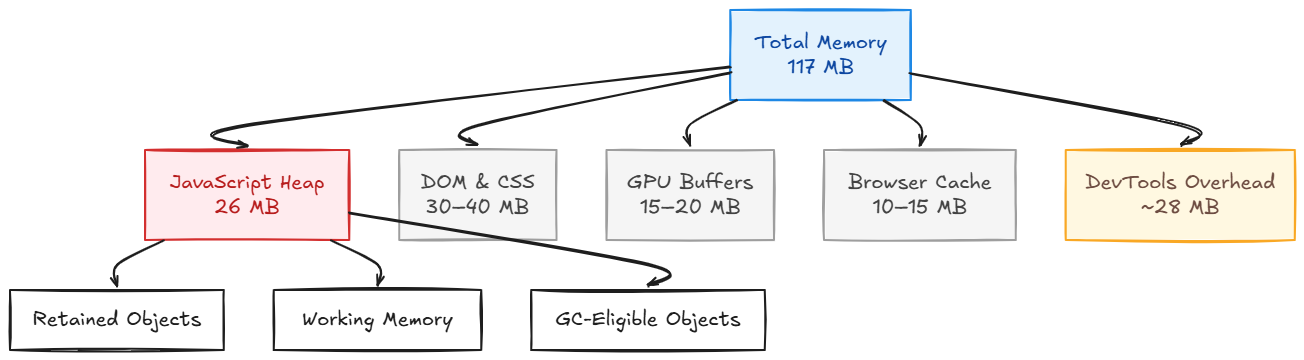
Key Distinctions
Total Memory includes everything:
JavaScript heap (your code's objects)
Rendered DOM tree and CSS structures
Decoded images and fonts
GPU buffers for hardware acceleration
Browser infrastructure and optimizations
Profiling tools overhead
Heap Memory is what actually matters for leak detection:
Only JavaScript objects
Excludes browser infrastructure
This is where leaks manifest
Typically 20-30% of total footprint
This distinction is crucial. Total memory can grow due to browser optimizations while the heap remains stable, and this is not a leak.
The Testing Methodology
Professional memory analysis requires controlled, repeatable tests. Here's the framework I established:

Test Protocol
Phase 1: Baseline Establishment
Hard refresh (Ctrl+Shift+R) to clear all caches
Close DevTools to eliminate profiler overhead
Wait 30 seconds for initial render stabilization
Record memory via Task Manager (Shift+Esc)
Phase 2: Controlled Load
Execute 10-12 complete CRUD cycles:
Open entity list
Create new record (open form, fill fields, submit)
Edit existing record
Open modal dialogs
Delete operations
Navigate between routes
Return to original view
Record memory at peak usage
Phase 3: Idle Recovery
Stop all interactions
Wait 5 minutes without DevTools
Allow garbage collection to run naturally
Measure stabilized memory
Phase 4: Tool Isolation
Repeat test with DevTools open
Compare overhead impact
Identify profiler contribution
Phase 5: Heap Snapshot
Capture heap at various stages
Analyze retained object sizes
Compare snapshots over time
This methodology ensures I'm measuring actual application behavior, not tool artifacts or browser variability.
Heap Analysis: The Source of Truth
While total memory provides context, the JavaScript heap reveals the truth about memory leaks.
Taking a Heap Snapshot
Chrome DevTools > Memory tab > Heap snapshot > Take snapshot
My Results:
Snapshot 1 (Cold start):       26.4 MB
Snapshot 2 (After CRUD):       26.8 MB
Snapshot 3 (Post-GC):          26.1 MB
The heap remained remarkably stable and fluctuating within just ~1MB across all testing phases.
What This Tells Us
Stable heap = No leak. This narrow variance is normal and comes from:
Event listener registration/deregistration
Form state initialization/cleanup
API response caching
Component mount/unmount cycles
What a leak looks like: Continuous upward trend (26MB → 42MB → 68MB → 95MB → 128MB) with no recovery.
I saw none of this behavior.
Analyzing Heap Contents
Within the snapshot, I examined object retention:
Top Retainers:
(array):           8.2 MB  (React fiber nodes - expected)
(string):          4.6 MB  (Form labels, validation messages)
(object):          3.8 MB  (Component state, props)
(system):          6.1 MB  (Browser internals)
Detached DOM:      0.3 MB  (Negligible, likely modals)
Critical insight: Detached DOM nodes were under 0.5MB. In a leaking application, this number grows continuously as unmounted components retain DOM references.
DevTools Overhead: The Hidden Variable
Here's where it gets interesting. Most engineers don't realize that Chrome DevTools itself consumes significant memory.
The Experiment
I measured the same application state under two conditions:
Condition A: DevTools Closed
Task Manager reading: 98 MB
Condition B: DevTools Open (Memory Profiler Active)
Task Manager reading:  126 MB
Difference:            +28 MB
Overhead percentage:   +28.6%
Why DevTools Adds Memory
When the profiler is active, Chrome maintains:
Heap snapshot history (multiple snapshots in memory)
Performance timeline buffers (every frame, event, GC cycle)
Network request logs (headers, payloads, timing)
Console message buffers (all logged objects)
Source map caches (for debugging transpiled code)
Each of these services requires RAM. The 28MB overhead is not a bug; it is the cost of observability.
The Trap
Many engineers see:
App without DevTools: 95 MB  ✓
App with DevTools:    130 MB  ✗ "Memory leak!"
This is a false positive. You're measuring the profiler, not your application.
Rule: Always validate memory concerns with DevTools closed first. Use Shift+Esc (Task Manager) for initial triage.
Garbage Collection Patterns
Understanding GC behavior is essential for distinguishing healthy memory management from leaks.
What I Observed
Timeline of memory after heavy CRUD operations:

t=0min  (peak load):     117 MB
t=2min  (idle):          105 MB  (GC started reclaiming)
t=5min  (idle):           98 MB  (major GC cycle)
t=10min (idle):           88 MB  (stabilized near baseline)
t=15min (idle):           88 MB  (no further growth)
This created the characteristic sawtooth pattern of healthy memory management, with growth during active use and recovery during idle periods.
GC Behavior Explained
JavaScript engines don't immediately free memory. GC runs when:
Heap pressure threshold is reached
CPU is idle (browser doesn't want to block main thread)
Periodic intervals (background cleanup)
Growth → Usage
Drop → GC reclaimed memory
Repeat → Healthy cycle
When GC Fails
In a leaking application, GC cannot reclaim memory because objects remain referenced:
// ANTI-PATTERN: Memory leak example
const globalCache = [];

function fetchData() {
  const response = await api.get('/data');
  globalCache.push(response); // ❌ Never cleared
  return response;
}
Every call adds to globalCache, preventing GC from freeing those objects.
Result:
t=0:   85 MB
t=10:  110 MB
t=20:  142 MB  (no recovery)
t=30:  178 MB  (continuous growth)
I saw none of this behavior. Our memory returned to baseline, proving GC was functioning correctly.
Stress Testing Under Load
To evaluate memory behavior under sustained real-world usage, I conducted controlled stress tests that simulated extended user sessions.
Test Design
Duration: ~25–30 minutes of continuous interaction
Pattern: Repeated CRUD workflows (8–10 iterations)
Each cycle included:
Loading list views
Opening create forms and modals
Filling multi-field forms with validation
Submitting data (API call + optimistic update)
Editing existing records
Opening confirmation dialogs
Performing delete actions
Refreshing views
Navigating between modules
Total operations: ~30–50 complete workflows
Results
Baseline (start):        ~85 MB
Peak (mid-session):      ~117 MB  (+37.6%)
Recovery (post-idle):     ~92 MB  (+8.2%)
Final heap:               ~27 MB  (stable)
Analysis
Key Observations
1. Peak memory occurred mid-session
Memory usage peaked during active interaction, not at the end
Indicates temporary working memory allocation
Consistent with form state, validation objects, and API responses
2. Recovery to near-baseline
Memory stabilized around 92 MB after idle time
The ~7 MB residual is attributable to browser optimizations such as font caches and layout data
Heap remained stable at ~27 MB
3. No unbounded growth
A leaking pattern would show continuous growth
85 → 130 → 180 MB+Observed pattern:
85 → 117 → 92 MBThis reflects healthy garbage collection behavior
4. Heap stability
Heap remained within 26–28 MB throughout testing
Confirms proper component cleanup
No retained references to unmounted components
Verdict
The application demonstrates stable memory behavior under sustained production workloads. Temporary allocations are reclaimed correctly, and no leak patterns were observed during extended usage.
Chrome Tab Suspension Behavior
Modern browsers implement aggressive memory reclamation for background tabs. This provides another useful validation signal when analyzing long-running applications.
The Test
I evaluated tab suspension behavior to verify that Chrome could reclaim memory when the application became inactive.
Setup:
Loaded the application until memory stabilized around 104 MB
Opened a new tab and navigated to a different site
Left the application tab in the background for ~5 minutes
Monitored memory usage via Chrome Task Manager and by hovering over the tab
Opened the application in a new tab to observe fresh-load memory usage
Results
Active tab (in focus):              ~104 MB
Background tab (after 5 minutes):   ~88 MB   (-15.4%)
Fresh application tab:              ~37 MB
Why This Matters
When a tab becomes inactive, Chrome:
Reduces JavaScript execution (timers, intervals slow down)
Releases cached resources (images, decoded buffers)
Triggers garbage collection (more aggressively than active tabs)
Suspends GPU contexts (reclaims VRAM)
If your application prevents this reclamation (e.g., holding global references, active WebSocket connections, infinite timers), memory stays high.
My application dropped from 104 MB to 88 MB, confirming:
✅ No global object pollution
✅ No background intervals preventing suspension
✅ GC can reclaim when browser requests it
✅ Healthy cleanup on unmount/blur
The fresh tab measurement (~37 MB) further confirmed that the baseline memory footprint was low and consistent across sessions.
Engineering Insight
Tab suspension acts as an external validation mechanism. If Chrome can successfully reclaim memory when the application is backgrounded, it strongly suggests that the application does not retain unintended references.
This test also validates that the React component lifecycle is correctly implemented, including proper useEffect cleanup, event listener removal, and teardown of background tasks.
Together, these signals provide additional confidence that the application does not accumulate hidden global state and that memory is released as components unmount and become inactive.
Cross-Browser Memory Behavior
Important context: All testing was conducted on Google Chrome (Version 144.0.7559.110) on desktop Windows. While the primary environment was Windows, similar behavior is expected on Linux-based systems using the same Chromium engine.
Here's what I'd expect based on browser architecture differences, but these are theoretical assumptions that would need validation:
Chrome (Blink + V8)
Observed Behavior
V8 garbage collector using generational collection
Aggressive memory reclamation during tab suspension
DevTools overhead of approximately 28 MB
Total memory footprint ranging from 85 MB to 117 MB for this application
V8 Characteristics
Uses generational garbage collection (young and old generations)
Applies aggressive JIT optimizations, with TurboFan maintaining additional metadata
Implements memory pooling for efficient object allocation
Site isolation contributes additional per-tab memory overhead
Firefox (Gecko + SpiderMonkey)
Expected differences (untested):
SpiderMonkey GC:
Uses incremental mark-and-sweep instead of generational
More frequent, smaller GC pauses vs Chrome's occasional larger pauses
Different heap growth heuristics
Memory footprint prediction:
Same application on Firefox:
Baseline: ~70-80 MB  (likely lower than Chrome)
Peak:     ~95-105 MB (less overhead than V8)
Recovery: ~75-85 MB
Why lower?
SpiderMonkey has less JIT optimization metadata
No separate renderer process isolation by default
Different image decoding strategies
DevTools overhead: Likely ~15-20 MB (Firefox DevTools are lighter)
Testing approach if validating:
# Firefox about:memory provides detailed breakdowns
about:memory
> Measure > Show memory reports

# Look for:
- js-main-runtime/zones
- explicit/layout
- explicit/images
Safari (WebKit + JavaScriptCore)
Expected differences (untested):
JavaScriptCore (JSC) GC:
Conservative garbage collection on some platforms
More aggressive memory limits on iOS
Different heap sizing strategies
Desktop Safari prediction:
Same application on Safari macOS:
Baseline: ~65-75 MB  (typically lowest footprint)
Peak:     ~90-100 MB
Recovery: ~70-80 MB
Why potentially lower?
JSC more conservative with speculative optimization
Tighter integration with OS memory management
Less process overhead
Safari-specific behaviors to watch:
More aggressive cache eviction when system memory pressure detected
Faster tab suspension (especially on macOS with App Nap)
Different DOM memory attribution (shared across frames differently)
DevTools overhead: ~10-15 MB (Safari DevTools are minimal)
Mobile Chrome (Android)
Critical differences (untested but high-priority):
Memory constraints:
Low-end Android device (2GB RAM):
System reserves:     ~800 MB
Available for apps:  ~1.2 GB
Per-tab limit:       ~100-150 MB (enforced)
Expected behavior:
Much more aggressive GC (every ~30-60 seconds under load)
Faster tab eviction (background tabs killed quickly)
Reduced cache sizes (images, fonts)
Disabled speculative optimization (to save memory)
What I'd expect for my 85MB Chrome app:
Mobile Chrome (mid-range device):
Baseline: ~55-65 MB  (reduced overhead)
Peak:     ~85-95 MB  (hits memory pressure)
Recovery: ~60-70 MB  (aggressive reclaim)

Tab suspension: ~30-40 MB (evicts more aggressively)
Memory pressure signals:
// Mobile Chrome may fire these sooner
window.addEventListener('devicememory'); // Navigator.deviceMemory
performance.memory.jsHeapSizeLimit; // Much lower on mobile
Testing approach if validating:
# Chrome DevTools remote debugging
chrome://inspect

# Enable memory timeline
# Watch for:
- Faster GC frequency
- Earlier memory warnings
- Tab discard events
iOS Safari (Mobile WebKit)
Critical differences (untested - MOST RESTRICTIVE):
iOS memory limits:
iOS 15+ (iPhone 12+):
Per-tab memory limit: ~1.5 GB (before crash)
Typical limit:        ~800 MB (before pressure)
Aggressive eviction:  ~500 MB (background tabs)
Expected behavior for my app:
iOS Safari (iPhone 13):
Baseline: ~40-50 MB  (very aggressive optimization)
Peak:     ~70-80 MB
Recovery: ~45-55 MB

Background: ~25-35 MB (WebKit unloads more)
iOS-specific memory pressure:
jetsam daemon kills background tabs aggressively
Memory warnings trigger at lower thresholds than desktop
No swap space (all in RAM, hard limits)
WebKit process suspension after 30 seconds background
What would break my findings:
If my app hit iOS memory limits:
Warning level 1 (~400 MB): WebKit reduces caches
Warning level 2 (~600 MB): Background tabs killed
Warning level 3 (~800 MB): Active tab reload
Crash (~1.5 GB):           Tab terminated
iOS-specific testing approach:
// Monitor memory warnings (iOS only)
window.addEventListener('pagehide', () => {
  // Tab being suspended/killed
  localStorage.setItem('lastMemory', performance.memory.usedJSHeapSize);
});

// Check if tab was killed and reloaded
window.addEventListener('pageshow', (event) => {
  if (event.persisted) {
    console.log('Restored from cache');
  } else {
    console.log('Fresh load - may have been killed');
  }
});
Low-RAM Device Scenarios
Theoretical behavior on constrained devices (untested):
Device: 4GB RAM Android / 2GB RAM ChromeOS
System overhead:     ~1.5 GB
Available:           ~2.5 GB
Browser limit:       ~400 MB per tab

Expected for my app:
Baseline: ~50-60 MB (reduced features)
Peak:     ~75-85 MB (earlier GC triggers)
Memory pressure adaptations:
Smaller image decode budgets
Reduced font caching
Earlier canvas/WebGL context eviction
Tab discarding at lower thresholds
GC frequency comparison:
Desktop (16GB RAM):  GC every ~2-3 minutes during heavy use
Mobile (6GB):        GC every ~60-90 seconds
Low-end (2GB):       GC every ~30-45 seconds
Cross-Browser Validation Strategy
If I were to validate across browsers, here's my approach:
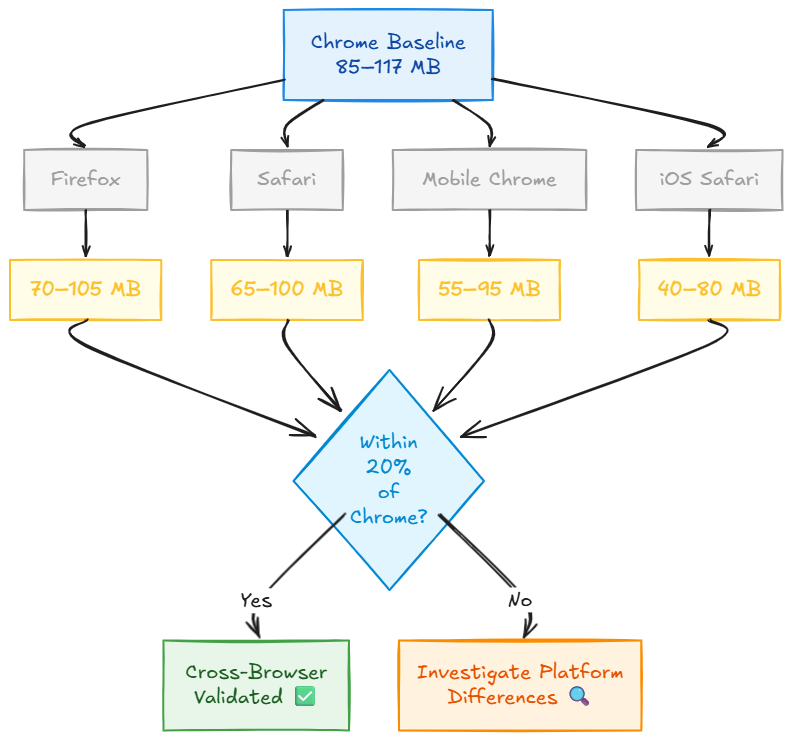
Testing checklist for each browser:
1. Baseline measurement (cold start)
2. CRUD stress test (same 144 operations)
3. Heap snapshot analysis
4. DevTools overhead isolation
5. Tab suspension behavior
6. Memory recovery patterns
7. GC frequency observation
8. Low-memory device testing (mobile)
Browser-Specific Monitoring
If implementing production monitoring across browsers:
const browserMemoryProfile = {
  browser: detectBrowser(), // 'chrome' | 'firefox' | 'safari' | 'mobile-chrome' | 'ios-safari'

  getMemoryInfo() {
    // Chrome/Edge
    if (performance.memory) {
      return {
        used: performance.memory.usedJSHeapSize,
        total: performance.memory.totalJSHeapSize,
        limit: performance.memory.jsHeapSizeLimit
      };
    }

    // Firefox (about:memory not accessible via JS)
    // Safari (no direct API)
    // Would need server-side User-Agent analysis

    return null;
  },

  estimateBaseline() {
    const browser = this.browser;
    // Theoretical baselines from analysis above
    const baselines = {
      'chrome': { min: 85, max: 120 },
      'firefox': { min: 70, max: 105 },
      'safari': { min: 65, max: 100 },
      'mobile-chrome': { min: 55, max: 95 },
      'ios-safari': { min: 40, max: 80 }
    };
    return baselines[browser] || { min: 60, max: 110 };
  },

  isMemoryHealthy(currentMB) {
    const baseline = this.estimateBaseline();
    const isHigh = currentMB > baseline.max * 1.5;
    return !isHigh;
  }
};
Platform-Specific Insights
What I'd watch for on each platform:
| Platform | Primary Concern | Detection Method |
| Desktop Chrome | DevTools overhead | Task Manager comparison |
| Firefox | Faster GC cycles | about:memory reports |
| Safari macOS | App Nap interactions | Activity Monitor energy |
| Mobile Chrome | Early tab eviction | Tab reload frequency |
| iOS Safari | Jetsam kills | pageshow event analysis |
| Low-RAM devices | Memory warnings | Performance degradation |
Expected Cross-Browser Summary
Theoretical memory comparison for my 85-117 MB app:
Browser                  Baseline    Peak        Notes
─────────────────────────────────────────────────────────
Chrome Desktop           85 MB       117 MB      ✓ Tested
Firefox Desktop          70 MB       105 MB      Lower overhead (predicted)
Safari Desktop           65 MB       100 MB      Most efficient (predicted)
Mobile Chrome (6GB)      55 MB       95 MB       More aggressive GC (predicted)
iOS Safari (iPhone 13)   40 MB       80 MB       Strictest limits (predicted)
Low-RAM Android (2GB)    50 MB       85 MB       Early pressure (predicted)
Key takeaway: Chrome testing indicates healthy memory behavior under sustained usage. However, because browser engines and memory policies differ significantly, production validation should account for platform-specific constraints.
For teams operating across multiple environments, prioritizing validation on primary desktop browsers and representative mobile devices helps surface memory pressure issues early, especially in low-RAM scenarios.
Why This Matters
Production implications of browser differences:
iOS Safari: If my app peaks at 117 MB on Chrome, it might trigger memory warnings on iPhone 11 or older devices under heavy use.
Mobile Chrome: On Android devices with 4GB RAM or less, the 117 MB peak could cause background tab eviction.
Firefox: The different GC strategy may produce different sawtooth patterns, with more frequent smaller drops compared to Chrome’s occasional larger drops.
What I'd monitor in production:
// Browser-aware memory tracking
function trackMemoryByBrowser() {
  const browser = detectBrowser();
  const memoryInfo = performance.memory || {};

  analytics.track('memory_profile', {
    browser: browser,
    used_mb: (memoryInfo.usedJSHeapSize / 1048576).toFixed(2),
    device_type: /mobile/i.test(navigator.userAgent) ? 'mobile' : 'desktop',
    // Tag for segmented analysis
  });
}
This would reveal browser-specific patterns in real user sessions.
Validation disclaimer: The cross-browser behaviors described above are theoretical predictions based on engine architecture differences. Production applications should validate memory behavior on target browsers and platforms, especially mobile environments where memory constraints are significantly tighter.
When Growth Actually Indicates Danger
Not all memory growth signals a leak. Here's how to distinguish normal behavior from critical issues.
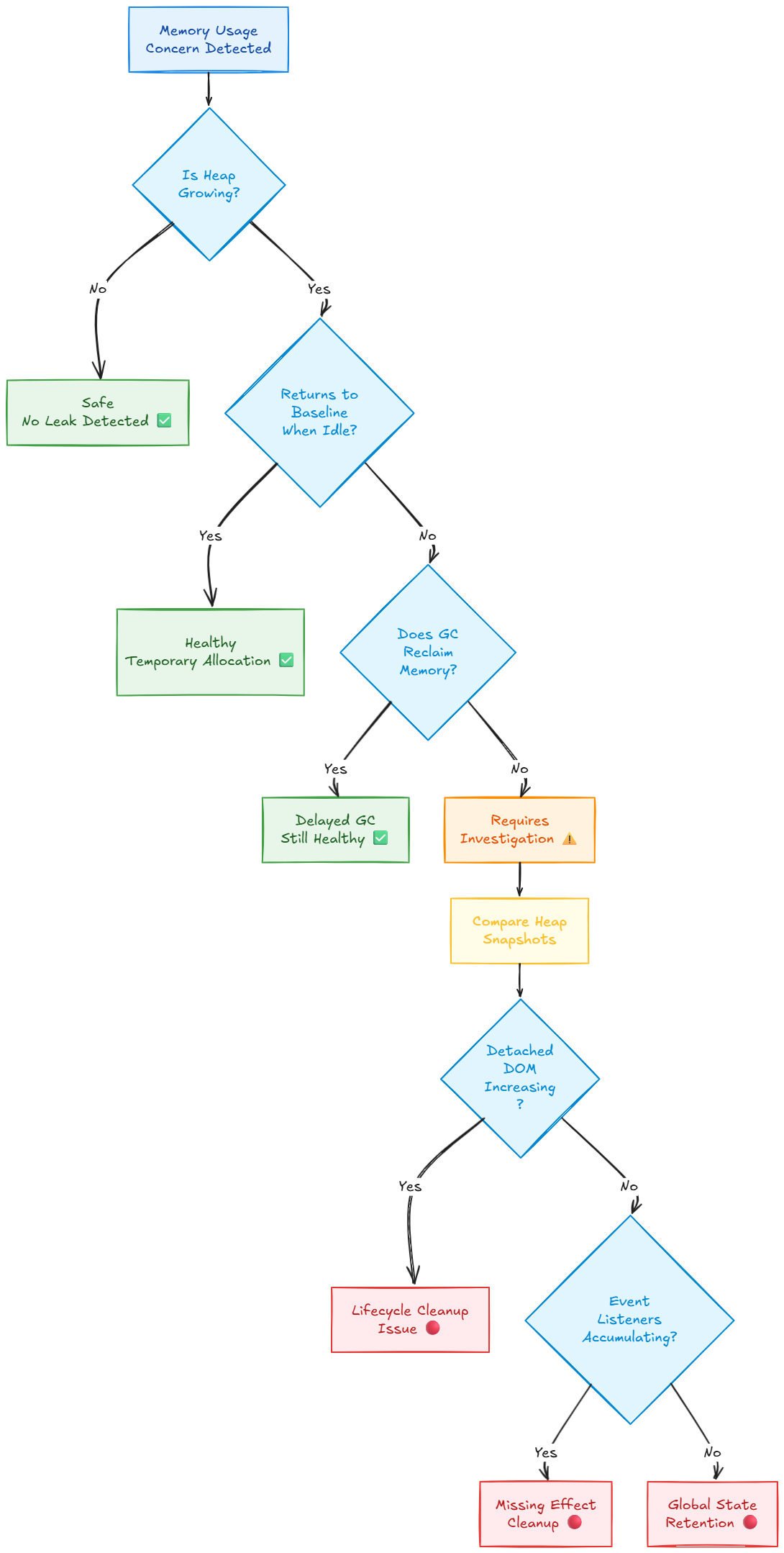
Healthy vs Dangerous Patterns
What I observed (Healthy):
Growth during active use ✓
Recovery when idle ✓
Returns near baseline ✓
Heap size stable ✓
What would indicate a leak (Dangerous):
Continuous upward trend ✗
No recovery when idle ✗
Heap grows continuously ✗
Eventually causes crash ✗
Red Flags Checklist
| Signal | Healthy | Leaking |
| Heap size over 1 hour | Stable (±5 MB) | Growing (2x+) |
| Memory after 5min idle | Returns to baseline | Stays at peak |
| Detached DOM nodes | < 1 MB | Growing MB |
| Event listeners count | Stable | Increasing |
| GC recovery | Significant drop | Minimal/none |
| Tab suspension | Memory reclaimed | Stays high |
Diagnostic Decision Tree
The Replicable Framework
Based on my investigation, here's a production-ready framework for validating memory health in any web application.
Phase 1: Initial Triage (5 minutes)
# Without any profiling tools
1. Open Task Manager (Shift+Esc)
2. Navigate to your app
3. Record baseline after 30s
4. Use app normally for 5 minutes
5. Record memory
6. Wait 3 minutes idle
7. Record again

# Decision point:
If idle_memory <= baseline + 20MB → Likely healthy
If idle_memory > baseline + 50MB → Proceed to Phase 2
Phase 2: Heap Validation (15 minutes)
# Open Chrome DevTools
1. Memory tab → Heap snapshot → Take snapshot (Baseline)
2. Use application heavily (10-15 operations)
3. Take snapshot (After Load)
4. Wait 5 minutes idle
5. Force GC (garbage can icon in Memory tab)
6. Take snapshot (After GC)

# Compare snapshots:
Baseline → After Load → After GC

# Red flag if:
After GC > Baseline by 30%+ AND growing trend
Phase 3: Controlled Stress Test (30 minutes)
// Automated test script (run in console)
async function stressTest() {
  const measurements = [];

  for (let i = 0; i < 20; i++) {
    // Simulate user workflow
    await performCRUDCycle();

    // Measure
    if (performance.memory) {
      measurements.push({
        iteration: i,
        usedJSHeapSize: performance.memory.usedJSHeapSize,
        totalJSHeapSize: performance.memory.totalJSHeapSize,
        jsHeapSizeLimit: performance.memory.jsHeapSizeLimit
      });
    }

    // Wait between cycles
    await new Promise(r => setTimeout(r, 2000));
  }

  console.table(measurements);
  return measurements;
}

// Analyze trend
function analyzeMemoryTrend(measurements) {
  const heapSizes = measurements.map(m => m.usedJSHeapSize);
  const first = heapSizes[0];
  const last = heapSizes[heapSizes.length - 1];
  const growth = ((last - first) / first) * 100;

  console.log(`Heap growth: ${growth.toFixed(2)}%`);

  if (growth > 50) {
    console.warn('⚠️ Significant growth detected');
  } else {
    console.log('✅ Heap stable');
  }
}
Phase 4: DevTools Overhead Validation (5 minutes)
1. Close DevTools completely
2. Check memory (Shift+Esc)
3. Open DevTools with Memory profiler
4. Check memory again
5. Calculate difference

# Expected: 20-30 MB increase
# If more, you're profiling at heavy load
Phase 5: Production Monitoring (Ongoing)
// Add to production bundle (if performance.memory available)
if (performance.memory) {
  setInterval(() => {
    const used = performance.memory.usedJSHeapSize;
    const limit = performance.memory.jsHeapSizeLimit;
    const percentage = (used / limit) * 100;

    // Log to monitoring service
    analytics.track('memory_snapshot', {
      heap_used_mb: (used / 1048576).toFixed(2),
      heap_percentage: percentage.toFixed(2),
      timestamp: Date.now()
    });

    // Alert if concerning
    if (percentage > 80) {
      console.warn('High memory usage detected');
      // Trigger monitoring alert
    }
  }, 60000); // Every minute
}
Quick Reference Checklist
✅ Total memory < 200 MB (for typical React app)
✅ Heap size stable over 30+ minutes
✅ Memory recovers when idle (within 20% of baseline)
✅ Detached DOM < 1 MB
✅ GC reduces memory by 15-30% when triggered
✅ Tab suspension reclaims memory
✅ DevTools overhead ~25-30 MB (normal)
✅ No console errors about memory pressure

🚨 Investigate if:
❌ Heap doubles in 60 minutes
❌ Memory never recovers when idle
❌ Detached DOM > 5 MB and growing
❌ GC has minimal effect (< 5% reduction)
❌ Tab suspension doesn't help
Engineering Insights
Through this investigation, several production-grade insights emerged that extend beyond this specific application.
1. Measurement Before Optimization
My first instinct when seeing 85 MB → 117 MB growth was optimization. This would have been backwards.
Better approach:
Measure systematically
Understand what's normal
Identify actual issues
Optimize with data
Without measuring heap (stable at 26 MB), I might have spent weeks "optimizing" normal browser behavior.
Engineering principle: Measure twice, optimize once.
2. Browser Behavior vs. Application Behavior
Modern browsers do significant work invisible to application code:
Speculative optimization: Caching resources for perceived next actions
GPU acceleration: Allocating VRAM for layers, transforms, animations
Font rendering: Keeping decoded fonts for every variant used
Layout caching: Storing computed styles, box models
Prefetching: Loading linked resources speculatively
My 117 MB footprint breaks down approximately as:
JavaScript heap:        26 MB  (actual app code)
DOM + CSSOM:           35 MB  (rendered UI)
GPU buffers:           18 MB  (hardware acceleration)
Font caches:           12 MB  (decoded fonts)
Browser infrastructure: 26 MB  (V8, Blink overhead)
Only the first 26 MB is directly under my control.
3. DevTools as a Production Blind Spot
The 28 MB DevTools overhead creates a dangerous scenario:
Developer experience:
- Develops with DevTools open
- Sees 130 MB memory usage
- Panics about "memory bloat"
- Over-optimizes for phantom problem

Production reality:
- DevTools closed
- Actually 98 MB
- Well within acceptable range
Practice: Always validate concerns with profiler closed first.
4. GC Behavior as a Diagnostic Signal
Garbage collection patterns reveal architectural health:
Healthy pattern:
Use → Growth → Idle → GC → Recovery → Baseline
Unhealthy pattern:
Use → Growth → Idle → GC attempt → Still high
When garbage collection cannot reclaim memory, it usually indicates retained references, which are a hallmark of memory leaks.
5. Tab Suspension as Validation
Chrome's tab suspension is an external validator. If Chrome can reclaim your app's memory when backgrounded, it proves:
Event listeners are properly cleaned up
No runaway timers/intervals
Global scope isn't polluted
Component unmounting is correct
This is a free integration test of your cleanup code.
6. Component Lifecycle Discipline
My stable heap (26 MB) across heavy CRUD operations confirms:
// Every useEffect with subscriptions has cleanup
useEffect(() => {
  const subscription = api.subscribe();
  return () => subscription.unsubscribe(); // ✓
}, []);

// Event listeners are removed
useEffect(() => {
  window.addEventListener('resize', handler);
  return () => window.removeEventListener('resize', handler); // ✓
}, []);

// Timers are cleared
useEffect(() => {
  const timer = setInterval(poll, 1000);
  return () => clearInterval(timer); // ✓
}, []);
One missing cleanup function causes heap growth. My stability proves discipline.
Why This Matters for Teams
For teams maintaining long-lived production applications, having a clear baseline for memory behavior helps prevent unnecessary firefighting and misdiagnosis of normal browser behavior as performance regressions.
A shared, data-backed understanding of memory patterns allows engineers to respond to incidents with evidence rather than assumptions, reducing time spent on premature optimization and speculative refactoring.
Over time, this approach improves system reliability, simplifies performance reviews, and builds organizational confidence in the stability of core workflows.
Conclusion
What began as a concerning observation of memory growth from 85 MB to 117 MB evolved into a comprehensive understanding of browser memory management, garbage collection patterns, and production validation techniques.
Key Findings
My application has no memory leak.
Evidence:
Heap stable at ~26 MB across all test phases
Memory recovers to baseline when idle (88-92 MB)
GC successfully reclaims temporary allocations
Chrome tab suspension works correctly
Detached DOM nodes remain minimal (< 0.5 MB)
The 37% memory growth was:
Temporary working memory during active CRUD operations (normal)
Browser caching and optimization (beneficial)
DevTools overhead when profiling (+28 MB)
My investigation validated:
Component lifecycle discipline (proper cleanup)
React architecture health (no retained references)
Production readiness for extended sessions
Framework Value
The methodology I documented here is replicable:
Triage with Task Manager (5 min)
Validate with heap snapshots (15 min)
Stress test under load (30 min)
Isolate tool overhead (5 min)
Monitor in production (ongoing)
This provides data-driven answers to memory concerns, preventing both premature optimization and undetected leaks.
Professional Growth
This investigation reinforced several core engineering practices:
Systematic, hypothesis-driven debugging
Understanding of browser memory management and tooling behavior
Validation of performance characteristics under real workloads
Data-driven analysis over assumptions
Distinguishing transient behavior from structural issues
Awareness of platform and environment differences
These practices enable more reliable systems and more confident decision-making in production environments.
Production Recommendations
Based on this work:
Implement client-side monitoring for heap trends
Document baseline memory metrics for your application
Test memory behavior before major releases
Educate team on DevTools overhead (common false positive)
Maintain cleanup discipline in component lifecycle
Validate on target browsers/platforms (especially mobile)
Further Reading
Appendix: Common Memory Leak Patterns in React
For reference, here are actual leak patterns I didn't find in my testing, but frequently occur in React applications:
1. Event Listener Leaks
// ❌ LEAK: Missing cleanup
function Component() {
  useEffect(() => {
    window.addEventListener('scroll', handleScroll);
    // Missing: return () => window.removeEventListener('scroll', handleScroll);
  }, []);
}

// ✅ CORRECT
function Component() {
  useEffect(() => {
    window.addEventListener('scroll', handleScroll);
    return () => window.removeEventListener('scroll', handleScroll);
  }, []);
}
2. Timer/Interval Leaks
// ❌ LEAK: Interval continues after unmount
function Component() {
  useEffect(() => {
    setInterval(() => {
      fetchData();
    }, 5000);
  }, []);
}

// ✅ CORRECT
function Component() {
  useEffect(() => {
    const interval = setInterval(() => {
      fetchData();
    }, 5000);
    return () => clearInterval(interval);
  }, []);
}
3. Subscription Leaks
// ❌ LEAK: WebSocket stays open
function Component() {
  useEffect(() => {
    const ws = new WebSocket('wss://api.example.com');
    ws.onmessage = handleMessage;
  }, []);
}

// ✅ CORRECT
function Component() {
  useEffect(() => {
    const ws = new WebSocket('wss://api.example.com');
    ws.onmessage = handleMessage;
    return () => ws.close();
  }, []);
}
4. Global Store Pollution
// ❌ LEAK: Accumulating in global cache
const globalCache = [];

function Component({ data }) {
  useEffect(() => {
    globalCache.push(data); // Never cleared
  }, [data]);
}

// ✅ CORRECT: Clear when unmounting
function Component({ data }) {
  useEffect(() => {
    const index = globalCache.length;
    globalCache.push(data);
    return () => globalCache.splice(index, 1);
  }, [data]);
}
5. Detached DOM References
// ❌ LEAK: Keeping DOM reference after unmount
function Component() {
  const elementRef = useRef();

  useEffect(() => {
    window.myGlobalRef = elementRef.current; // Leaked
  }, []);
}

// ✅ CORRECT: Clean up references
function Component() {
  const elementRef = useRef();

  useEffect(() => {
    window.myGlobalRef = elementRef.current;
    return () => delete window.myGlobalRef;
  }, []);
}
6. Closure Over Large Objects
// ❌ LEAK: Closure captures entire large object
function Component({ largeDataset }) {
  const handler = useCallback(() => {
    console.log(largeDataset.summary); // Captures entire dataset
  }, [largeDataset]);
}

// ✅ CORRECT: Only capture what you need
function Component({ largeDataset }) {
  const summary = largeDataset.summary;
  const handler = useCallback(() => {
    console.log(summary); // Only captures summary string
  }, [summary]);
}
Closing Perspective
Memory profiling is not about achieving the lowest possible number. It is about ensuring stable, predictable behavior under real workloads and over extended periods of time.
This investigation demonstrated that disciplined measurement, careful isolation of variables, and an understanding of browser internals can turn vague concerns into clear, actionable conclusions. Instead of reacting to surface-level metrics, it is possible to reason confidently about system behavior using data.
While this analysis was conducted primarily on Chrome in a desktop environment, the underlying methodology remains applicable across platforms. Validating assumptions, observing recovery patterns, and correlating tooling data with real usage are practices that scale beyond any single browser or framework.
Applied consistently, this approach helps teams avoid premature optimization, detect genuine issues early, and maintain long-term reliability in production systems.
Test Environment
Browser: Google Chrome (Version 144.0.7559.110)
Framework: React 18.x
Workload: Multi-module business application with CRUD workflows
Platform: Desktop (Windows)
Cross-browser observations for Firefox, Safari, Mobile Chrome, and iOS Safari are based on theoretical analysis and were not directly validated in this investigation. Production systems should verify memory behavior on their target platforms.