
保留正文与补采附件。源页面当前未重新核验;具体限制见交付清单。
We use essential cookies to make our site work. With your consent, we may also use non-essential cookies to improve user experience and analyze website traffic. By clicking “Accept,” you agree to our website's cookie use as described in our Cookie Policy. You can change your cookie settings at any time by clicking “Preferences.”
Accept
Search ... Results See all results
We learn how to use the openpose model with OpenCV DNN Module
 0%
0%
Updated July 31, 2026: The original tutorial, examples, media, narrative, and teaching order are preserved below. The labelled 2026 correction area adds only the verified API, compatibility, validation, and failure-handling changes needed for current OpenCV; where a historical snippet uses an obsolete API, the correction area is the runnable path.
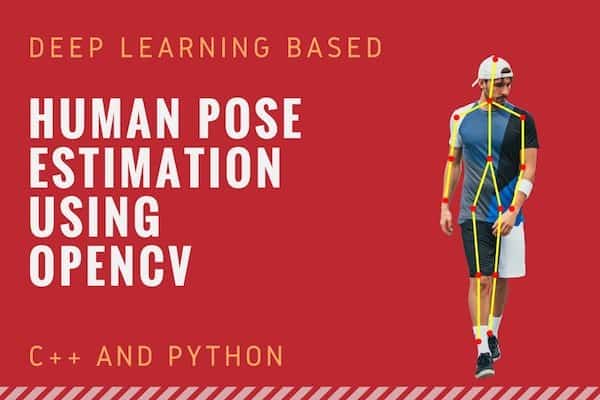
 In this tutorial, Deep Learning based Human Pose Estimation using OpenCV. We will explain in detail how to use a pre-trained Caffe model that won the COCO keypoints challenge in 2016 in your own application. We will briefly go over the architecture to get an idea of what is going on under the hood.
This post has been tested on OpenCV 4.2.
In this tutorial, Deep Learning based Human Pose Estimation using OpenCV. We will explain in detail how to use a pre-trained Caffe model that won the COCO keypoints challenge in 2016 in your own application. We will briefly go over the architecture to get an idea of what is going on under the hood.
This post has been tested on OpenCV 4.2.
Pose Estimation is a general problem in Computer Vision where we detect the position and orientation of an object. This usually means detecting keypoint locations that describe the object.
For example, in the problem of face pose estimation (a.k.a facial landmark detection), we detect landmarks on a human face. We have written extensively on the topic. Please see our articles on ( Facial Landmark Detection using OpenCV and Facial Landmark Detection using Dlib )
A related problem is Head Pose Estimation where we use the facial landmarks to obtain the 3D orientation of a human head with respect to the camera.
In this article, we will focus on human pose estimation, where it is required to detect and localize the major parts/joints of the body ( e.g. shoulders, ankle, knee, wrist etc. ).
Remember the scene where Tony stark wears the Iron Man suit using gestures?
If such a suit is ever built, it would require human pose estimation!
For the purpose of this article, though, we will tone down our ambition a tiny bit and solve a simpler problem of detecting keypoints on the body. A typical output of a pose detector looks as shown below :
 Figure 1 : Sample Skeleton output of pose estimation. Image Credit: Oliver Sjöström, Instagram: @ollivves, Website: https://ollivves.com/
Until recently, there was little progress in pose estimation because of the lack of high-quality datasets. Such is the enthusiasm in AI these days that people believe every problem is just a good dataset away from being demolished. Some challenging datasets have been released in the last few years which have made it easier for researchers to attack the problem with all their intellectual might. Some of the datasets are :
If we missed an important dataset, please mention in the comments and we will be happy to include in this list!
The model used in this tutorial is based on a paper titled Multi-Person Pose Estimation by the Perceptual Computing Lab at Carnegie Mellon University. The authors of the paper train a very deep Neural Networks for this task. Let’s briefly go over the architecture before we explain how to use the pre-trained model.
 Figure 2: Multi-Person Pose Estimation model architecture
The model takes as input a color image of size w × h and produces, as output, the 2D locations of keypoints for each person in the image. The detection takes place in three stages :
Figure 2: Multi-Person Pose Estimation model architecture
The model takes as input a color image of size w × h and produces, as output, the 2D locations of keypoints for each person in the image. The detection takes place in three stages :
 Figure 3 : Showing confidence maps for Left Shoulder for the given image
The second branch predicts a set of 2D vector fields (L) of part affinities, which encode the degree of association between parts. In the figure below part affinity between the Neck and Left shoulder is shown.
Figure 3 : Showing confidence maps for Left Shoulder for the given image
The second branch predicts a set of 2D vector fields (L) of part affinities, which encode the degree of association between parts. In the figure below part affinity between the Neck and Left shoulder is shown.
 Figure 4 : Showing Part Affinity maps for Neck – Left Shoulder pair for the given image
Stage 2 : The confidence and affinity maps are parsed by greedy inference to produce the 2D keypoints for all people in the image.
This architecture won the COCO keypoints challenge in 2016.
Figure 4 : Showing Part Affinity maps for Neck – Left Shoulder pair for the given image
Stage 2 : The confidence and affinity maps are parsed by greedy inference to produce the 2D keypoints for all people in the image.
This architecture won the COCO keypoints challenge in 2016.
The authors of the paper have shared two models – one is trained on the Multi-Person Dataset ( MPII ) and the other is trained on the COCO dataset. The COCO model produces 18 points, while the MPII model outputs 15 points. The outputs plotted on a person is shown in the image below.
 COCO Output Format Nose – 0, Neck – 1, Right Shoulder – 2, Right Elbow – 3, Right Wrist – 4, Left Shoulder – 5, Left Elbow – 6, Left Wrist – 7, Right Hip – 8, Right Knee – 9, Right Ankle – 10, Left Hip – 11, Left Knee – 12, LAnkle – 13, Right Eye – 14, Left Eye – 15, Right Ear – 16, Left Ear – 17, Background – 18 MPII Output Format Head – 0, Neck – 1, Right Shoulder – 2, Right Elbow – 3, Right Wrist – 4, Left Shoulder – 5, Left Elbow – 6, Left Wrist – 7, Right Hip – 8, Right Knee – 9, Right Ankle – 10, Left Hip – 11, Left Knee – 12, Left Ankle – 13, Chest – 14, Background – 15
You can download the model weight files using the scripts provided at this location.
COCO Output Format Nose – 0, Neck – 1, Right Shoulder – 2, Right Elbow – 3, Right Wrist – 4, Left Shoulder – 5, Left Elbow – 6, Left Wrist – 7, Right Hip – 8, Right Knee – 9, Right Ankle – 10, Left Hip – 11, Left Knee – 12, LAnkle – 13, Right Eye – 14, Left Eye – 15, Right Ear – 16, Left Ear – 17, Background – 18 MPII Output Format Head – 0, Neck – 1, Right Shoulder – 2, Right Elbow – 3, Right Wrist – 4, Left Shoulder – 5, Left Elbow – 6, Left Wrist – 7, Right Hip – 8, Right Knee – 9, Right Ankle – 10, Left Hip – 11, Left Knee – 12, Left Ankle – 13, Chest – 14, Background – 15
You can download the model weight files using the scripts provided at this location.
In this section, we will see how to load the trained models in OpenCV and check the outputs. We will discuss code for only single person pose estimation to keep things simple. As we saw in the previous section that the output consists of confidence maps and affinity maps. These outputs can be used to find the pose for every person in a frame if multiple people are present. We will cover the multiple-person case in a future post. First, download the code and model files from below. There are separate files for Image and Video inputs. Please go through the README file if you encounter any difficulty in running the code.
Use the getModels.sh file provided with the code to download all the model weights to the respective folders. Note that the configuration proto files are already present in the folders.
From the command line, execute the following from the downloaded folder.
| 1 2 | sudo chmod a+x getModels.sh .``/getModels``.sh |
| --- | --- |
Check the folders to ensure that the model binaries (.caffemodel files ) have been downloaded. If you are not able to run the above script, then you can download the model by clicking here for the MPII model and here for COCO model.
We are using models trained on Caffe Deep Learning Framework. Caffe models have 2 files –
We will use these two files to load the network into memory.
C++
| 1 2 3 4 5 6 | // Specify the paths for the 2 files string protoFile = ``"pose/mpi/pose_deploy_linevec_faster_4_stages.prototxt"``; string weightsFile = ``"pose/mpi/pose_iter_160000.caffemodel"``; // Read the network into Memory Net net = readNetFromCaffe(protoFile, weightsFile); |
| --- | --- |
Python
| 1 2 3 4 5 6 | # Specify the paths for the 2 files protoFile ``= "pose/mpi/pose_deploy_linevec_faster_4_stages.prototxt" weightsFile ``= "pose/mpi/pose_iter_160000.caffemodel" # Read the network into Memory net ``= cv2.dnn.readNetFromCaffe(protoFile, weightsFile) |
| --- | --- |
The input frame that we read using OpenCV should be converted to a input blob ( like Caffe ) so that it can be fed to the network. This is done using the blobFromImage function which converts the image from OpenCV format to Caffe blob format. The parameters are to be provided in the blobFromImage function. First we normalize the pixel values to be in (0,1). Then we specify the dimensions of the image. Next, the Mean value to be subtracted, which is (0,0,0). There is no need to swap the R and B channels since both OpenCV and Caffe use BGR format.
C++
| 1 2 3 4 5 6 7 8 9 10 11 | // Mat frame = imread(``"single.jpg"``); // Specify the input image dimensions int inWidth = 368; int inHeight = 368; // Prepare the frame to be fed to the network Mat inpBlob = blobFromImage(frame, 1.0 / 255, Size(inWidth, inHeight), Scalar(0, 0, 0), ``false``, ``false``); // Set the prepared object as the input blob of the network net.setInput(inpBlob); |
| --- | --- |
Python
| 1 2 3 4 5 6 7 8 9 10 11 12 | # Read image frame ``= cv2.imread(``"single.jpg"``) # Specify the input image dimensions inWidth ``= 368 inHeight ``= 368 # Prepare the frame to be fed to the network inpBlob ``= cv2.dnn.blobFromImage(frame, ``1.0 / 255``, (inWidth, inHeight), (``0``, ``0``, ``0``), swapRB``=``False``, crop``=``False``) # Set the prepared object as the input blob of the network net.setInput(inpBlob) |
| --- | --- |
Once the image is passed to the model, the predictions can be made using a single line of code. The forward method for the DNN class in OpenCV makes a forward pass through the network which is just another way of saying it is making a prediction.
C++
| 1 | Mat output = net.forward() |
| --- | --- |
Python
| 1 | output ``= net.forward() |
| --- | --- |
The output is a 4D matrix :
We check whether each keypoint is present in the image or not. We get the location of the keypoint by finding the maxima of the confidence map of that keypoint. We also use a threshold to reduce false detections.
Once the keypoints are detected, we just plot them on the image.
C++
| 1 2 3 4 5 6 7 8 9 10 11 12 13 14 15 16 17 18 19 20 21 22 23 24 25 26 | int H = output.size[2]; int W = output.size[3]; // find the position of the body parts vector<Point> points(nPoints); for (``int n=0; n < nPoints; n++) { // Probability map of corresponding body's part. Mat probMap(H, W, CV_32F, output.ptr(0,n)); Point2f p(-1,-1); Point maxLoc; double prob; minMaxLoc(probMap, 0, &prob, 0, &maxLoc); if (prob > thresh) { p = maxLoc; p.x *= (``float``)frameWidth / W ; p.y *= (``float``)frameHeight / H ; circle(frameCopy, cv::Point((``int``)p.x, (``int``)p.y), 8, Scalar(0,255,255), -1); cv::putText(frameCopy, cv::format(``"%d"``, n), cv::Point((``int``)p.x, (``int``)p.y), cv::FONT_HERSHEY_COMPLEX, 1, cv::Scalar(0, 0, 255), 2); } points[n] = p; } |
| --- | --- |
Python
| 1 2 3 4 5 6 7 8 9 10 11 12 13 14 15 16 17 18 19 20 21 22 23 24 25 26 27 | H ``= out.shape[``2``] W ``= out.shape[``3``] # Empty list to store the detected keypoints points ``= [] for i ``in range``(``len``()): # confidence map of corresponding body's part. probMap ``= output[``0``, i, :, :] # Find global maxima of the probMap. minVal, prob, minLoc, point ``= cv2.minMaxLoc(probMap) # Scale the point to fit on the original image x ``= (frameWidth ``* point[``0``]) ``/ W y ``= (frameHeight ``* point[``1``]) ``/ H if prob > threshold : cv2.circle(frame, (``int``(x), ``int``(y)), ``15``, (``0``, ``255``, ``255``), thickness``=``-``1``, lineType``=``cv.FILLED) cv2.putText(frame, ``"{}"``.``format``(i), (``int``(x), ``int``(y)), cv2.FONT_HERSHEY_SIMPLEX, ``1.4``, (``0``, ``0``, ``255``), ``3``, lineType``=``cv2.LINE_AA) # Add the point to the list if the probability is greater than the threshold points.append((``int``(x), ``int``(y))) else : points.append(``None``) cv2.imshow(``"Output-Keypoints"``,frame) cv2.waitKey(``0``) cv2.destroyAllWindows() |
| --- | --- |
 Image with kepoints detected using the MPI model plotted.
Since we know the indices of the points before-hand, we can draw the skeleton when we have the keypoints by just joining the pairs. This is done using the code given below.
C++
| 1 2 3 4 5 6 7 8 9 10 11 12 13 | for (``int n = 0; n < nPairs; n++) { // lookup 2 connected body/hand parts Point2f partA = points[POSE_PAIRS[n][0]]; Point2f partB = points[POSE_PAIRS[n][1]]; if (partA.x<=0 || partA.y<=0 || partB.x<=0 || partB.y<=0) continue``; line(frame, partA, partB, Scalar(0,255,255), 8); circle(frame, partA, 8, Scalar(0,0,255), -1); circle(frame, partB, 8, Scalar(0,0,255), -1); } |
| --- | --- |
Python
| 1 2 3 4 5 6 | for pair ``in POSE_PAIRS: partA ``= pair[``0``] partB ``= pair[``1``] if points[partA] ``and points[partB]: cv2.line(frameCopy, points[partA], points[partB], (``0``, ``255``, ``0``), ``3``) |
| --- | --- |
Do checkout the Video demo using the video version of the code. We found that COCO model is 1.5 times slower than the MPI model. This is expected as we are using a stripped down version having 4 stages.
If you have ideas of some cool applications using these methods, do mention them in the comments!
Original Youtube Video Link used in the Sample Video
OpenPose
Pose Detection paper
Realtime multi-person Pose Estimation
OpenCV DNN Module
Loading Caffe models in OpenCV
Scope of this correction: Repair model acquisition and add a pinned modern ONNX path; keep MediaPipe additive. The material below is retained from the tested modernization only where it addresses that scope; it does not replace the original explanation or examples above.
The runnable path uses pose_estimation_mediapipe_2023mar.onnx from the official OpenCV Zoo. Model files are executable inputs, so a tutorial should identify and verify the exact bytes it expects.
| Property | Value used by the tested example |
| --- | --- |
| Upstream | OpenCV Zoo MediaPipe Pose directory at the pinned revision |
| Upstream commit | 47534e27c9851bb1128ccc0102f1145e27f23f98 |
| Model file | pose_estimation_mediapipe_2023mar.onnx |
| Expected size | 5,557,238 bytes |
| Expected SHA-256 | 9d89c599319a18fb7d2e28451a883476164543182bafca5f09eb2cf767ed2f3f |
| Model-directory license | Apache License 2.0 |
| Tensor input | 1×256×256×3, RGB, float32, values in [0,1] |
| Public output used here | 33 landmarks with x, y, z, visibility, and presence |
The ONNX graph exposes 39 five-value points. The first 33 are the public pose landmarks; the remaining six are auxiliary points used by the model family for crop refinement and are not drawn. The code locates outputs by their element counts instead of trusting output-layer order, which is a useful defense against graph-export differences.
The x and y values are converted to source-image pixels. The z value is retained as a relative model quantity; this example does not turn it into metric depth. Visibility and presence arrive as logits and are converted to probabilities with a numerically bounded sigmoid.
Use Python 3.10 or newer. The Python requirements accept NumPy 1.23 through 2.x and OpenCV-Python 4.10 through 5.x:
| 1 2 | python3 -m pip install -r requirements.txt python3 download_models.py |
| --- | --- |
The model downloader resolves its default destination relative to the project rather than the terminal’s current directory. It first verifies the byte count, then computes SHA-256 in bounded chunks:
| 1 2 3 4 5 6 7 8 9 10 11 12 | def verify(path: Path) ``-``> ``None``: size ``= path.stat().st_size if size !``= MODEL_SIZE: raise RuntimeError( f``"Size mismatch for {path}: expected {MODEL_SIZE}, got {size}." ) actual ``= sha256_file(path) if actual !``= MODEL_SHA256: raise RuntimeError( f``"SHA-256 mismatch for {path}: expected {MODEL_SHA256}, got {actual}." ) |
| --- | --- |
A new transfer is written to a temporary file in the destination directory. Only after both checks pass does os.replace atomically move it into the final model path. This prevents a failed transfer from leaving a partial file that a second process mistakes for a usable model.
A digest detects truncation or substitution relative to the value recorded by the project. It does not remove the need to review the chosen upstream source and its license.
For C++, use CMake 3.16 or newer, a C++17 compiler, and OpenCV with the core, dnn, highgui, imgcodecs, imgproc, and videoio components:
| 1 2 3 | cmake -S . -B build -DCMAKE_BUILD_TYPE=Release cmake --build build --parallel ctest --test-dir build --output-on-failure |
| --- | --- |
The build rejects OpenCV older than 4.10 and versions 6 or newer because those ranges have not been validated by this project. It also enables strict compiler warnings for the two executable targets.
The source frame may be portrait, landscape, or square, while the model expects a 256×256 image. Resizing directly to a square would stretch the body and change joint geometry. The tested preprocessing instead pads the shorter dimension to form a square:
| 1 2 3 4 5 6 7 8 9 10 11 12 13 14 15 16 17 18 19 20 21 | height, width ``= frame.shape[:``2``] side ``= max``(height, width) left ``= (side ``- width) ``/``/ 2 right ``= side ``- width ``- left top ``= (side ``- height) ``/``/ 2 bottom ``= side ``- height ``- top square ``= cv2.copyMakeBorder( frame, top, bottom, left, right, cv2.BORDER_CONSTANT, value``=``(``0``, ``0``, ``0``), ) resized ``= cv2.resize( square, (MODEL_INPUT_SIZE, MODEL_INPUT_SIZE), interpolation``=``cv2.INTER_AREA, ) |
| --- | --- |
The asymmetric remainder calculations for right and bottom matter when the padding amount is odd. They guarantee an exact square.
OpenCV decodes the input as BGR, while this model expects RGB. The final preprocessing steps convert color order, normalize to [0,1], and add a batch dimension:
| 1 2 3 | rgb ``= cv2.cvtColor(resized, cv2.COLOR_BGR2RGB) normalized ``= rgb.astype(np.float32) ``/ 255.0 blob ``= normalized[np.newaxis, ...] |
| --- | --- |
This ONNX export consumes channels-last NHWC data. Using the common blobFromImage defaults without checking layout would create an incompatible NCHW tensor. The preprocessing returns both the contiguous tensor and the padding transform needed to reverse the geometry.
OpenCV loads the model with cv2.dnn.readNet. On CPU, the code selects DNN_BACKEND_DEFAULT and DNN_TARGET_CPU; CUDA is an explicit optional choice that requires a compatible OpenCV build. The OpenCV DNN documentation describes network loading, inputs, forward execution, backends, and targets.
Inference itself is deliberately small:
| 1 2 3 4 5 6 | def infer_pose(net: cv2.dnn.Net, frame: np.ndarray) ``-``> PoseResult: blob, transform ``= preprocess(frame) net.setInput(blob) output_names ``= net.getUnconnectedOutLayersNames() outputs ``= net.forward(output_names) return decode_pose(outputs, transform) |
| --- | --- |
Decoding reverses the padding and resize operation. If side is the padded-square dimension and the model input is 256, the pixel scale is side / 256. The source coordinate mapping is:
| 1 2 3 | x_source = x_model * side / 256 - left_padding y_source = y_model * side / 256 - top_padding z_source = z_model * side / 256 |
| --- | --- |
The implementation applies that mapping to the first 33 rows and converts the last two values of each row to visibility and presence probabilities:
| 1 2 3 4 5 6 | landmarks ``= raw_landmarks[:LANDMARK_COUNT].astype(np.float32, copy``=``True``) scale ``= float``(transform.side) ``/ float``(MODEL_INPUT_SIZE) landmarks[:, ``0``] ``= landmarks[:, ``0``] ``* scale ``- transform.left landmarks[:, ``1``] ``= landmarks[:, ``1``] ``* scale ``- transform.top landmarks[:, ``2``] ``*``= scale landmarks[:, ``3``:``5``] ``= _sigmoid(landmarks[:, ``3``:``5``]) |
| --- | --- |
The decoder works on a copy so diagnostic code can retain the raw network outputs. It also rejects missing or ambiguous output tensors instead of silently reshaping the wrong layer.
A point is drawn only when:
The default threshold is 0.5. Requiring both scores avoids drawing a point that the model considers visible but not actually present, or present but hidden. Bounds checking protects the drawing calls because a high-confidence prediction can still lie outside the crop.
| 1 2 3 4 5 6 7 8 9 10 11 | keep ``= result.visible_mask(score_threshold) points ``= np.rint(result.landmarks[:, :``2``]).astype(np.int32) height, width ``= frame.shape[:``2``] in_bounds ``= ( (points[:, ``0``] >``= 0``) & (points[:, ``0``] < width) & (points[:, ``1``] >``= 0``) & (points[:, ``1``] < height) ) keep &``= in_bounds |
| --- | --- |
The program draws edges first and landmarks second so the red joint centers remain visible over the yellow skeleton. It also writes pose confidence onto the result. draw_pose returns the number of retained points and edges; these metrics are valuable for diagnostics and structural tests.
Do not interpret the default threshold as universally calibrated. Evaluate it against the camera angles, clothing, occlusion, and motion blur in the intended application.
The image program is headless by default and saves pose-image.jpg:
| 1 | python3 OpenPoseImage.py --no-display --validate |
| --- | --- |
The --validate option checks finite landmarks, confidence bounds, and valid point and edge counts, then prints a machine-readable success marker. Use --display only when an interactive window is useful.
The video program saves an MJPG AVI while preserving the input width, height, and reported frame rate:
| 1 2 3 4 5 6 | python3 OpenPoseVideo.py \ --input sample_video.mp4 \ --output-dir output/smoke \ --max-frames 2 \ --no-display \ --validate |
| --- | --- |
--max-frames 0 processes the full video. A positive value makes a deterministic smoke test possible. The implementation processes the first decoded frame instead of consuming it only to initialize the writer. If the input reports an invalid frame rate, it uses a documented 25.0 FPS fallback. After a validation run, it reopens the written video and confirms the dimensions and frame count.
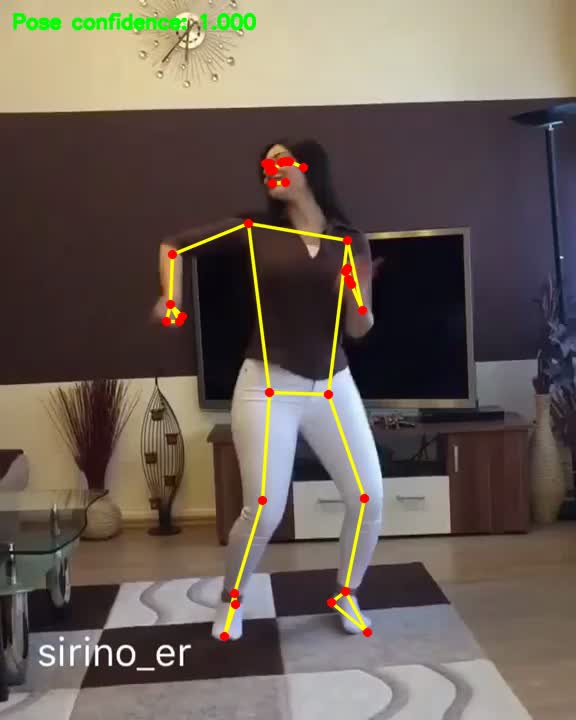 A frame extracted from the tested two-frame output. The writer preserved the source video’s 576×720 geometry. The creator watermark is visible in this original tutorial sample clip.
Both entry points accept
A frame extracted from the tested two-frame output. The writer preserved the source video’s 576×720 geometry. The creator watermark is visible in this original tutorial sample clip.
Both entry points accept --input, --model, --output-dir, --device, --score-threshold, --display, --no-display, and --validate. The video entry point also accepts --max-frames. Bundled defaults are script-relative, so the commands work when launched from another current working directory.
The C++ path follows the same contract rather than implementing a second algorithm. PoseEstimator loads the ONNX file, configures the backend, performs the same square-letterbox preprocessing, and requests every unconnected output:
| 1 2 3 4 5 6 7 8 9 10 11 12 13 14 15 16 17 18 19 20 21 22 23 24 25 26 27 28 29 30 | class PoseEstimator { public``: explicit PoseEstimator( const std::filesystem::path& model_path, const std::string& device = ``"cpu"``) { if (!std::filesystem::is_regular_file(model_path)) { throw std::runtime_error( "Pose model not found: " + model_path.string() + ". Run download_models.py first."``); } net_ = cv::dnn::readNet(model_path.string()); if (net_.empty()) { throw std::runtime_error( "OpenCV could not load pose model: " + model_path.string()); } configureBackend(net_, device); } PoseResult infer(``const cv::Mat& frame) { SquareTransform transform; const cv::Mat blob = preprocess(frame, transform); net_.setInput(blob); std::vector<cv::Mat> outputs; net_.forward(outputs, net_.getUnconnectedOutLayersNames()); return decode(outputs, transform); } private``: cv::dnn::Net net_; }; |
| --- | --- |
The production source additionally checks that the network is non-empty and reports a clear instruction when the model is missing. Defaults are compiled from the source directory, so the executables can also be launched from another working directory:
| 1 2 | ./build/OpenPoseImage --no-display --validate ./build/OpenPoseVideo --max-frames 2 --no-display --validate |
| --- | --- |
To build against a non-default OpenCV installation, pass its package directory:
| 1 2 3 | cmake -S . -B build-opencv5 \ -DOpenCV_DIR=/absolute/path/to/lib/cmake/opencv5 \ -DCMAKE_BUILD_TYPE=Release |
| --- | --- |
Python and C++ use the same 33 landmarks, 35 skeleton edges, threshold logic, geometry checks, output names, and validation markers. That symmetry makes it easier to compare a prototype with a compiled deployment.
The refreshed implementation was exercised with Python 3.14.3 and OpenCV-Python 4.13.0, native C++ OpenCV 4.12.0 with AppleClang 21, and the official OpenCV 5.0.0 source tag for both Python and C++.
| Validation path | Result |
| --- | --- |
| Python with OpenCV 4.13.0 | 4 of 4 tests passed |
| Python with exact OpenCV 5.0.0 | 4 of 4 tests passed |
| C++ with OpenCV 4.12.0 | 2 of 2 CTest cases passed |
| C++ with exact OpenCV 5.0.0 | 2 of 2 CTest cases passed |
| Image fixture | 33 visible landmarks, 35 drawn edges |
| Image pose confidence | 0.999757 in the tested Python and C++ runs |
| Two-frame video fixture | 576×720, 2 frames, 66 visible landmarks and 70 edges in total |
| Unrelated working directory | Python tests and direct C++ runs passed |
| Missing image | Clear error and exit status 2 |
The suite includes a checksum test for the model itself. Image tests require readable output with the same dimensions as the source. Video tests require the requested frame count and exact source geometry. The executables also validate that scores and coordinates are finite and that counts stay within structural bounds.
These are better cross-platform invariants than a byte-for-byte JPEG comparison. Image encoders, floating-point kernels, and DNN engines can produce small differences even when the result is correct.
The compatibility target includes OpenCV 4.14, but an exact 4.14 build was not available in the local validation environment. The nearest OpenCV 4 coverage was Python 4.13 and C++ 4.12; exact OpenCV 5.0 passed both language paths. The OpenCV 5 build used the built-in DNN graph engine because it was compiled without ONNX Runtime, so an ONNX Runtime-specific execution path remains untested.
z coordinate is not calibrated metric depth. Do not use it as centimeters or meters without an appropriate 3D reconstruction and calibration method.For exercise analysis, define joint angles only after checking the required points. For example, an elbow angle should be considered invalid when the shoulder, elbow, or wrist fails the application’s confidence rule. Silent interpolation can turn a missed landmark into a convincing but false measurement.
Big Vision takes computer vision projects through the full journey, not just the easy parts.
 Satya Mallick Founder - Big Vision & LearnOpenCV
Talk to our Team
Satya Mallick Founder - Big Vision & LearnOpenCV
Talk to our Team
The original 2018 article demonstrated CMU OpenPose models through Caffe files. The active July 2026 path has a different and deliberately narrower contract:
| Historical material | Current runnable path |
| --- | --- |
| CMU OpenPose Caffe network | MediaPipe Pose ONNX from OpenCV Zoo |
| COCO or MPI keypoint layouts | 33 MediaPipe public landmarks |
| Historical model downloader | Pinned, size- and SHA-256-verified downloader |
| GUI-oriented tutorial behavior | Saved headless output by default |
| Older path assumptions | Script- and source-relative defaults |
| Historical notebook and prototxt files | Retained for context, not imported, built, downloaded, or tested |
No CMU Caffe weights are included or fetched by the current downloader. Their terms are not the same as the Apache-2.0 license recorded for the current OpenCV Zoo model directory. Keeping the old notebook and prototxt files clearly separated avoids presenting them as a supported OpenCV 5 path.
This also explains why the article should not call the current program “OpenPose” merely because the project directory retains that historical name. The runnable estimator is MediaPipe Pose executed by OpenCV DNN.
Was This Article Helpful?
Post Views: 166
If you liked this article and would like to download code (C++ and Python) and example images used in this post, please [click here](javascript:void(0)). In our newsletter, we share Computer Vision and AI tutorials and examples written in C++/Python, and Computer Vision and Machine Learning algorithms and news.
[ Download Example Code](javascript:void(0))
PrevPreviousNumber of Parameters and Tensor Sizes in a Convolutional Neural Network (CNN) NextDeep Learning Based OCR Text Recognition Using Tesseract and OpenCVNext
Before a flight, I left Astra a short prompt and a signed-in Roboflow account. It
Learn a production model training playbook from PINTO’s face alignment project: reframe the task, engineer
How VGGT and VGGT-Ω work, what changed, and real benchmark numbers, speed, GPU memory, depth,
Founder - Big Vision & LearnOpenCV
Helping startups and enterprises build and deploy scalable solutions that work in the real world. Schedule a Call
Was This Article Helpful?
 3D Computer Vision3D ReconstructionSegmentationSpatialAI-DepthVideo Analysis
Adnan Shaikh July 18, 2026
3D Computer Vision3D ReconstructionSegmentationSpatialAI-DepthVideo Analysis
Adnan Shaikh July 18, 2026
Reconstruct the 3D swing plane of Virat Kohli's flick shot from a single 2D video with off-the-shelf vision models. No…
 Object DetectionOpenCV 5OpenCV DNNYOLO
Sudip Chakrabarty July 9, 2026
Object DetectionOpenCV 5OpenCV DNNYOLO
Sudip Chakrabarty July 9, 2026
Learn about the new OpenCV 5 and how to use its DNN engine to run object detection models on the…
 Computer VisionObject DetectionYOLO
Sudip Chakrabarty June 18, 2026
Computer VisionObject DetectionYOLO
Sudip Chakrabarty June 18, 2026
Learn how to fine-tune YOLO26 on your own data. We build a construction PPE safety detector and a sign-language reader…
Subscribe to our email newsletter to get the latest posts delivered right to your email.
Name
Email
Send
 Empowering innovation through education, LearnOpenCV provides in-depth tutorials, code, and guides in AI, Computer Vision, and Deep Learning. Led by Dr. Satya Mallick, we're dedicated to nurturing a community keen on technology breakthroughs.
Read More
Categories
Empowering innovation through education, LearnOpenCV provides in-depth tutorials, code, and guides in AI, Computer Vision, and Deep Learning. Led by Dr. Satya Mallick, we're dedicated to nurturing a community keen on technology breakthroughs.
Read More
Categories
Getting Started
Big Vision
Copyright © 2026 – BIG VISION LLC Privacy Policy Terms and Conditions
[  Click here to download the source code to this post ](javascript:void(0))