保留正文与补采附件。源页面当前未重新核验;具体限制见交付清单。
 We value your privacy
We use cookies to enhance your browsing experience, serve personalised ads or content, and analyse our traffic. By clicking "Accept All", you consent to our use of cookies.
Customise Reject All Accept All
Customise Consent Preferences
We value your privacy
We use cookies to enhance your browsing experience, serve personalised ads or content, and analyse our traffic. By clicking "Accept All", you consent to our use of cookies.
Customise Reject All Accept All
Customise Consent Preferences  We use cookies to help you navigate efficiently and perform certain functions. You will find detailed information about all cookies under each consent category below.
The cookies that are categorised as "Necessary" are stored on your browser as they are essential for enabling the basic functionalities of the site. ... Show more
NecessaryAlways Active
Necessary cookies are required to enable the basic features of this site, such as providing secure log-in or adjusting your consent preferences. These cookies do not store any personally identifiable data.
We use cookies to help you navigate efficiently and perform certain functions. You will find detailed information about all cookies under each consent category below.
The cookies that are categorised as "Necessary" are stored on your browser as they are essential for enabling the basic functionalities of the site. ... Show more
NecessaryAlways Active
Necessary cookies are required to enable the basic features of this site, such as providing secure log-in or adjusting your consent preferences. These cookies do not store any personally identifiable data.
-
Cookie
BCTempID
-
Duration
10 minutes
-
Description
No description available.
-
Cookie
__cf_bm
-
Duration
1 hour
-
Description
This cookie, set by Cloudflare, is used to support Cloudflare Bot Management.
-
Cookie
AWSALBCORS
-
Duration
7 days
-
Description
Amazon Web Services set this cookie for load balancing.
-
Cookie
_cfuvid
-
Duration
session
-
Description
Cloudflare sets this cookie to track users across sessions to optimize user experience by maintaining session consistency and providing personalized services
-
Cookie
li_gc
-
Duration
6 months
-
Description
Linkedin set this cookie for storing visitor's consent regarding using cookies for non-essential purposes.
-
Cookie
__hssrc
-
Duration
session
-
Description
This cookie is set by Hubspot whenever it changes the session cookie. The __hssrc cookie set to 1 indicates that the user has restarted the browser, and if the cookie does not exist, it is assumed to be a new session.
-
Cookie
__hssc
-
Duration
1 hour
-
Description
HubSpot sets this cookie to keep track of sessions and to determine if HubSpot should increment the session number and timestamps in the __hstc cookie.
-
Cookie
wpEmojiSettingsSupports
-
Duration
session
-
Description
WordPress sets this cookie when a user interacts with emojis on a WordPress site. It helps determine if the user's browser can display emojis properly.
-
Cookie
BCSessionID
-
Duration
1 year 1 month 4 days
-
Description
Blueconic sets this cookie as a unique identifier for the BlueConic profile.
-
Cookie
_octo
-
Duration
1 year
-
Description
No description available.
-
Cookie
logged_in
-
Duration
1 year
-
Description
No description available.
-
Cookie
__Secure-YEC
-
Duration
past
-
Description
YouTube sets this cookie to stores the user's video player preferences using embedded YouTube video
-
Cookie
__eoi
-
Duration
6 months
-
Description
Description is currently not available.
-
Cookie
AWSALBTGCORS
-
Duration
7 days
-
Description
No description available.
-
Cookie
login-status-p
-
Duration
past
-
Description
Description is currently not available.
-
Cookie
AWSALBTG
-
Duration
7 days
-
Description
No description available.
-
Cookie
csrf_token
-
Duration
session
-
Description
No description available.
-
Cookie
token_v2
-
Duration
1 day
-
Description
Description is currently not available.
-
Cookie
D
-
Duration
1 year
-
Description
Description is currently not available.
-
Cookie
PHPSESSID
-
Duration
session
-
Description
This cookie is native to PHP applications. The cookie stores and identifies a user's unique session ID to manage user sessions on the website. The cookie is a session cookie and will be deleted when all the browser windows are closed.
-
Cookie
VISITOR_PRIVACY_METADATA
-
Duration
6 months
-
Description
YouTube sets this cookie to store the user's cookie consent state for the current domain.
-
Cookie
cookietest
-
Duration
session
-
Description
The cookietest cookie is typically used to determine whether the user's browser accepts cookies, essential for website functionality and user experience.
-
Cookie
__Host-airtable-session
-
Duration
1 year
-
Description
This cookie is used to enable us to integrate the services of Airtable.
-
Cookie
__Host-airtable-session.sig
-
Duration
1 year
-
Description
This cookie is used to enable us to integrate the services of Airtable.
-
Cookie
m
-
Duration
1 year 1 month 4 days
-
Description
Stripe sets this cookie for fraud prevention purposes. It identifies the device used to access the website, allowing the website to be formatted accordingly.
-
Cookie
BIGipServer*
-
Duration
session
-
Description
Marketo sets this cookie to collect information about the user's online activity and build a profile about their interests to provide advertisements relevant to the user.
-
Cookie
__cfruid
-
Duration
session
-
Description
Cloudflare sets this cookie to identify trusted web traffic.
-
Cookie
_GRECAPTCHA
-
Duration
6 months
-
Description
Google Recaptcha service sets this cookie to identify bots to protect the website against malicious spam attacks.
-
Cookie
__Secure-YNID
-
Duration
6 months
-
Description
Google cookie used to protect user security and prevent fraud, especially during the login process.
-
Cookie
cookieyes-consent
-
Duration
1 year
-
Description
CookieYes sets this cookie to remember users' consent preferences so that their preferences are respected on subsequent visits to this site. It does not collect or store any personal information about the site visitors.
Functional
Functional cookies help perform certain functionalities like sharing the content of the website on social media platforms, collecting feedback, and other third-party features.
-
Cookie
lidc
-
Duration
1 day
-
Description
LinkedIn sets the lidc cookie to facilitate data center selection.
-
Cookie
brw
-
Duration
1 year
-
Description
No description available.
-
Cookie
brwConsent
-
Duration
5 minutes
-
Description
Description is currently not available.
-
Cookie
WMF-Uniq
-
Duration
1 year
-
Description
Description is currently not available.
-
Cookie
loom_anon_comment
-
Duration
1 year
-
Description
No description available.
-
Cookie
loom_referral_video
-
Duration
session
-
Description
Description is currently not available.
-
Cookie
VISITOR_INFO1_LIVE
-
Duration
6 months
-
Description
A cookie set by YouTube to measure bandwidth that determines whether the user gets the new or old player interface.
-
Cookie
yt-remote-connected-devices
-
Duration
Never Expires
-
Description
YouTube sets this cookie to store the user's video preferences using embedded YouTube videos.
-
Cookie
ytidb::LAST_RESULT_ENTRY_KEY
-
Duration
Never Expires
-
Description
The cookie ytidb::LAST_RESULT_ENTRY_KEY is used by YouTube to store the last search result entry that was clicked by the user. This information is used to improve the user experience by providing more relevant search results in the future.
-
Cookie
yt-remote-device-id
-
Duration
Never Expires
-
Description
YouTube sets this cookie to store the user's video preferences using embedded YouTube videos.
-
Cookie
yt-remote-session-name
-
Duration
session
-
Description
The yt-remote-session-name cookie is used by YouTube to store the user's video player preferences using embedded YouTube video.
-
Cookie
yt-remote-fast-check-period
-
Duration
session
-
Description
The yt-remote-fast-check-period cookie is used by YouTube to store the user's video player preferences for embedded YouTube videos.
-
Cookie
yt-remote-session-app
-
Duration
session
-
Description
The yt-remote-session-app cookie is used by YouTube to store user preferences and information about the interface of the embedded YouTube video player.
-
Cookie
yt-remote-cast-available
-
Duration
session
-
Description
The yt-remote-cast-available cookie is used to store the user's preferences regarding whether casting is available on their YouTube video player.
-
Cookie
yt-remote-cast-installed
-
Duration
session
-
Description
The yt-remote-cast-installed cookie is used to store the user's video player preferences using embedded YouTube video.
-
Cookie
cp_session
-
Duration
3 months
-
Description
Codepen sets this cookie for Help systems found in the website.
-
Cookie
loid
-
Duration
1 year 1 month 4 days
-
Description
This cookie is set by the Reddit. The cookie enables the sharing of content from the website onto the social media platform.
Analytics
Analytical cookies are used to understand how visitors interact with the website. These cookies help provide information on metrics such as the number of visitors, bounce rate, traffic source, etc.
-
Cookie
__hstc
-
Duration
6 months
-
Description
Hubspot set this main cookie for tracking visitors. It contains the domain, initial timestamp (first visit), last timestamp (last visit), current timestamp (this visit), and session number (increments for each subsequent session).
-
Cookie
hubspotutk
-
Duration
6 months
-
Description
HubSpot sets this cookie to keep track of the visitors to the website. This cookie is passed to HubSpot on form submission and used when deduplicating contacts.
-
Cookie
_ga
-
Duration
1 year 1 month 4 days
-
Description
Google Analytics sets this cookie to calculate visitor, session and campaign data and track site usage for the site's analytics report. The cookie stores information anonymously and assigns a randomly generated number to recognise unique visitors.
-
Cookie
ga*
-
Duration
1 year 1 month 4 days
-
Description
Google Analytics sets this cookie to store and count page views.
-
Cookie
__Host-psifi.analyticsTrace
-
Duration
6 hours
-
Description
Description is currently not available.
-
Cookie
__Host-psifi.analyticsTraceV2
-
Duration
6 hours
-
Description
Description is currently not available.
-
Cookie
_gh_sess
-
Duration
session
-
Description
GitHub sets this cookie for temporary application and framework state between pages like what step the user is on in a multiple step form.
-
Cookie
YSC
-
Duration
session
-
Description
YSC cookie is set by Youtube and is used to track the views of embedded videos on Youtube pages.
-
Cookie
ajs_anonymous_id
-
Duration
1 year
-
Description
This cookie is set by Segment to count the number of people who visit a certain site by tracking if they have visited before.
-
Cookie
vuid
-
Duration
1 year 1 month 4 days
-
Description
Vimeo installs this cookie to collect tracking information by setting a unique ID to embed videos on the website.
Performance
Performance cookies are used to understand and analyse the key performance indexes of the website which helps in delivering a better user experience for the visitors.
-
Cookie
AWSALB
-
Duration
7 days
-
Description
AWSALB is an application load balancer cookie set by Amazon Web Services to map the session to the target.
-
Cookie
acq
-
Duration
past
-
Description
Description is currently not available.
-
Cookie
acq.sig
-
Duration
past
-
Description
Description is currently not available.
-
Cookie
ptc
-
Duration
2 years
-
Description
No description available.
Advertisement
Advertisement cookies are used to provide visitors with customised advertisements based on the pages you visited previously and to analyse the effectiveness of the ad campaigns.
-
Cookie
muc_ads
-
Duration
1 year 1 month 4 days
-
Description
Twitter sets this cookie to collect user behaviour and interaction data to optimize the website.
-
Cookie
guest_id_marketing
-
Duration
1 year 1 month 4 days
-
Description
Twitter sets this cookie to identify and track the website visitor.
-
Cookie
guest_id_ads
-
Duration
1 year 1 month 4 days
-
Description
Twitter sets this cookie to identify and track the website visitor.
-
Cookie
personalization_id
-
Duration
1 year 1 month 4 days
-
Description
Twitter sets this cookie to integrate and share features for social media and also store information about how the user uses the website, for tracking and targeting.
-
Cookie
guest_id
-
Duration
1 year 1 month 4 days
-
Description
Twitter sets this cookie to identify and track the website visitor. It registers if a user is signed in to the Twitter platform and collects information about ad preferences.
-
Cookie
bcookie
-
Duration
1 year
-
Description
LinkedIn sets this cookie from LinkedIn share buttons and ad tags to recognize browser IDs.
-
Cookie
__Secure-ROLLOUT_TOKEN
-
Duration
6 months
-
Description
YouTube sets this cookie to manage feature rollout and experimentation. It helps Google control which new features or interface changes are shown to users as part of testing and staged rollouts, ensuring consistent experience for a given user during an experiment.
-
Cookie
yt.innertube::nextId
-
Duration
Never Expires
-
Description
YouTube sets this cookie to register a unique ID to store data on what videos from YouTube the user has seen.
-
Cookie
yt.innertube::requests
-
Duration
Never Expires
-
Description
YouTube sets this cookie to register a unique ID to store data on what videos from YouTube the user has seen.
-
Cookie
session_tracker
-
Duration
session
-
Description
This cookie is set by the Reddit. This cookie is used to identify trusted web traffic. It also helps in adverstising on the website.
-
Cookie
edgebucket
-
Duration
session
-
Description
Reddit sets this cookie to save the information about a log-on Reddit user, for the purpose of advertisement recommendations and updating the content.
-
Cookie
did
-
Duration
1 year
-
Description
Arbor sets this cookie to show targeted ads to site visitors.This cookie expires after 2 months or 1 year.
Uncategorised
Other uncategorised cookies are those that are being analysed and have not been classified into a category as yet.
No cookies to display.
Reject All Save My Preferences Accept All
Toggle SearchToggle Mobile Navigation
Publish AI, ML & data-science insights to a global community of data professionals.
Sign inSubmit an Article
LatestEditor's PicksNewsletterShipAI
Write For TDS
LinkedInXToggle Search
Data Science
Beyond the Flat Table: Building an Enterprise-Grade Financial Model in Power BI
A step-by-step journey through data transformation, star schema modeling, and DAX variance analysis with lessons learned along the way.
Ibrahim Salami
January 10, 202610 min read
 Created with Gemini
We’ve all been there: You open Power BI, drag a messy Excel sheet into the canvas, and start dropping charts until something looks “right.” It’s easy, it’s intuitive, and honestly, that’s why Power BI is one of my favourite tools for data visualisation.
But as the world of data shifts toward end-to-end solutions like Microsoft Fabric , “just making it work” isn’t enough anymore. Large organisations need models that are performant, secure, and scalable.
I’ve decided to challenge myself by taking the PL-300: Microsoft Data Analyst Associate exam. But instead of just grinding through practice tests or memorising definitions, I’m going into “Practical Mode.” If I’m going to get certified, I want to prove I can solve the problems real businesses actually face.
Created with Gemini
We’ve all been there: You open Power BI, drag a messy Excel sheet into the canvas, and start dropping charts until something looks “right.” It’s easy, it’s intuitive, and honestly, that’s why Power BI is one of my favourite tools for data visualisation.
But as the world of data shifts toward end-to-end solutions like Microsoft Fabric , “just making it work” isn’t enough anymore. Large organisations need models that are performant, secure, and scalable.
I’ve decided to challenge myself by taking the PL-300: Microsoft Data Analyst Associate exam. But instead of just grinding through practice tests or memorising definitions, I’m going into “Practical Mode.” If I’m going to get certified, I want to prove I can solve the problems real businesses actually face.
The Mission: The Enterprise-Grade Financial Suite
For my first project, I’m tackling the Executive Financial Health Suite.
Learn this step by step with the interactive AI and Data Scientist roadmap.
Why finance? Because in the enterprise world, it’s the ultimate test of your Data Modeling and DAX skills. Most “generic” tutorials use a single, flat table. But in a real company, data is fragmented. You have “Actuals” (what happened) sitting in one place and “Budgets” (the goal) sitting in another, usually at different levels of detail.
In this project, I’m going to document how I:
- Deconstruct a “Flat Table” into a clean, professional Star Schema.
- Handle the “Grain” Problem (comparing daily sales vs. monthly budgets).
- Master DAX for those high-stakes metrics like Year-to-Date (YTD) and Variance %.
I’m sharing my journey in public so that if you’re also preparing for the PL-300, you can follow along, build these solutions with me, and understand the why behind the architecture — not just the how.
For this project, we are using the Microsoft Financial Sample. It’s the perfect “blank canvas” because it comes as a flat, “messy” table that we have to re-engineer professionally.
How to get it: In Power BI Desktop, go to Home > Sample Dataset > Load Sample Data. Select the financials table.
Let’s get our hands dirty in Power Query.
Phase 1: Data Transformation (Power Query)
Before touching DAX or visuals, I slowed myself down and spent real time in Power Query. This is the part I used to rush through. Now I treat it as the foundation of everything that follows.
If the data model is shaky, no amount of clever DAX will save you.
Step 1: Data Profiling (a quick reality check)
Once I loaded the Microsoft Financial Sample dataset, the first thing I did was turn on column profiling :
- Column quality
- Column distribution
- Column profile
When I turn on Column quality, distribution, and profile , I’m not trying to be thorough for the sake of it. I’m scanning for model-breaking issues before they turn into DAX headaches.
Column profiling immediately tells you:
- Where nulls are hiding
- Which columns are pretending to be dimensions
- Which fields look numeric but behave like text
1. Nulls & Data Type Mismatches
I think we’re good. Empty values are 0% all through, valid are 100%, and errors are 0%. Data types are all good, also. Probably because we’re using the sample financials dataset, there shouldn’t be any issues
2. Cardinality: What Wants to Be a Dimension
Cardinality is simply how many unique values a column has. Power BI surfaces this immediately in Column distribution , and once you start paying attention to it, modeling decisions get much easier.
Here’s my rule of thumb:
- Low cardinality (values repeat a lot) → likely a dimension
- High cardinality (values are mostly unique) → fact-level detail
When I turn on column distribution, I’m asking two questions:
- How many distinct values does this column have?
- Do those values repeat enough to be useful for filtering or grouping?
If a column looks categorical but has thousands of distinct values, that’s a red flag.
Once I turned on Column distribution , the dataset started sorting itself for me.
Some columns immediately showed low cardinality — they repeated often and behaved like true categories:
- Segment
- Country
- Product
- Discount Band
- Manufacturing Price
- Sales Price
- Date attributes (Year, Month Number, Month Name)
These columns had relatively few distinct values and clear repetition across rows. That’s a strong signal: these want to be used for grouping, slicing, and relationships. In other words, they naturally belong on the dimension side of a star schema.
Then there were the columns on the other end of the spectrum.
Measures like:
- Units Sold
- Gross Sales
- Discounts
- Sales
- COGS
- Profit
...showed very high cardinality. Many values were unique or nearly unique per row, with wide numeric ranges. That’s exactly what I expect from fact-level metrics — they’re meant to be aggregated, not filtered on.
That insight directly informed my next step: using Reference in Power Query to spin off Dim_Product and Dim_Geography, instead of guessing or forcing the structure.
Step 2: Spinning Dimensions with Reference (Not Duplicate)
This is the point where I stopped treating the dataset as a report-ready table and started treating it as a model-in-progress.
In Power Query, it’s tempting to right-click a table and hit Duplicate. I used to do that all the time. It works — but it quietly creates problems you only feel later.
Instead, I used Reference.
Why reference instead of duplicate? You might ask
When you create a referenced table:
- It inherits all upstream transformations
- It stays logically tied to the source
- Any fix in the fact table automatically flows downstream
From a real-world perspective, it’s just… safer.
Here’s how I created Dim_Product & Dim_Geography
Starting from the main financial table:
- I right-clicked the query and selected Reference
- Renamed the new query to
Dim_Product
- Kept only product-related columns (Product, Segment, Discount Band)
- Removed duplicates
- Ensured clean data types and naming
What I ended up with was a small, stable table with low cardinality — perfect for slicing and grouping.
I repeated the same approach for geography:
- Reference the fact table
- Keep the Country column
- Remove duplicates
- Clean text values
P.S. In this dataset, geography is represented only at the country level. Rather than forcing a region or city hierarchy that doesn’t exist, I modeled Country as a lean, single-column dimension.
Step 3: Create a Dynamic Date Table
Here’s where I see a lot of Power BI models quietly fail PL-300 standards.
- I didn’t import a static calendar.
- I didn’t manually generate dates.
- I built a dynamic date table in Power Query based on the data itself.
Why this matters:
- It guarantees no missing dates
- It automatically adjusts when new data arrives
- It aligns perfectly with Microsoft’s modeling best practices
To create a dynamic date table. Just click on Load - > Blank Query -> Advanced Editor and paste this code in
Below is the exact M code I used
powerquery
let
Source = Financials,
MinDate = Date.From(List.Min(Source[Date])),
MaxDate = Date.From(List.Max(Source[Date])),
DateList = List.Dates(
MinDate,
Duration.Days(MaxDate — MinDate) + 1,
#duration(1, 0, 0, 0)
),
DateTable = Table.FromList(DateList, Splitter.SplitByNothing(), {“Date”}),
AddYear = Table.AddColumn(DateTable, “Year”, each Date.Year([Date]), Int64.Type),
AddMonthNum = Table.AddColumn(AddYear, “Month Number”, each Date.Month([Date]), Int64.Type),
AddMonthName = Table.AddColumn(AddMonthNum, “Month Name”, each Date.MonthName([Date]), type text),
AddQuarter = Table.AddColumn(AddMonthName, “Quarter”, each “Q” & Number.ToText(Date.QuarterOfYear([Date])), type text),
AddDay = Table.AddColumn(AddQuarter, “Day”, each Date.Day([Date]), Int64.Type)
in
AddDay
This calendar:
- Covers every date in the dataset
- Scales automatically
- Is ready for time intelligence the moment it hits the model
Once loaded, I marked it as a Date Table in the model view — non-negotiable for PL-300.
By the end of Phase 1, I had:
- A clean fact table
- Proper dimension tables created via Reference
- A dynamic, gap-free date table
- Transformations I could actually explain to another analyst
Nothing flashy yet — but this is the phase that makes everything after it easier, faster, and more reliable.
In the next section, I’ll move into data modeling and relationships , where this structure really starts paying dividends.
Phase 2: Data Modeling (From Tables to a Star Schema)
This is the phase where Power BI starts behaving like a semantic model.
By the time I switched to the Model view , I already had:
- A clean fact table
- Lean dimensions created via Reference
- A dynamic, gap-free date table
Now the goal was simple: connect everything cleanly and intentionally.
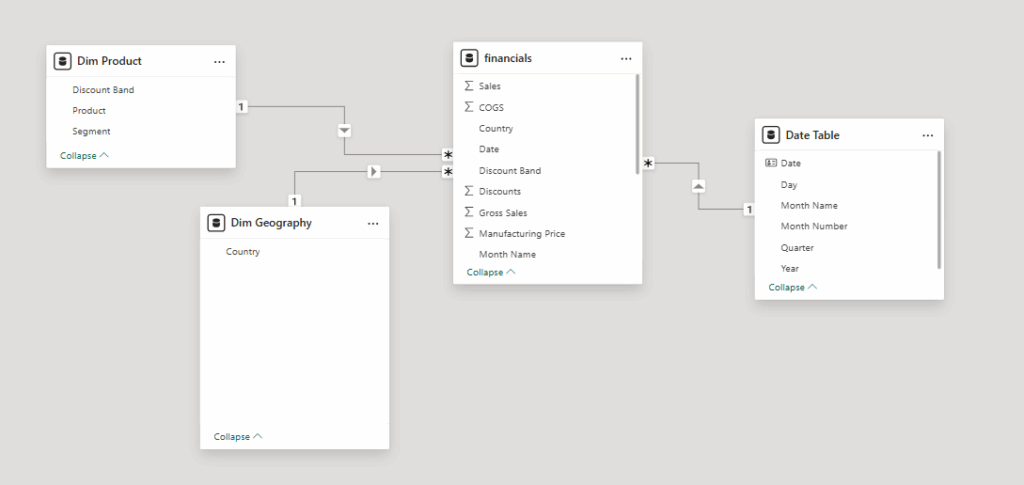
Step 1: Establishing the Star Schema
I aimed for a classic star schema :
- One central fact table (financial metrics)
- Surrounding dimension tables (
Dim_Date, Dim_Product, Dim_Geography)
Every relationship needed to answer three questions:
- Which table is the “one” side?
- Which table is the “many” side?
- Does this relationship make sense at the grain of the data?
You might notice that I didn’t introduce surrogate keys for the fact or dimension tables. In this dataset, the natural keys — Country, Product, and Date — are stable, low-cardinality, and unambiguous. For this model, adding artificial IDs would increase complexity without improving clarity or performance.
Here’s how the overall model looks:
Step 2: Relationship Direction (Single, on Purpose)
All relationships were set to:
- Many-to-one
- Single direction , flowing from dimension → fact
For PL-300 and real-world models alike, single-direction filters are the default until there’s a strong reason not to use them.
Step 3: Date Table as the Anchor
The dynamic date table I created earlier now became the backbone of the model.
I:
- Related
Dim_Date[Date] to the fact table’s date column
- Marked
Dim_Date as the official Date Table
- Hid the raw date column in the fact table
This does three important things:
- Enables time intelligence
- Prevents accidental use of the wrong date field
- Forces consistency across measures
From here on out, every time-based calculation flows through this table — no exceptions.
Step 4: Hiding What Users Don’t Need
This is a small step with an outsized impact. PL-300 explicitly tests this idea that the model shouldn't be just correct — it should be usable.
I hid:
- Foreign keys (Date, Product, Country). If a column exists only to create relationships, it doesn’t need to appear in the Fields pane.
- Raw numeric columns that should only be used in measures. After creating my DAX measures (e.g. Total Sales, Total Profit). I can go ahead and hide raw numeric columns (like Units Sold, Gross Sales, Discounts, Sales, COGS, Profit) from my fact table. These nudges users toward correct and consistent aggregations
- Duplicate date attributes in the fact Table (Year, Month, Month Number). These already exist in the date table.
Step 5: Validating the Model (Before Writing DAX)
Before touching any measures, I did a quick sanity check:
- Does slicing by Country behave correctly?
- Do Product and Segment filter as expected?
- Do dates aggregate cleanly by Year and Month?
If something breaks here, it’s a modeling issue — not a DAX issue.
To test this, I created a quick visual checking the Sum of Profit by Year. Here’s how it turned out:
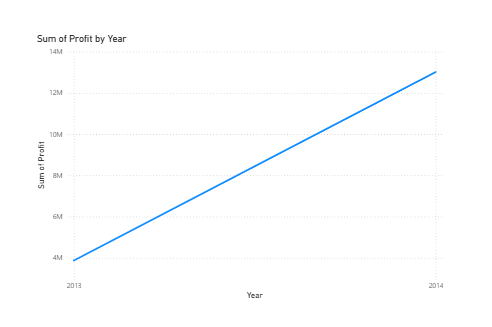 So far so good! Now we can move on to creating our DAX measures.
Phase 3: DAX Measures & Variance Analysis (Where the Model Starts to Shine)
This is the phase where the work I’d done in Power Query and the model really started paying off. Honestly, it’s the first time in a while that writing DAX didn’t feel like fighting the table. The star schema made everything… predictable.
Step 1: Base Measures — the foundation of sanity
I resisted my old instinct to drag raw columns into visuals. Instead, I created explicit measures for everything I cared about:
powerquery
Total Sales :=
SUM ( financials[ Sales])

Total Profit :=
SUM ( financials[Profit] )

Total Units Sold :=
SUM ( financials[Units Sold] )

Total COGS :=
SUM ( financials[COGS])
Step 2: Time intelligence without surprises
Because I already had a complete, properly marked date table, things like year-to-date or prior year comparisons were effortless.
Sales Year-to-Date
powerquery
Sales YTD :=
TOTALYTD (
[Total Sales],
‘Dim_Date’[Date]
)
Sales Prior Year
powerquery
Sales PY :=
CALCULATE (
[Total Sales],
SAMEPERIODLASTYEAR ( ‘Dim_Date’[Date] )
)
Step 3: Variance measures — turning numbers into insight
Once I had Actual vs Prior Period, I could calculate variance with almost no extra effort:
powerquery
Sales YoY Variance :=
[Total Sales] — [Sales PY]

Sales YoY % :=
DIVIDE (
[Sales YoY Variance],
[Sales PY]
)
Same approach for month-over-month:
powerquery
Sales PM :=
CALCULATE (
[Total Sales],
DATEADD ( 'Dim_Date'[Date], -1, MONTH )
)

Sales MoM Variance :=
[Total Sales] - [Sales PM]

Sales MoM % :=
DIVIDE (
[Sales MoM Variance],
[Sales PM]
)
Step 4: Why this actually feels “easy”
Here’s the honest part: writing DAX didn’t feel like the hardest thing. The hard part was everything that came before :
- Cleaning the data
- Profiling columns
- Spinning out dimensions with Reference
- Building a solid date table
By the time I got here, the DAX was just adding value instead of patching holes.
Good DAX isn’t clever — it’s predictable, trustworthy, and easy to explain.
Conclusion
The magic wasn’t in any single DAX formula — it was in how the model came together. By profiling the data early, understanding cardinality, and spinning dimensions with Reference , I built a structure that just works. A dynamic date table and clean relationships meant time intelligence measures and variance calculations ran effortlessly.
Hiding unnecessary fields and grouping measures thoughtfully made the model approachable, even for someone else exploring it for the first time. By the time I wrote the DAX for Actual vs. Prior Period or Month-over-Month variance, everything felt predictable and trustworthy.
If you want to see the full semantic model in action, including all the tables, relationships, and measures, you can download ithere and explore how it ties together. There’s no better way to learn than seeing a working model in Power BI and experimenting with it yourself.
Wanna connect? Feel free to say hi on any of the platforms below
Medium
LinkedIn
Twitter
YouTube
Register Now to Continue Reading
Unlock Towards Data Science with a Free Account
All articles on Towards Data Science are available to registered users. Create a free account today to access this article and thousands more.
Register for freeSign in to your account
 Written By
See all from Ibrahim Salami
Busines IntelligenceData AnalyticsData ModelingData VisualizationPower Bi
Share This Article
Towards Data Science is a community publication. Submit your insights to reach our global audience and earn through the TDS Author Payment Program.
Write for TDS
Related Articles
Data Science
Including the resources I used to learn time-series as I was doing this project (MySQL, ARIMA orders selection, parallelization in Jupyter...
Irene Chang
April 6, 202210 min read
Data Science
Designing a complete data stack with Meltano, DBT and Superset.
Andrew Stewart
September 27, 202011 min read
Data Science
An alternative approach to understanding bias in data
Jonas Dieckmann
January 27, 202310 min read
Data Science
A look at submitted Medicare charges by state in 2017 and 2012
Anne Bode
November 19, 202013 min read
Data Science
Side-by-side bar charts, stacked bar plots, pie plots, and cloropleth maps
Amanda Iglesias Moreno
February 5, 20204 min read
Artificial Intelligence
NumPy forms the basis of many Python libraries in the data science domain.
Soner Yıldırım
August 29, 20205 min read
Data Analyst interviews will typically entail both technical and behavioral components.
Nick Vega
April 25, 20218 min read
Data Science
A Brief Review of "Inducing visibilities: An attempt at Santiago Ramón y Cajal's aesthetic epistemology"...
Jesse Ruiz (she/they)
May 24, 20213 min read
Data Science
A guide to the most popular techniques when randomized A/B testing is not possible
Magda Ntetsika
July 19, 20246 min read
Your home for data science and AI. The world's leading publication for data science, data analytics, data engineering, machine learning, and artificial intelligence professionals.
Subscribe to Our NewsletterWrite For TDS•About•Advertise•Privacy Policy•Terms of Use
© Insight Media Group, LLC 2026•The New Stack•roadmap.sh•Creator Network
Recommended Articles
Close