保留正文与补采附件。源页面当前未重新核验;具体限制见交付清单。
 We value your privacy
We use cookies to enhance your browsing experience, serve personalised ads or content, and analyse our traffic. By clicking "Accept All", you consent to our use of cookies.
Customise Reject All Accept All
Customise Consent Preferences
We value your privacy
We use cookies to enhance your browsing experience, serve personalised ads or content, and analyse our traffic. By clicking "Accept All", you consent to our use of cookies.
Customise Reject All Accept All
Customise Consent Preferences  We use cookies to help you navigate efficiently and perform certain functions. You will find detailed information about all cookies under each consent category below.
The cookies that are categorised as "Necessary" are stored on your browser as they are essential for enabling the basic functionalities of the site. ... Show more
NecessaryAlways Active
Necessary cookies are required to enable the basic features of this site, such as providing secure log-in or adjusting your consent preferences. These cookies do not store any personally identifiable data.
We use cookies to help you navigate efficiently and perform certain functions. You will find detailed information about all cookies under each consent category below.
The cookies that are categorised as "Necessary" are stored on your browser as they are essential for enabling the basic functionalities of the site. ... Show more
NecessaryAlways Active
Necessary cookies are required to enable the basic features of this site, such as providing secure log-in or adjusting your consent preferences. These cookies do not store any personally identifiable data.
-
Cookie
BCTempID
-
Duration
10 minutes
-
Description
No description available.
-
Cookie
__cf_bm
-
Duration
1 hour
-
Description
This cookie, set by Cloudflare, is used to support Cloudflare Bot Management.
-
Cookie
AWSALBCORS
-
Duration
7 days
-
Description
Amazon Web Services set this cookie for load balancing.
-
Cookie
_cfuvid
-
Duration
session
-
Description
Cloudflare sets this cookie to track users across sessions to optimize user experience by maintaining session consistency and providing personalized services
-
Cookie
li_gc
-
Duration
6 months
-
Description
Linkedin set this cookie for storing visitor's consent regarding using cookies for non-essential purposes.
-
Cookie
__hssrc
-
Duration
session
-
Description
This cookie is set by Hubspot whenever it changes the session cookie. The __hssrc cookie set to 1 indicates that the user has restarted the browser, and if the cookie does not exist, it is assumed to be a new session.
-
Cookie
__hssc
-
Duration
1 hour
-
Description
HubSpot sets this cookie to keep track of sessions and to determine if HubSpot should increment the session number and timestamps in the __hstc cookie.
-
Cookie
wpEmojiSettingsSupports
-
Duration
session
-
Description
WordPress sets this cookie when a user interacts with emojis on a WordPress site. It helps determine if the user's browser can display emojis properly.
-
Cookie
BCSessionID
-
Duration
1 year 1 month 4 days
-
Description
Blueconic sets this cookie as a unique identifier for the BlueConic profile.
-
Cookie
_octo
-
Duration
1 year
-
Description
No description available.
-
Cookie
logged_in
-
Duration
1 year
-
Description
No description available.
-
Cookie
__Secure-YEC
-
Duration
past
-
Description
YouTube sets this cookie to stores the user's video player preferences using embedded YouTube video
-
Cookie
__eoi
-
Duration
6 months
-
Description
Description is currently not available.
-
Cookie
AWSALBTGCORS
-
Duration
7 days
-
Description
No description available.
-
Cookie
login-status-p
-
Duration
past
-
Description
Description is currently not available.
-
Cookie
AWSALBTG
-
Duration
7 days
-
Description
No description available.
-
Cookie
csrf_token
-
Duration
session
-
Description
No description available.
-
Cookie
token_v2
-
Duration
1 day
-
Description
Description is currently not available.
-
Cookie
D
-
Duration
1 year
-
Description
Description is currently not available.
-
Cookie
PHPSESSID
-
Duration
session
-
Description
This cookie is native to PHP applications. The cookie stores and identifies a user's unique session ID to manage user sessions on the website. The cookie is a session cookie and will be deleted when all the browser windows are closed.
-
Cookie
VISITOR_PRIVACY_METADATA
-
Duration
6 months
-
Description
YouTube sets this cookie to store the user's cookie consent state for the current domain.
-
Cookie
cookietest
-
Duration
session
-
Description
The cookietest cookie is typically used to determine whether the user's browser accepts cookies, essential for website functionality and user experience.
-
Cookie
__Host-airtable-session
-
Duration
1 year
-
Description
This cookie is used to enable us to integrate the services of Airtable.
-
Cookie
__Host-airtable-session.sig
-
Duration
1 year
-
Description
This cookie is used to enable us to integrate the services of Airtable.
-
Cookie
m
-
Duration
1 year 1 month 4 days
-
Description
Stripe sets this cookie for fraud prevention purposes. It identifies the device used to access the website, allowing the website to be formatted accordingly.
-
Cookie
BIGipServer*
-
Duration
session
-
Description
Marketo sets this cookie to collect information about the user's online activity and build a profile about their interests to provide advertisements relevant to the user.
-
Cookie
__cfruid
-
Duration
session
-
Description
Cloudflare sets this cookie to identify trusted web traffic.
-
Cookie
_GRECAPTCHA
-
Duration
6 months
-
Description
Google Recaptcha service sets this cookie to identify bots to protect the website against malicious spam attacks.
-
Cookie
__Secure-YNID
-
Duration
6 months
-
Description
Google cookie used to protect user security and prevent fraud, especially during the login process.
-
Cookie
cookieyes-consent
-
Duration
1 year
-
Description
CookieYes sets this cookie to remember users' consent preferences so that their preferences are respected on subsequent visits to this site. It does not collect or store any personal information about the site visitors.
Functional
Functional cookies help perform certain functionalities like sharing the content of the website on social media platforms, collecting feedback, and other third-party features.
-
Cookie
lidc
-
Duration
1 day
-
Description
LinkedIn sets the lidc cookie to facilitate data center selection.
-
Cookie
brw
-
Duration
1 year
-
Description
No description available.
-
Cookie
brwConsent
-
Duration
5 minutes
-
Description
Description is currently not available.
-
Cookie
WMF-Uniq
-
Duration
1 year
-
Description
Description is currently not available.
-
Cookie
loom_anon_comment
-
Duration
1 year
-
Description
No description available.
-
Cookie
loom_referral_video
-
Duration
session
-
Description
Description is currently not available.
-
Cookie
VISITOR_INFO1_LIVE
-
Duration
6 months
-
Description
A cookie set by YouTube to measure bandwidth that determines whether the user gets the new or old player interface.
-
Cookie
yt-remote-connected-devices
-
Duration
Never Expires
-
Description
YouTube sets this cookie to store the user's video preferences using embedded YouTube videos.
-
Cookie
ytidb::LAST_RESULT_ENTRY_KEY
-
Duration
Never Expires
-
Description
The cookie ytidb::LAST_RESULT_ENTRY_KEY is used by YouTube to store the last search result entry that was clicked by the user. This information is used to improve the user experience by providing more relevant search results in the future.
-
Cookie
yt-remote-device-id
-
Duration
Never Expires
-
Description
YouTube sets this cookie to store the user's video preferences using embedded YouTube videos.
-
Cookie
yt-remote-session-name
-
Duration
session
-
Description
The yt-remote-session-name cookie is used by YouTube to store the user's video player preferences using embedded YouTube video.
-
Cookie
yt-remote-fast-check-period
-
Duration
session
-
Description
The yt-remote-fast-check-period cookie is used by YouTube to store the user's video player preferences for embedded YouTube videos.
-
Cookie
yt-remote-session-app
-
Duration
session
-
Description
The yt-remote-session-app cookie is used by YouTube to store user preferences and information about the interface of the embedded YouTube video player.
-
Cookie
yt-remote-cast-available
-
Duration
session
-
Description
The yt-remote-cast-available cookie is used to store the user's preferences regarding whether casting is available on their YouTube video player.
-
Cookie
yt-remote-cast-installed
-
Duration
session
-
Description
The yt-remote-cast-installed cookie is used to store the user's video player preferences using embedded YouTube video.
-
Cookie
cp_session
-
Duration
3 months
-
Description
Codepen sets this cookie for Help systems found in the website.
-
Cookie
loid
-
Duration
1 year 1 month 4 days
-
Description
This cookie is set by the Reddit. The cookie enables the sharing of content from the website onto the social media platform.
Analytics
Analytical cookies are used to understand how visitors interact with the website. These cookies help provide information on metrics such as the number of visitors, bounce rate, traffic source, etc.
-
Cookie
__hstc
-
Duration
6 months
-
Description
Hubspot set this main cookie for tracking visitors. It contains the domain, initial timestamp (first visit), last timestamp (last visit), current timestamp (this visit), and session number (increments for each subsequent session).
-
Cookie
hubspotutk
-
Duration
6 months
-
Description
HubSpot sets this cookie to keep track of the visitors to the website. This cookie is passed to HubSpot on form submission and used when deduplicating contacts.
-
Cookie
_ga
-
Duration
1 year 1 month 4 days
-
Description
Google Analytics sets this cookie to calculate visitor, session and campaign data and track site usage for the site's analytics report. The cookie stores information anonymously and assigns a randomly generated number to recognise unique visitors.
-
Cookie
ga*
-
Duration
1 year 1 month 4 days
-
Description
Google Analytics sets this cookie to store and count page views.
-
Cookie
__Host-psifi.analyticsTrace
-
Duration
6 hours
-
Description
Description is currently not available.
-
Cookie
__Host-psifi.analyticsTraceV2
-
Duration
6 hours
-
Description
Description is currently not available.
-
Cookie
_gh_sess
-
Duration
session
-
Description
GitHub sets this cookie for temporary application and framework state between pages like what step the user is on in a multiple step form.
-
Cookie
YSC
-
Duration
session
-
Description
YSC cookie is set by Youtube and is used to track the views of embedded videos on Youtube pages.
-
Cookie
ajs_anonymous_id
-
Duration
1 year
-
Description
This cookie is set by Segment to count the number of people who visit a certain site by tracking if they have visited before.
-
Cookie
vuid
-
Duration
1 year 1 month 4 days
-
Description
Vimeo installs this cookie to collect tracking information by setting a unique ID to embed videos on the website.
Performance
Performance cookies are used to understand and analyse the key performance indexes of the website which helps in delivering a better user experience for the visitors.
-
Cookie
AWSALB
-
Duration
7 days
-
Description
AWSALB is an application load balancer cookie set by Amazon Web Services to map the session to the target.
-
Cookie
acq
-
Duration
past
-
Description
Description is currently not available.
-
Cookie
acq.sig
-
Duration
past
-
Description
Description is currently not available.
-
Cookie
ptc
-
Duration
2 years
-
Description
No description available.
Advertisement
Advertisement cookies are used to provide visitors with customised advertisements based on the pages you visited previously and to analyse the effectiveness of the ad campaigns.
-
Cookie
muc_ads
-
Duration
1 year 1 month 4 days
-
Description
Twitter sets this cookie to collect user behaviour and interaction data to optimize the website.
-
Cookie
guest_id_marketing
-
Duration
1 year 1 month 4 days
-
Description
Twitter sets this cookie to identify and track the website visitor.
-
Cookie
guest_id_ads
-
Duration
1 year 1 month 4 days
-
Description
Twitter sets this cookie to identify and track the website visitor.
-
Cookie
personalization_id
-
Duration
1 year 1 month 4 days
-
Description
Twitter sets this cookie to integrate and share features for social media and also store information about how the user uses the website, for tracking and targeting.
-
Cookie
guest_id
-
Duration
1 year 1 month 4 days
-
Description
Twitter sets this cookie to identify and track the website visitor. It registers if a user is signed in to the Twitter platform and collects information about ad preferences.
-
Cookie
bcookie
-
Duration
1 year
-
Description
LinkedIn sets this cookie from LinkedIn share buttons and ad tags to recognize browser IDs.
-
Cookie
__Secure-ROLLOUT_TOKEN
-
Duration
6 months
-
Description
YouTube sets this cookie to manage feature rollout and experimentation. It helps Google control which new features or interface changes are shown to users as part of testing and staged rollouts, ensuring consistent experience for a given user during an experiment.
-
Cookie
yt.innertube::nextId
-
Duration
Never Expires
-
Description
YouTube sets this cookie to register a unique ID to store data on what videos from YouTube the user has seen.
-
Cookie
yt.innertube::requests
-
Duration
Never Expires
-
Description
YouTube sets this cookie to register a unique ID to store data on what videos from YouTube the user has seen.
-
Cookie
session_tracker
-
Duration
session
-
Description
This cookie is set by the Reddit. This cookie is used to identify trusted web traffic. It also helps in adverstising on the website.
-
Cookie
edgebucket
-
Duration
session
-
Description
Reddit sets this cookie to save the information about a log-on Reddit user, for the purpose of advertisement recommendations and updating the content.
-
Cookie
did
-
Duration
1 year
-
Description
Arbor sets this cookie to show targeted ads to site visitors.This cookie expires after 2 months or 1 year.
Uncategorised
Other uncategorised cookies are those that are being analysed and have not been classified into a category as yet.
No cookies to display.
Reject All Save My Preferences Accept All
Toggle SearchToggle Mobile Navigation
Publish AI, ML & data-science insights to a global community of data professionals.
Sign inSubmit an Article
LatestEditor's PicksNewsletterShipAI
Write For TDS
LinkedInXToggle Search
Data Engineering
Orchestrating a Dynamic Time-series Pipeline in Azure
Explore how to build, trigger, and parameterize a time-series data pipeline with ADF and Databricks, accompanied by a step-by-step tutorial
John Leung
May 31, 20248 min read
Orchestrating a Dynamic Time-Series Pipeline in Azure
Explore how to build, trigger, and parameterize a time-series data pipeline with Azure Data Factory (ADF) and Databricks, accompanied by a step-by-step tutorial
In the previous story, we went through the potential of PySpark on Databricks for time-series data. I encourage you to catch up here to know more. Without configuring a standalone Spark instance, we can ingest static and streaming data, perform transformation, extract useful time-related features, and build visualization using PySpark on Databricks. Its scalability and performance are particularly advantageous when handling complex transformations of enterprise-level data, up to petabytes.
All the feature engineering tasks were successfully performed within a single Databricks notebook. However, this is only a part of the data engineering story when building a data-centric system. The core part of the data pipeline lies in data orchestration.
Data orchestration generally refers to have the centralized control over data flows so that we can automate, manage, and monitor the entire data pipeline.
 Photo by Julio Rionaldo on Unsplash
Azure Data Factory (ADF) with Azure Databricks
To satisfy these needs, one of the most popular solutions in the industry is to run Azure Databricks notebooks from an ADF platform.
ADF is a cloud-based, serverless, and fully managed data integration service. Though Databricks Workflow gives a good alternative that covers some ADF features, there are still several key benefits to choosing ADF. For example, ADF is a mature tool for integrating with diverse data stores using connectors, including SaaS applications like Salesforce, and Big Data sources like Amazon Redshift, and Google BigQuery. Therefore, it works well for ingestion and integration, especially if the current system has complex dependencies with data systems outside of Databricks. Besides, ADF simplifies and facilitates the quick building of basic pipelines using a drag-and-drop and low-code interface.
In this hands-on journey, we will dive deeper into the data engineering project and explore how ADF helps build a dynamic, skeletal data pipeline for time-series data. I will demonstrate how to mount cloud storage on Azure Databricks, transform data by embedding Notebook on Azure Databricks, and dynamically orchestrate data through custom settings in ADF. Let's get started!
The initial setup
There are several cloud components and services in the first place.
#1 Create an Azure resource group
This container is used to hold and group the resources for an Azure solution. We will place our necessary cloud service components in this logical group for easier building or deployment.
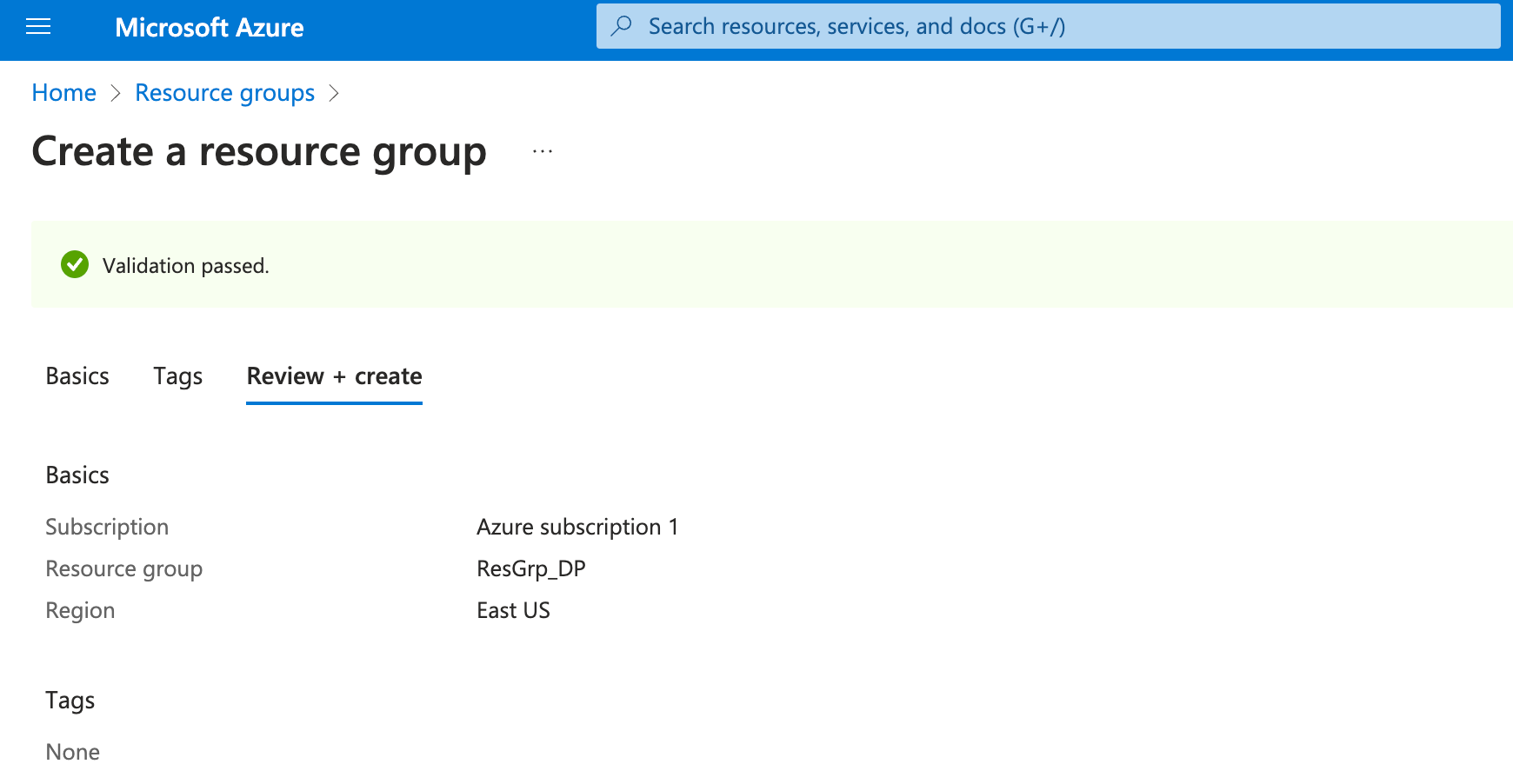 Azure resource group (Image by author)
#2 Create an Azure Data Lake Gen 2 storage account
You can choose a suitable storage account based on the requirements of performance and replication. In the advanced tab, we enable the Hierarchical Namespace to set up the Data Lake Storage Gen 2. This allows for storing both structured and unstructured data.
Azure resource group (Image by author)
#2 Create an Azure Data Lake Gen 2 storage account
You can choose a suitable storage account based on the requirements of performance and replication. In the advanced tab, we enable the Hierarchical Namespace to set up the Data Lake Storage Gen 2. This allows for storing both structured and unstructured data.
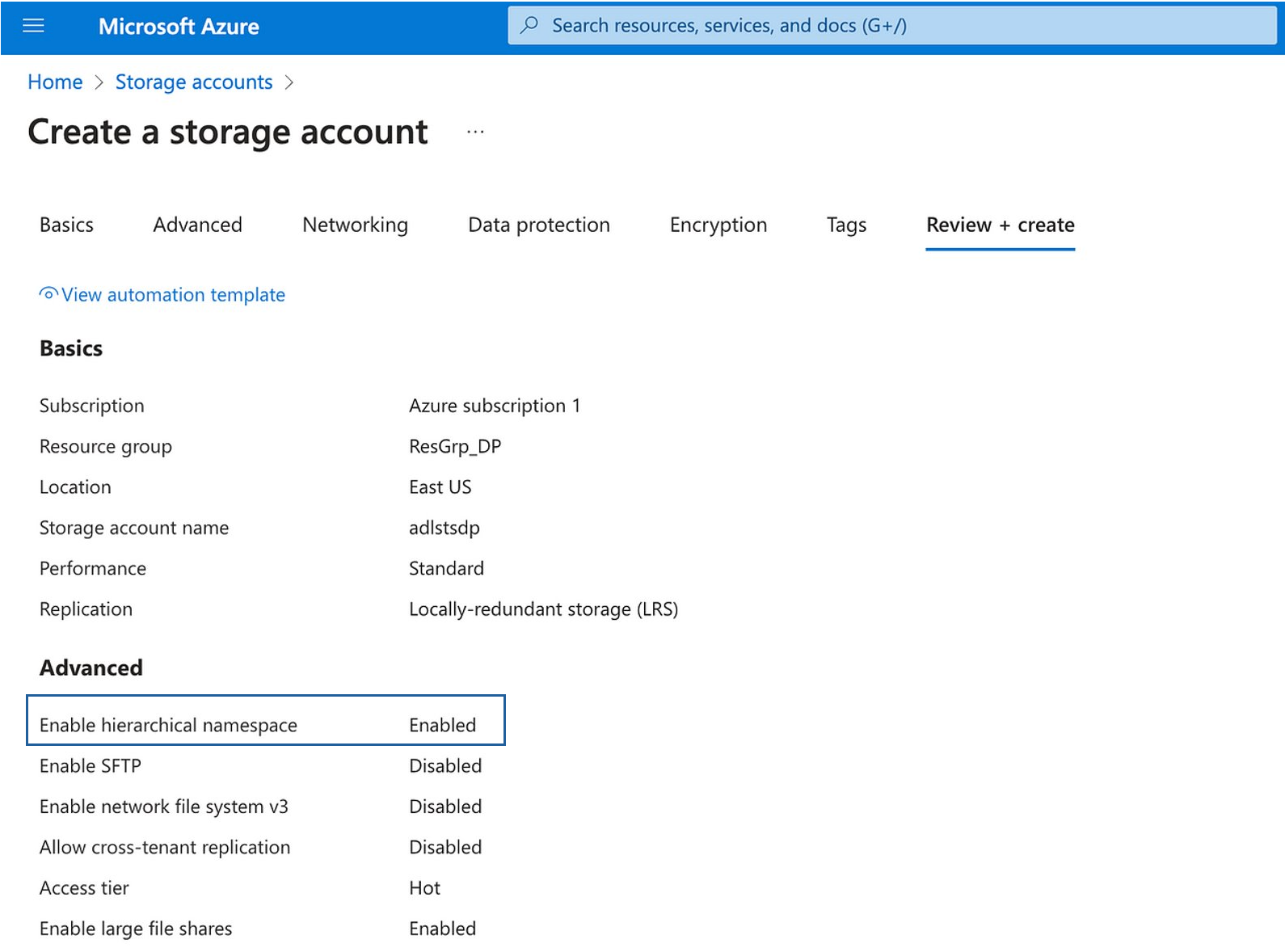 Storage account (Image by author)
#3 Set up Azure Databricks service
If you have used Databricks before, Azure Databricks service is largely the same. Besides, it is natively integrated with other Azure services and provides a unified billing platform. There are two tiers: (1) Standard - sufficient for our proof-of-concept here; and (2) Premium - the features of the Standard tier, with additionally the Unity Catalog and the advanced networking features that may be necessary for a large enterprise with multiple Databricks workspaces.
Storage account (Image by author)
#3 Set up Azure Databricks service
If you have used Databricks before, Azure Databricks service is largely the same. Besides, it is natively integrated with other Azure services and provides a unified billing platform. There are two tiers: (1) Standard - sufficient for our proof-of-concept here; and (2) Premium - the features of the Standard tier, with additionally the Unity Catalog and the advanced networking features that may be necessary for a large enterprise with multiple Databricks workspaces.
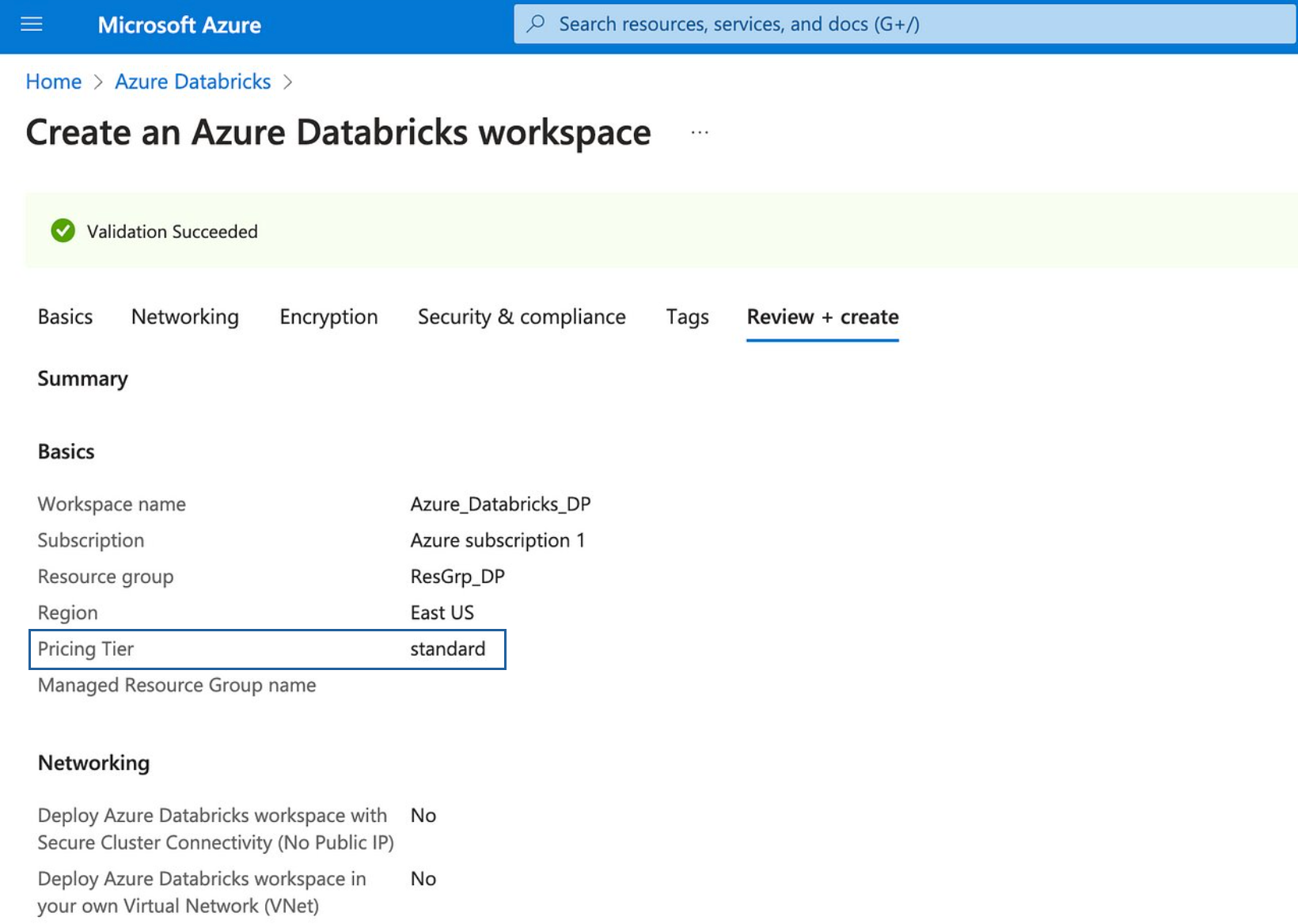 Azure Databricks workspace (Image by author)
#4 Register an application
This service will help mount Azure storage to Databricks, so make sure you note the application ID and tenant ID, and most importantly the app secret value, which cannot be viewed when you revisit it.
Azure Databricks workspace (Image by author)
#4 Register an application
This service will help mount Azure storage to Databricks, so make sure you note the application ID and tenant ID, and most importantly the app secret value, which cannot be viewed when you revisit it.
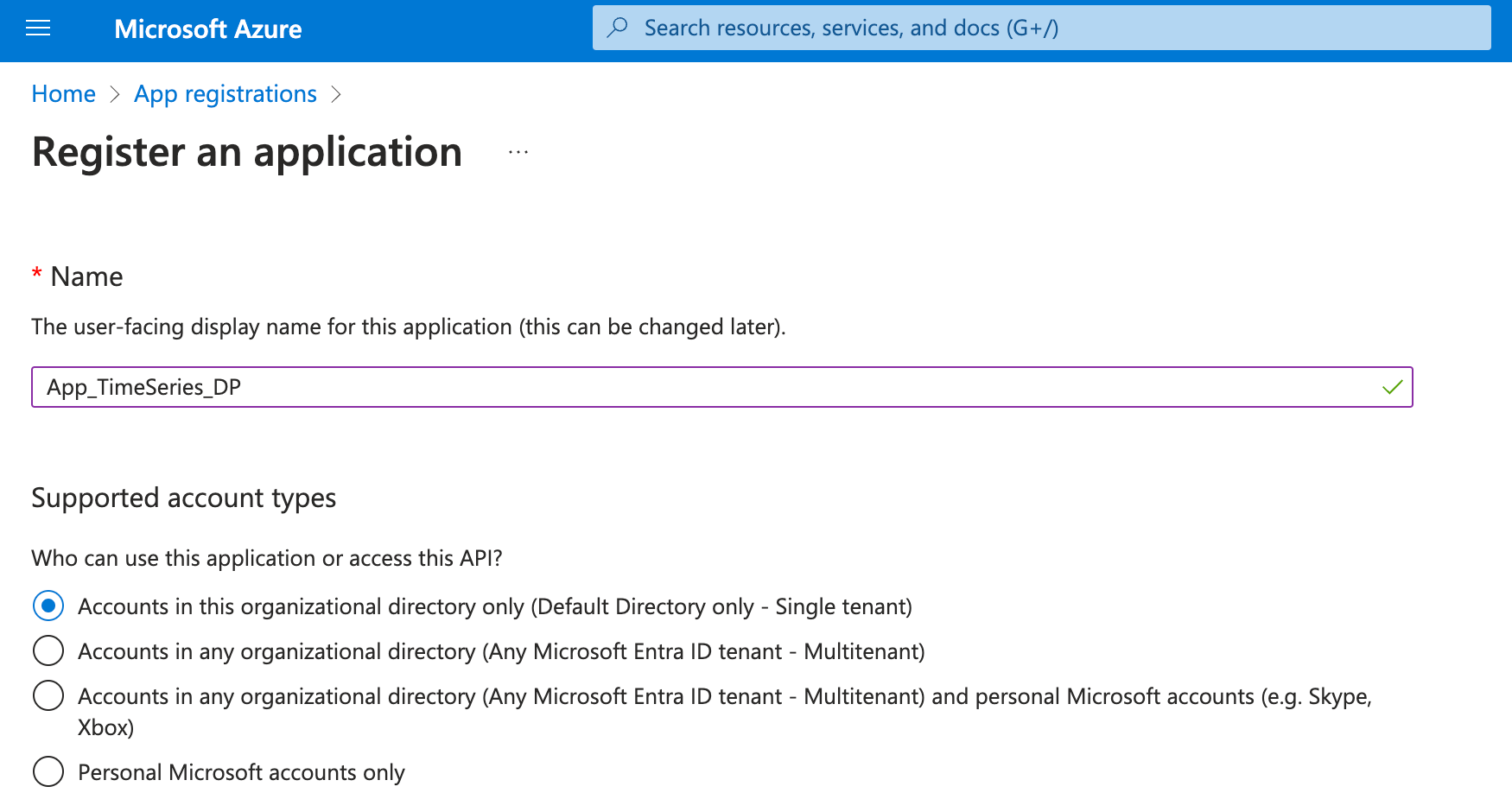 App registration - Setting (Image by author)
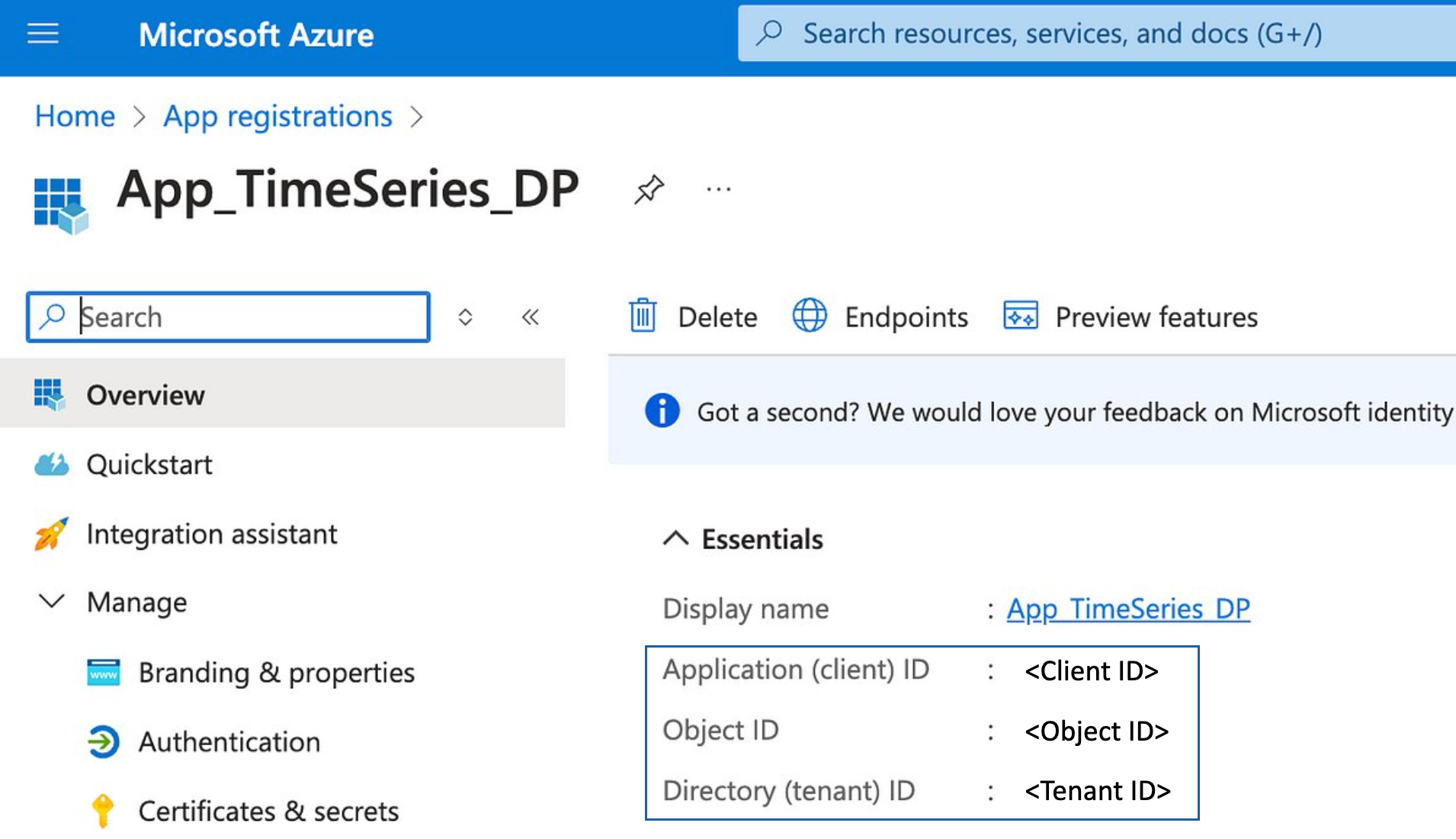 App registration - Info (Image by author)
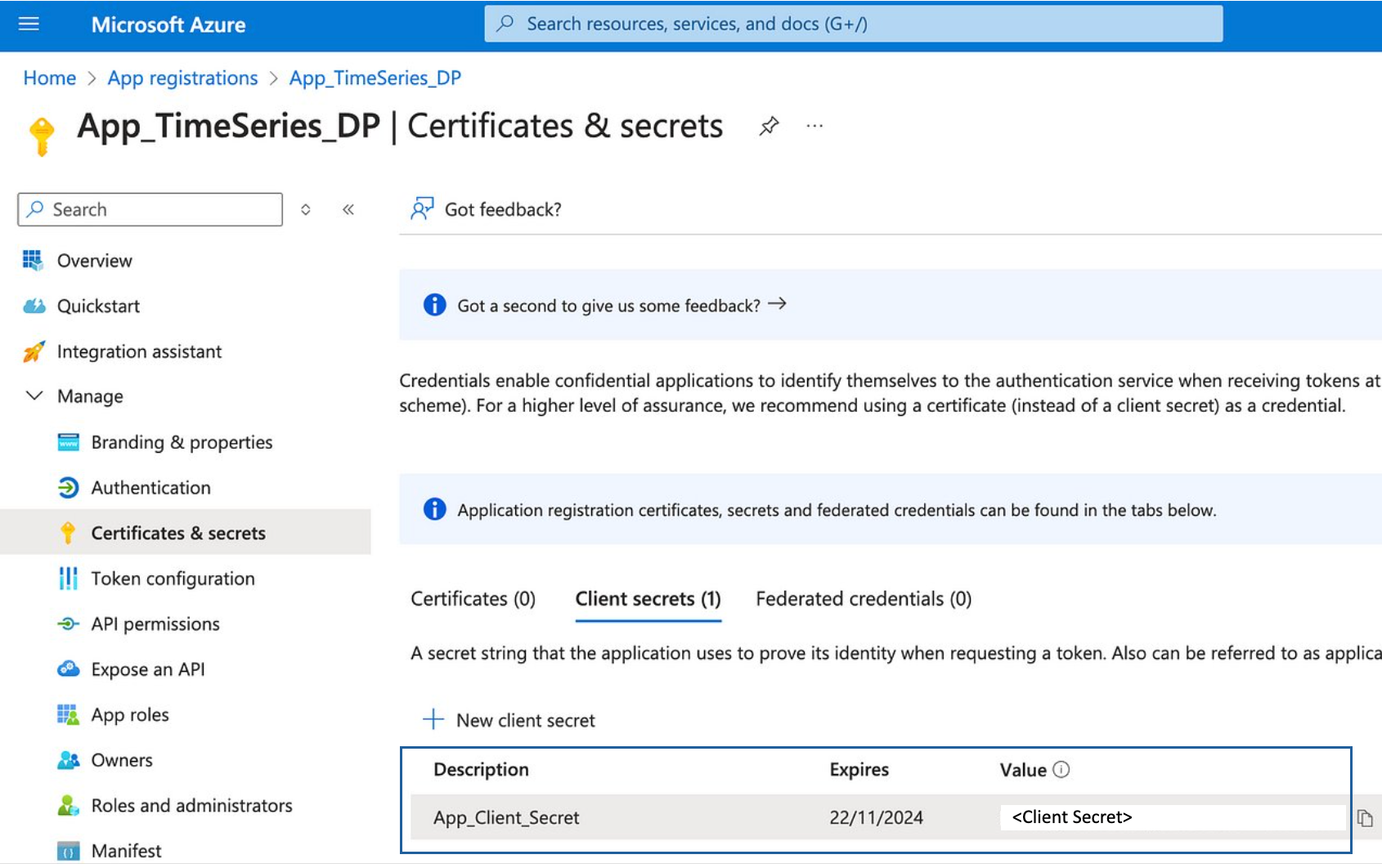 App registration - Client secret (Image by author)
Afterward, grant the app service access rights to the app service. This is achieved by assigning the "Storage Blob Data Contributor" role to the app we just registered.
App registration - Client secret (Image by author)
Afterward, grant the app service access rights to the app service. This is achieved by assigning the "Storage Blob Data Contributor" role to the app we just registered.
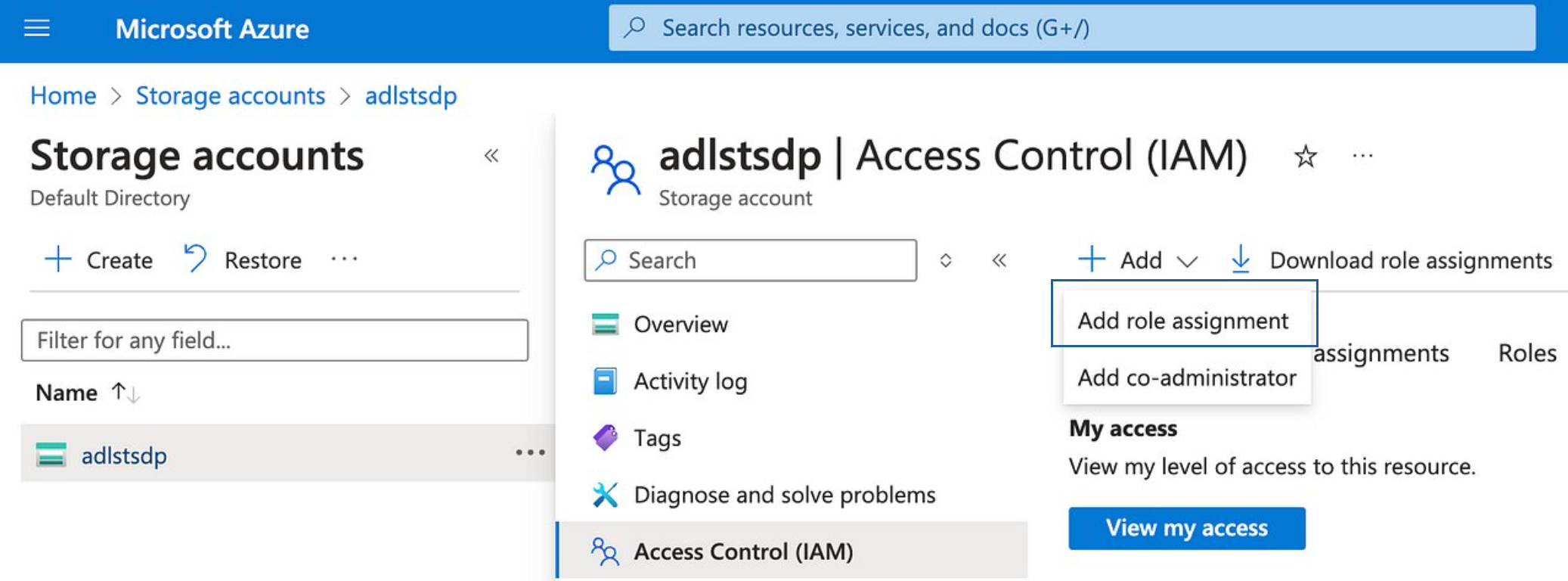 Storage account - Grant access right (1/3) (Image by author)
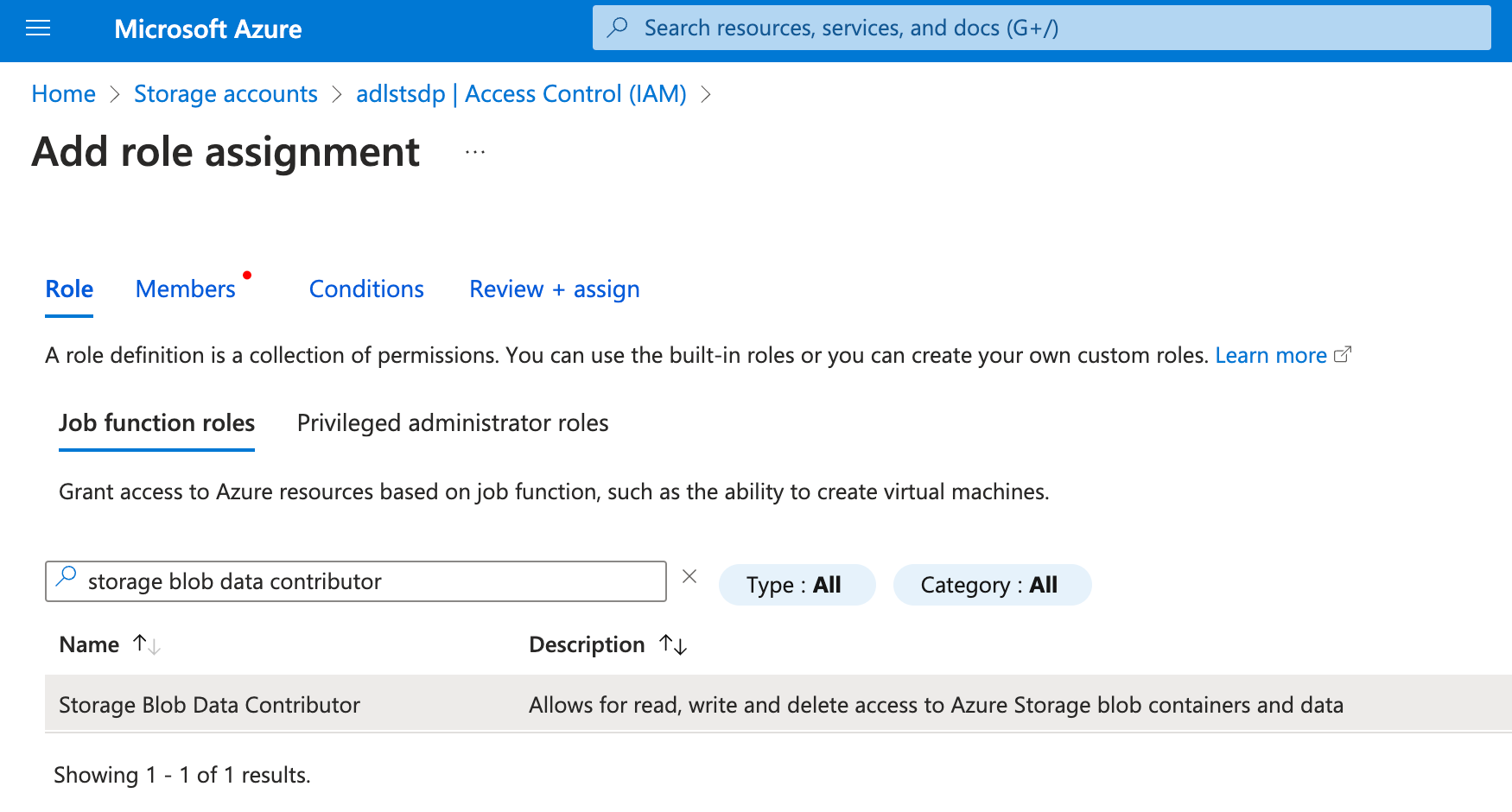 Storage account - Grant access right (2/3) (Image by author)
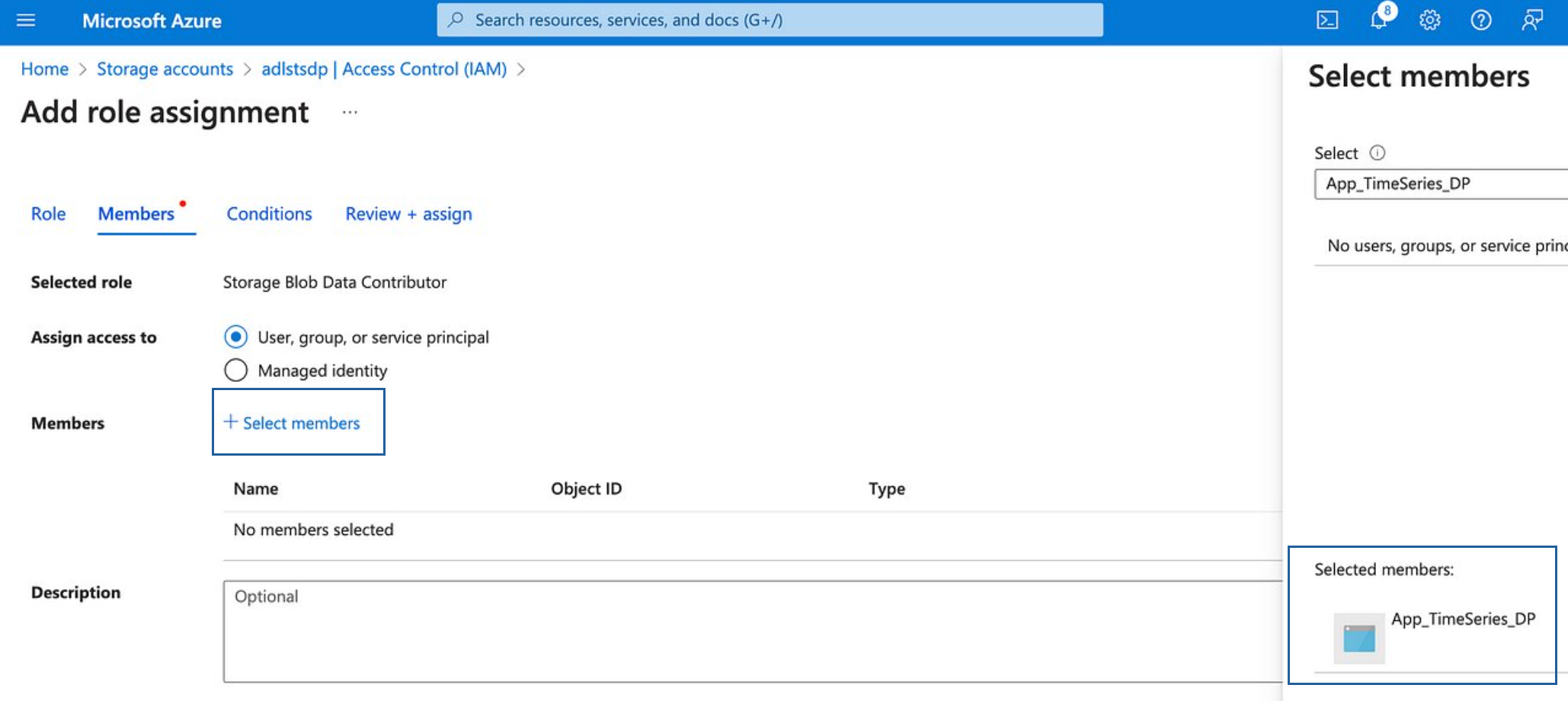 Storage account - Grant access right (3/3) (Image by author)
#5 Create Azure SQL Database
To store a transformed data frame, we search for Azure SQL resources and pick a "Single database" as the resource type. There are choices of SQL database servers with different computing hardware, maximum data size, and more. You can instantly get the estimated cost summary while adjusting the server specifications.
Storage account - Grant access right (3/3) (Image by author)
#5 Create Azure SQL Database
To store a transformed data frame, we search for Azure SQL resources and pick a "Single database" as the resource type. There are choices of SQL database servers with different computing hardware, maximum data size, and more. You can instantly get the estimated cost summary while adjusting the server specifications.
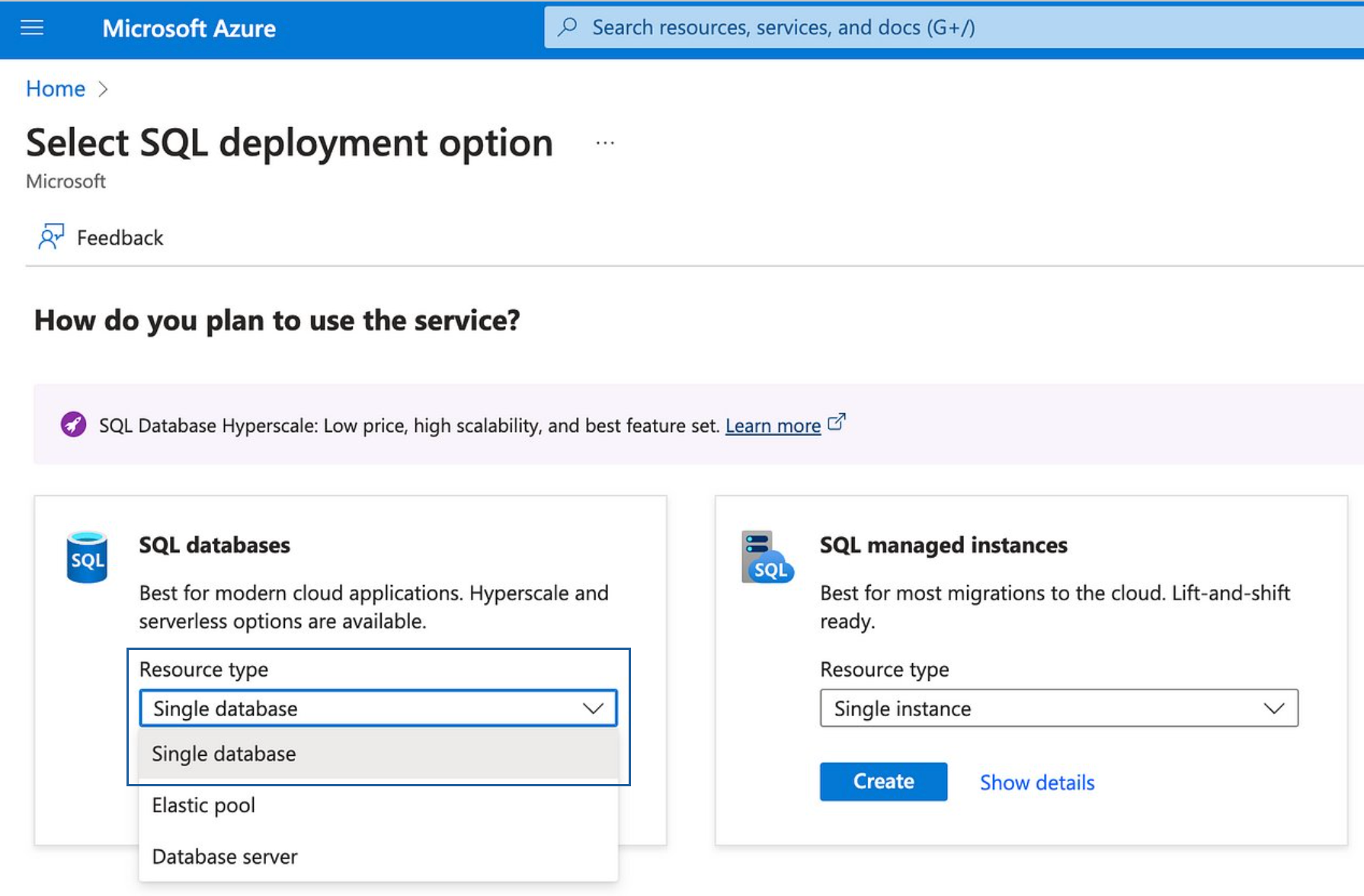 Create SQL Database (1/2) (Image by author)
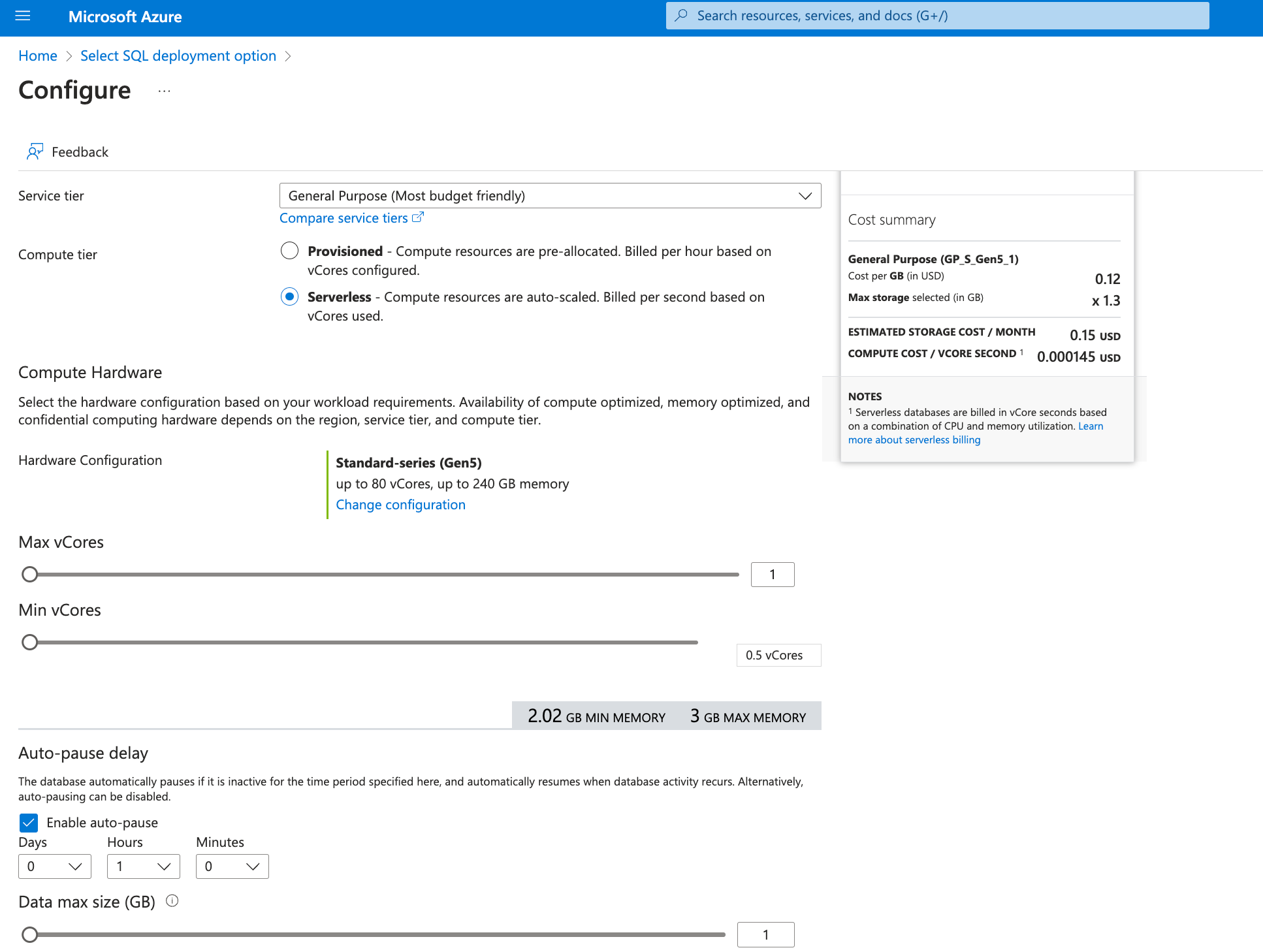 Create SQL Database (2/2) (Image by author)
After all the initial setups, you are ready to explore how these services are linked together.
Create SQL Database (2/2) (Image by author)
After all the initial setups, you are ready to explore how these services are linked together.
Prepare for data orchestrating pipeline
#1 Ingest data
We first upload the electric power consumption data to Azure Data Lake Gen2. This dataset [with license as Database: Open Database, Contents: Database Contents], obtained from Kaggle, is sampled at a one-minute rate from December 2006 to November 2010.
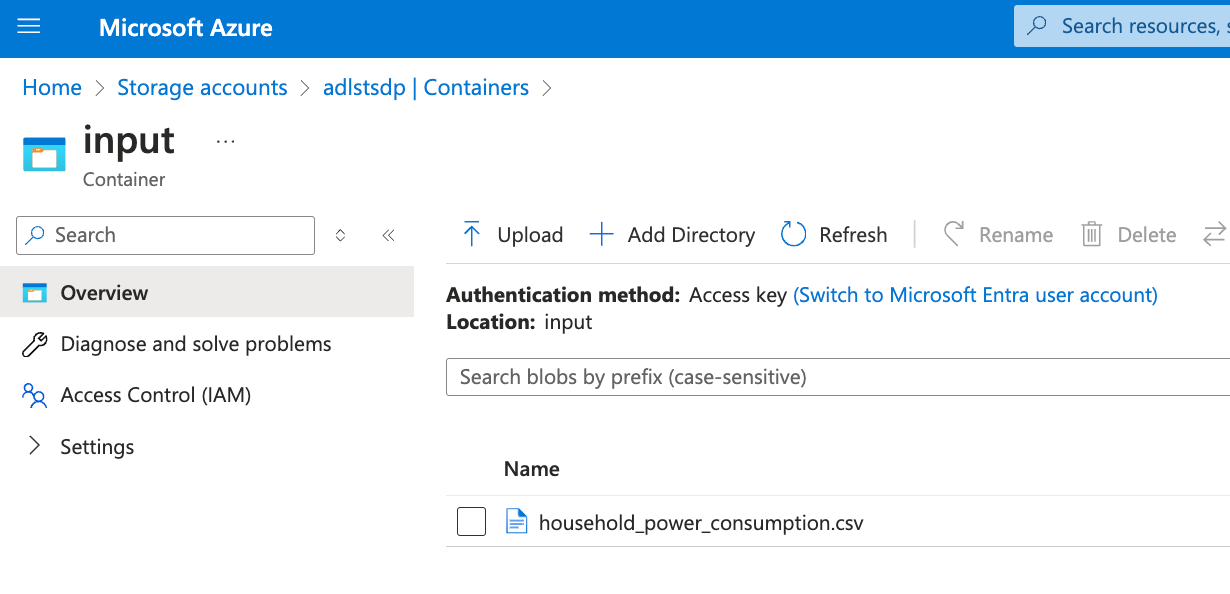 Upload input data (Image by author)
Next, we create a Notebook on the Azure Databricks workspace and mount storage by defining the parameters using previously stored ID values.
python
Upload input data (Image by author)
Next, we create a Notebook on the Azure Databricks workspace and mount storage by defining the parameters using previously stored ID values.
python
# Define the configuration specifications
configs = {"fs.azure.account.auth.type": "OAuth",
"fs.azure.account.oauth.provider.type": "org.apache.hadoop.fs.azurebfs.oauth2.ClientCredsTokenProvider",
"fs.azure.account.oauth2.client.id": "<Client ID>",
"fs.azure.account.oauth2.client.secret": "<Client Secret>",
"fs.azure.account.oauth2.client.endpoint": "https://login.microsoftonline.com/<Tenant ID>/oauth2/token"
}

dbutils.fs.mount(
  source = "abfss://input@adlstsdp.dfs.core.windows.net/", # URI of the object storage
  mount_point = "/mnt/adlstsdp/input",  # local path in the /mnt directory
  extra_configs = configs)
To verify file access, we can run the following command:
python
dbutils.fs.ls("/mnt/adlstsdp/input")

# Output: [FileInfo(path='dbfs:/mnt/adlstsdp/input/household_power_consumption.csv', name='household_power_consumption.csv', size=132960755, modificationTime=1716798010000)]
#2 Embed Notebook on Azure Databricks
Most of the source codes in this section build upon my previous story. The idea is to perform data cleansing, transformation, and feature engineering (create time-related and moving averaging features). The transformed data is ultimately written to the Azure database table.
You can check the complete code below to see the implementation.
python
# Define file location, file typem and CSV options
file_location = "/mnt/adlstsdp/input/household_power_consumption.csv"
file_type = "csv"
schema = "Date STRING, Time STRING, Global_active_power DOUBLE, Global_reactive_power DOUBLE, Voltage DOUBLE, Global_intensity DOUBLE, Sub_metering_1 DOUBLE, Sub_metering_2 DOUBLE, Sub_metering_3 DOUBLE"
first_row_is_header = "true"
delimiter = ";"

# Read CSV files
org_df = spark.read.format(file_type)
  .schema(schema)
  .option("header", first_row_is_header)
  .option("delimiter", delimiter)
  .load(file_location)

# Data cleansing and transformation
from pyspark.sql.functions import *
cleaned_df = org_df.na.drop()
cleaned_df = cleaned_df.withColumn("Date", to_date(col("Date"),"d/M/y"))
cleaned_df = cleaned_df.withColumn("Date", cleaned_df["Date"].cast("date"))
cleaned_df = cleaned_df.select(concat_ws(" ", to_date(col("Date"),"d/M/y"), col("Time")).alias("DateTime"), "*")
cleaned_df = cleaned_df.withColumn("DateTime", cleaned_df["DateTime"].cast("timestamp"))
df = cleaned_df.groupby("Date").agg(
    round(sum("Global_active_power"), 2).alias("Total_global_active_power"),
    ).sort(["Date"])

# Add time-related features
df = df.withColumn("year", year("Date"))
df = df.withColumn("month", month("Date"))
df = df.withColumn("week_num", weekofyear("Date"))

# Add lagged value features of total global active power
from pyspark.sql.window import Window
from pyspark.sql.functions import lag

windowSpec = Window.orderBy("Date")
df = df.withColumn("power_lag1", round(lag(col("Total_global_active_power"), 1).over(windowSpec), 2))

# Create delta field
df = df.withColumn("power_lag1_delta", round(col("power_lag1") - col("Total_global_active_power"), 2))

# Create window average fields
def add_window_avg_fields(df, window_sizes):
    for idx, window_size in enumerate(window_sizes, start=1):
        window_col_name = f"avg_power_lag_{idx}"
        windowSpec = Window.orderBy("Date").rowsBetween(-window_size, 0)
        df = df.withColumn(window_col_name, round(avg(col("Total_global_active_power")).over(windowSpec), 2))
    return df

window_sizes = [14, 30]
df = add_window_avg_fields(df, window_sizes)

# Create Exponentially Weighted Moving Average (EWMA) fields
import pyspark.pandas as ps
ps.set_option('compute.ops_on_diff_frames', True)

def add_ewma_fields(df, alphas):
    for idx, alpha in enumerate(alphas, start=1):
        ewma_col_name = f"ewma_power_weight_{idx}"
        windowSpec = Window.orderBy("Date")
        df[ewma_col_name] = df.Total_global_active_power.ewm(alpha=alpha).mean().round(2)
    return df

alphas = [0.2, 0.8]
df_pd = df.pandas_api()
df_pd = add_ewma_fields(df_pd, alphas)
df = df_pd.to_spark()

# Write transformed dataframe to the database table "electric_usage_table"
df.write.format("jdbc")
    .option("url", "jdbc:sqlserver://sql-db-dp.database.windows.net:1433;databaseName=sql-db-dp")
    .option("dbtable", "dbo.electric_usage_table")
    .option("user", "<username>")
    .option("password", "<password>")
    .mode("overwrite")
    .save()
#3 Build a basic pipeline in ADF
In ADF, we add a "Notebook" activity to the pipeline environment, then configure it to reference the desired Notebook in the Databricks folder. Set up the Databricks linked service, then validate and publish the entire activity pipeline in ADF. You can then run the pipeline in "Debug" mode.
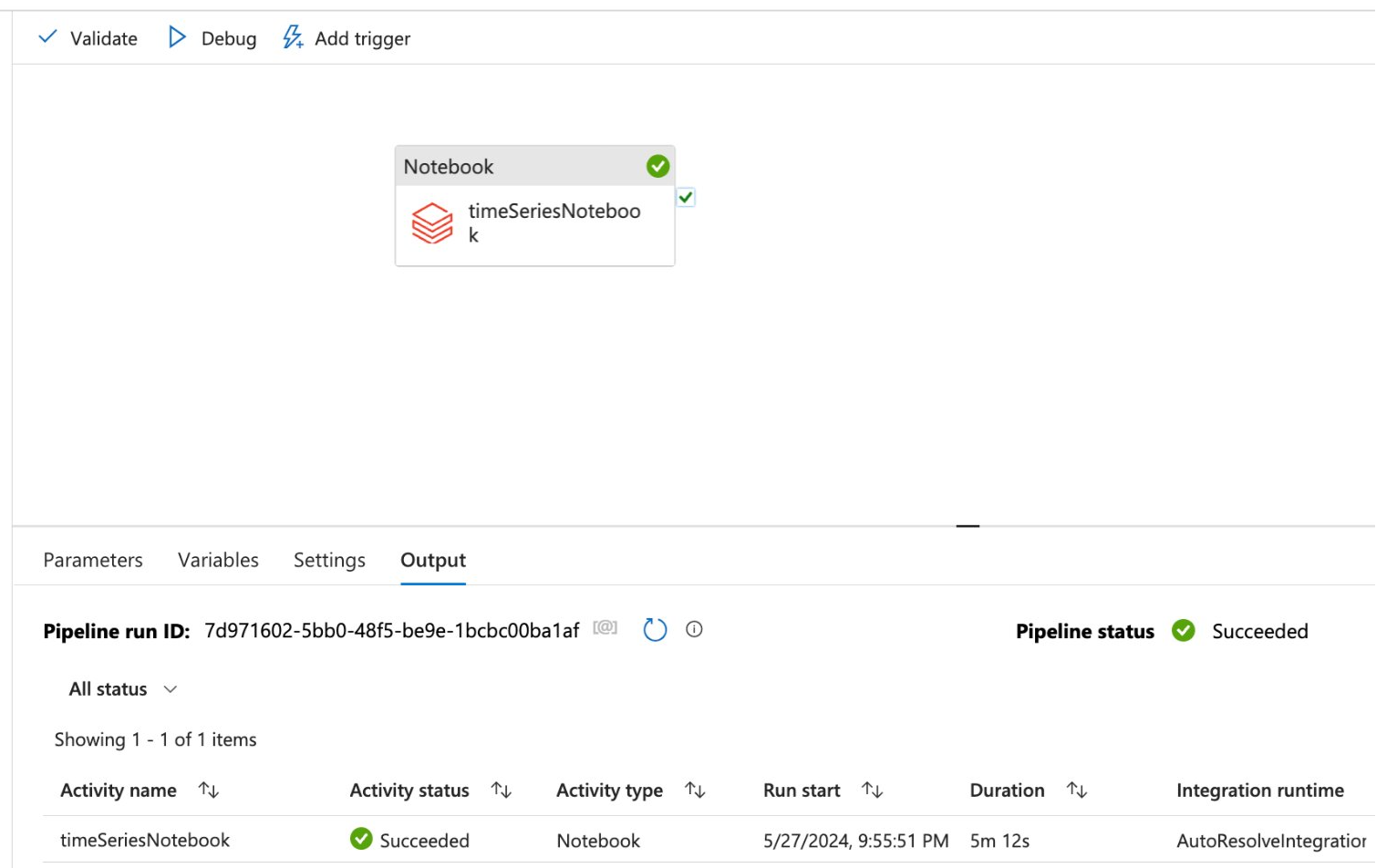 The success status of pipeline run (Image by author)
The activity status shows "Succeeded", meaning the data should be migrated and inserted into the Azure SQL Database table. We can view the results for verification using the query editor.
The success status of pipeline run (Image by author)
The activity status shows "Succeeded", meaning the data should be migrated and inserted into the Azure SQL Database table. We can view the results for verification using the query editor.
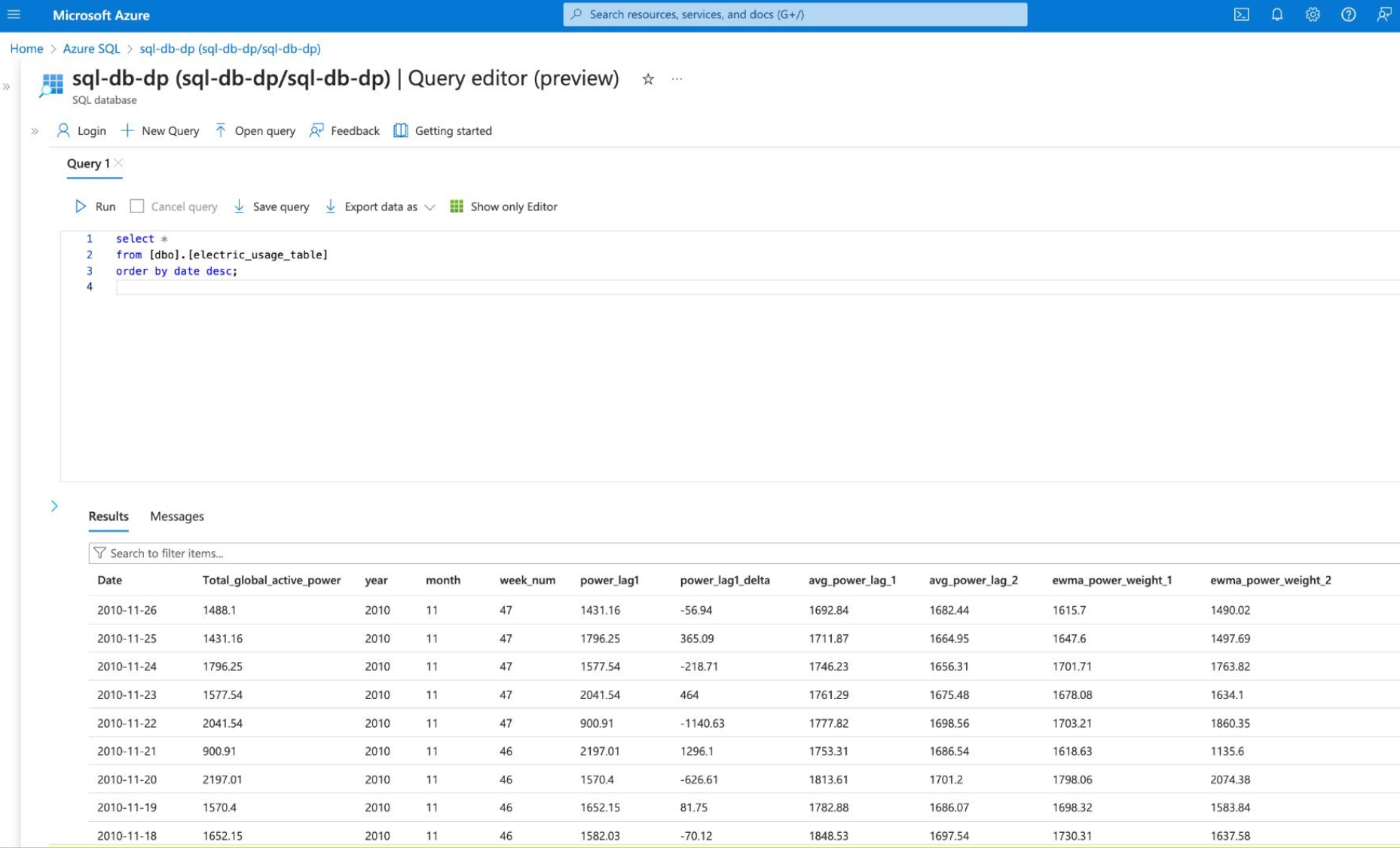 Query result of the Azure SQL database (Image by author)
#4 Automate the pipeline
ADF offers functionalities that are far beyond the above simple implementation. For example, we can automate the pipeline by creating a storage-based event trigger. Make sure that
Query result of the Azure SQL database (Image by author)
#4 Automate the pipeline
ADF offers functionalities that are far beyond the above simple implementation. For example, we can automate the pipeline by creating a storage-based event trigger. Make sure that Microsoft.EventGrid is registered as one of the resource providers in your account subscription, then set up the trigger: Whenever a new dataset is uploaded to the storage account, the pipeline will automatically execute.
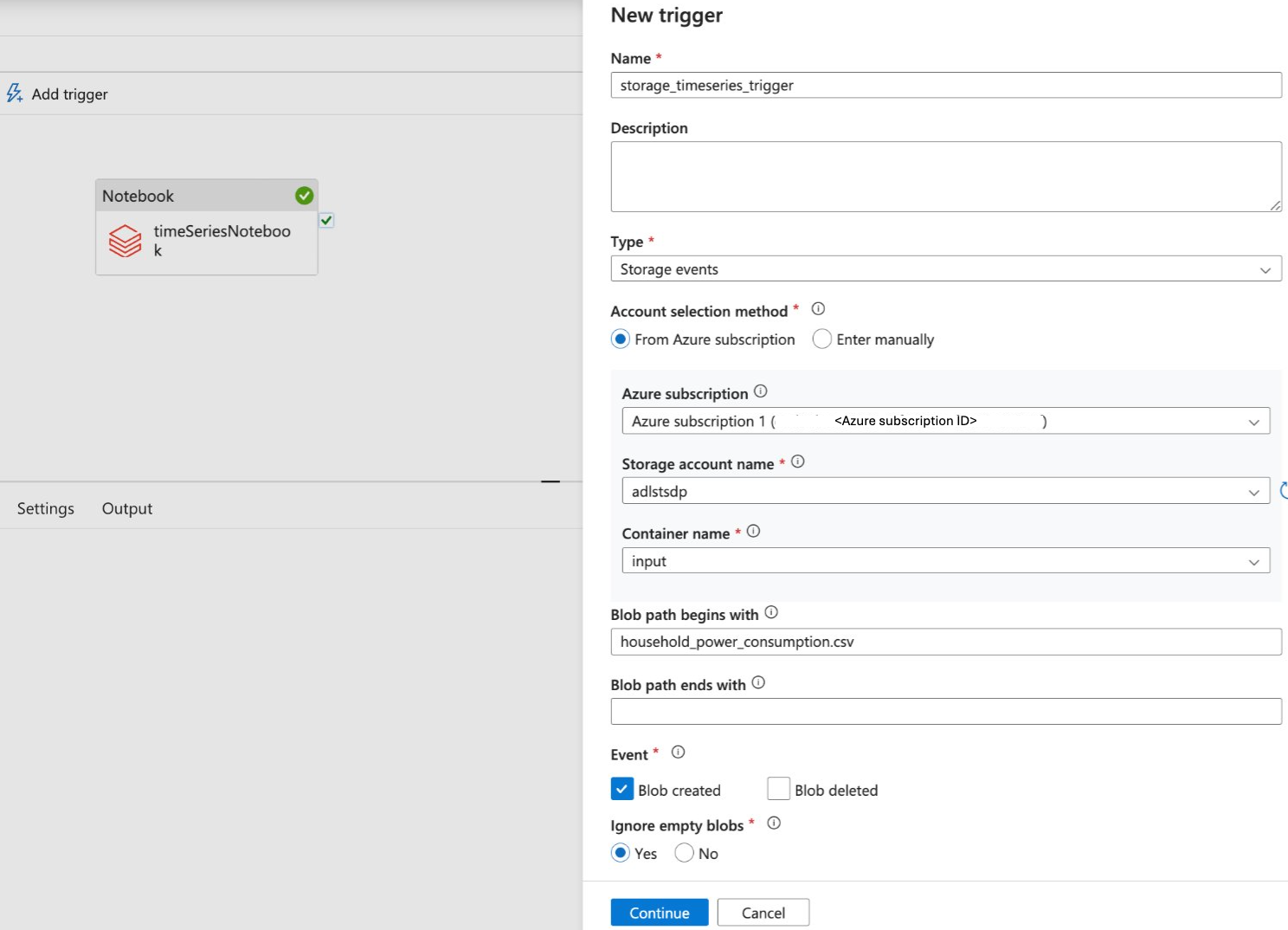 Set a new trigger in ADF (Image by author)
This type of trigger has various use cases in the industries, such as monitoring the inventory level to replenish orders for the supply chain or tracking customer interactions for personalized recommendations in digital marketing.
#5 Parameterize the Notebook variables
To take a further step to build a more dynamic data pipeline, we can make variables more parametric. For example, during feature engineering on time-series data, the window size of data features may not be optimized initially. The window sizes may need to be adjusted to capture seasonal patterns or based on downstream model fine-tuning. For this scenario, we can amend with the below settings.
Set a new trigger in ADF (Image by author)
This type of trigger has various use cases in the industries, such as monitoring the inventory level to replenish orders for the supply chain or tracking customer interactions for personalized recommendations in digital marketing.
#5 Parameterize the Notebook variables
To take a further step to build a more dynamic data pipeline, we can make variables more parametric. For example, during feature engineering on time-series data, the window size of data features may not be optimized initially. The window sizes may need to be adjusted to capture seasonal patterns or based on downstream model fine-tuning. For this scenario, we can amend with the below settings.
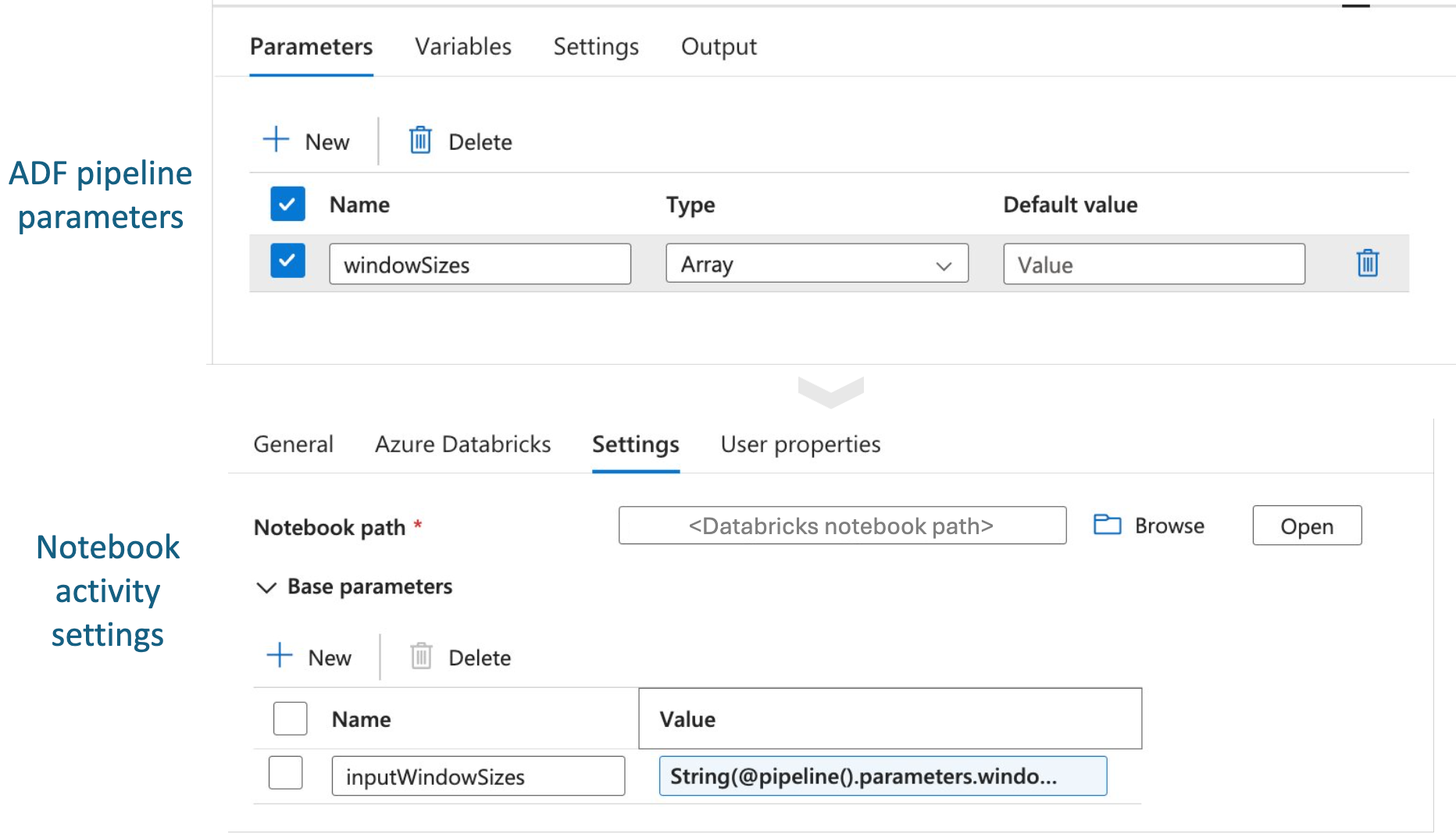 Set up parameters for pipeline run (Image by author)
In the Notebook, add the code below to create a widget that can get the parameters input from the ADF pipeline:
python
Set up parameters for pipeline run (Image by author)
In the Notebook, add the code below to create a widget that can get the parameters input from the ADF pipeline:
python
# Additional code: Access the current value of the widget
inputWindowSizes = dbutils.widgets.get("inputWindowSizes")
window_sizes = inputWindowSizes.split(",")

# Original function for adding window average features
df = add_window_avg_fields(df, window_sizes)
After adjusting the settings and the Notebook codes, we can run the pipeline by providing the window size parameter values, such as 30 and 60.
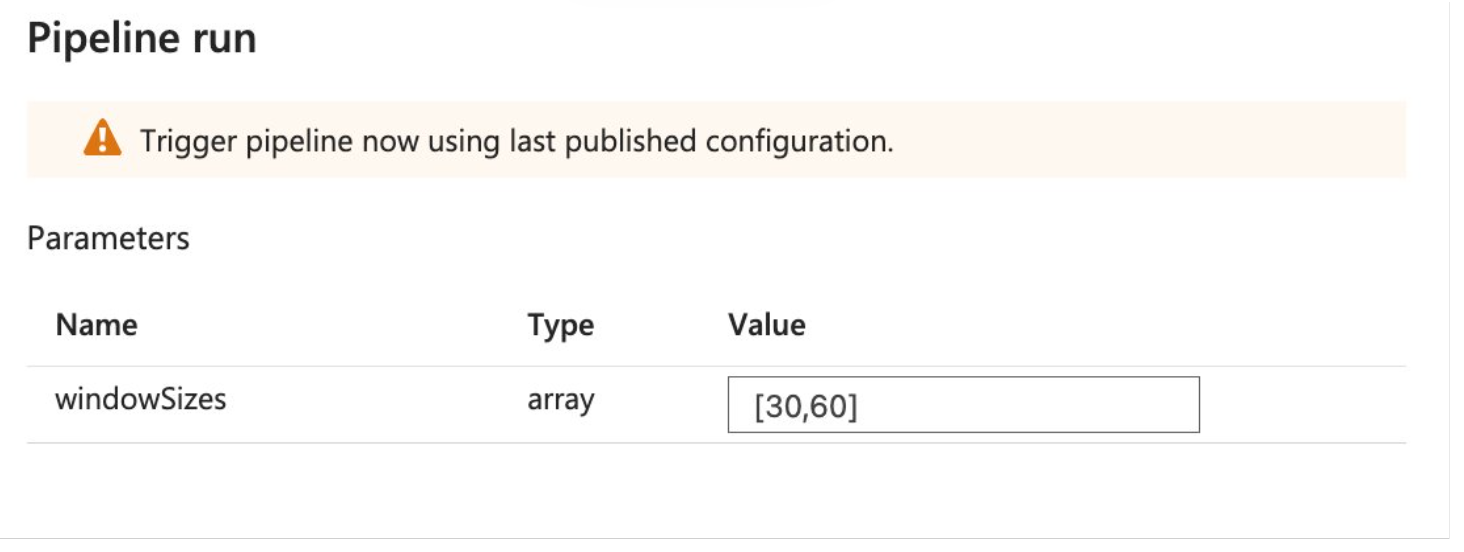 Input window size value for pipeline run (Image by author)
Finally, we can monitor the pipeline status again using ADF or Databricks workspace.
Input window size value for pipeline run (Image by author)
Finally, we can monitor the pipeline status again using ADF or Databricks workspace.
Wrapping it up
In our hands-on exploration, we mainly used ADF with Azure Databricks to orchestrate a dynamic time-series data pipeline:
- Setup the cloud resources for the compute, analytics, and storage
- Build the skeleton of the data pipeline from data ingestion to storage
- Bring flexibilities to the pipeline by creating triggers and parameterizing variables
At the enterprise level, more complex cloud architectures may be implemented to satisfy evolving needs, such as streaming data, model monitoring, and multi-model pipelines. It thus becomes essential to strive for a delicate balance between performance, reliability, and cost-efficiency through team collaboration on governance policies and spending management.
Before you go
If you enjoy this reading, I invite you to **** follow my Medium page and LinkedIn page. By doing so, you can stay updated with exciting content related to data science side projects and Machine Learning Operations (MLOps) demonstration methodologies.
Performing Customer Analytics with LangChain and LLMs
Managing the Technical Debts of Machine Learning Systems
Register Now to Continue Reading
Unlock Towards Data Science with a Free Account
All articles on Towards Data Science are available to registered users. Create a free account today to access this article and thousands more.
Register for freeSign in to your account
 Written By
See all from John Leung
AzureBig DataData EngineeringDatabricksSpark
Share This Article
Towards Data Science is a community publication. Submit your insights to reach our global audience and earn through the TDS Author Payment Program.
Write for TDS
Related Articles
Artificial Intelligence
How to leverage a framework to effectively prioritize AI Initiatives to rapidly accelerate growth and efficiency
Hugo Lu
March 24, 202625 min read
Data Science
We are using the newest Taskflow API from Airflow 2.0 to simplify DAG's syntax substantially.
Pedro Madruga
August 8, 20213 min read
Data Engineering
Drafting data engineering practices
Micha Kunze
October 31, 20208 min read
Data Engineering
This article compares and benchmarks various insert strategies, focusing on trade-offs between safety, abstraction, and throughput — and choosing the right tool for the job.
Mike Huls
January 8, 20265 min read
Machine Learning
The easiest and cheapest way to deploy ML models on Azure
Ricardo Carvalho
December 29, 20215 min read
Programming
Working with datetimes in Python and pandas
Giorgos Myrianthous
January 6, 20234 min read
Data Engineering
A practical guide to building, testing, and documenting SQL transformations
Thomas Reid
September 9, 202622 min read
Consistency Issues or C in CAP theorem
Andriy Zabavskyy
September 19, 20203 min read
Programming
A detailed tutorial on how to create and expose custom Kafka Consumer metrics in Apache Spark's PrometheusServlet
Vitor Teixeira
February 2, 20236 min read
Your home for data science and AI. The world's leading publication for data science, data analytics, data engineering, machine learning, and artificial intelligence professionals.
Subscribe to Our NewsletterWrite For TDS•About•Advertise•Privacy Policy•Terms of Use
© Insight Media Group, LLC 2026•The New Stack•roadmap.sh•Creator Network
Recommended Articles
Close